> ## Documentation Index
> Fetch the complete documentation index at: https://docs.incident.io/llms.txt
> Use this file to discover all available pages before exploring further.
# Adding Uptime.com as an alert source
## Instructions
To open the alert source creation form directly, simply follow [this link](https://app.incident.io/~/alerts/sources/create), and skip to step 4.
1. Head over to the [Alerts](https://app.incident.io/~/alerts/sources) section in your incident.io dashboard
2. Select the Sources tab at the top of the page
3. Press the 'New alert source' button
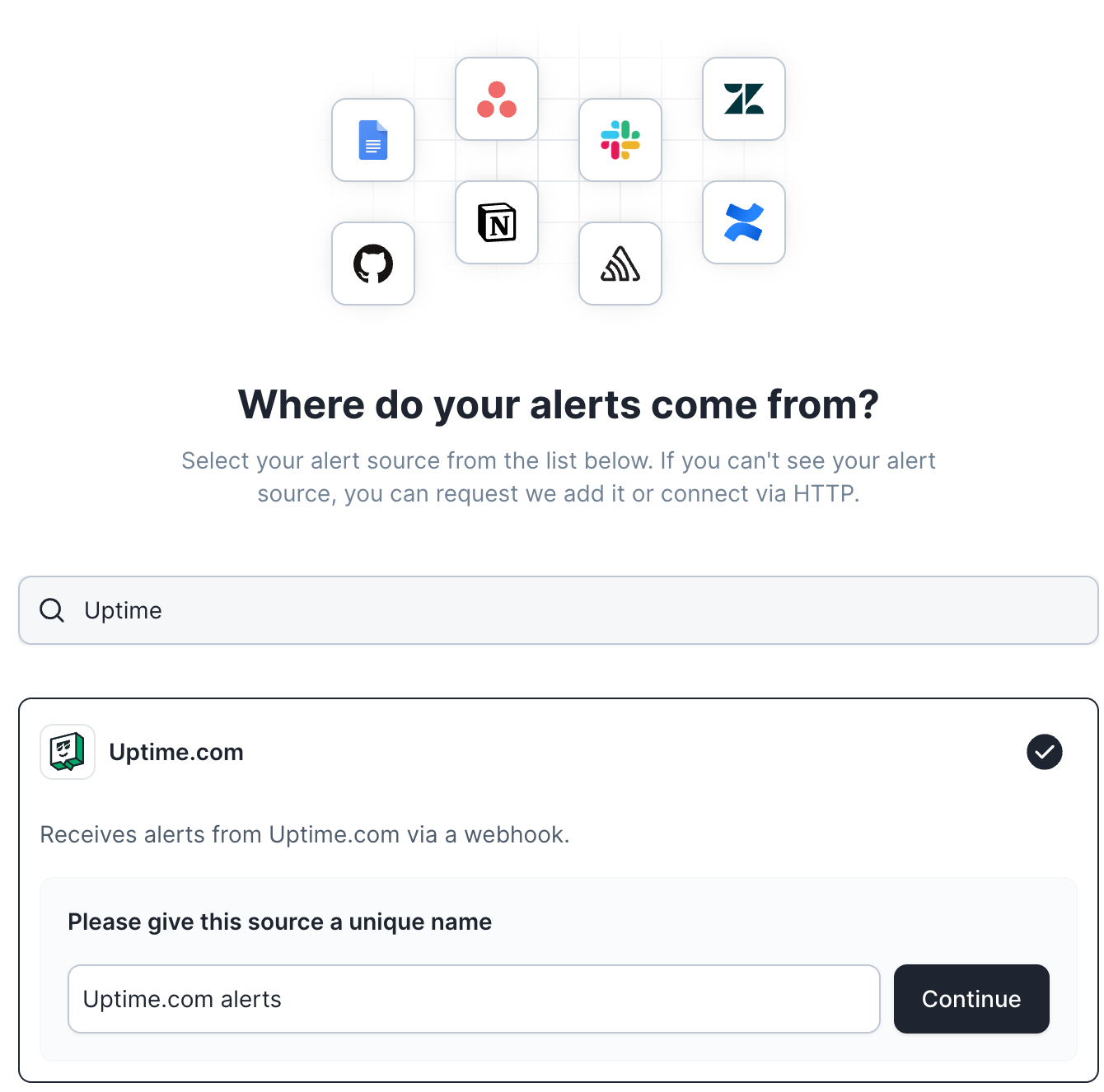
 4. Search for 'Uptime', select it and customize the name if desired. Click continue to create the alert source.
 5. Switch to your Uptime.com dashboard and navigate to Notifications: Integrations.
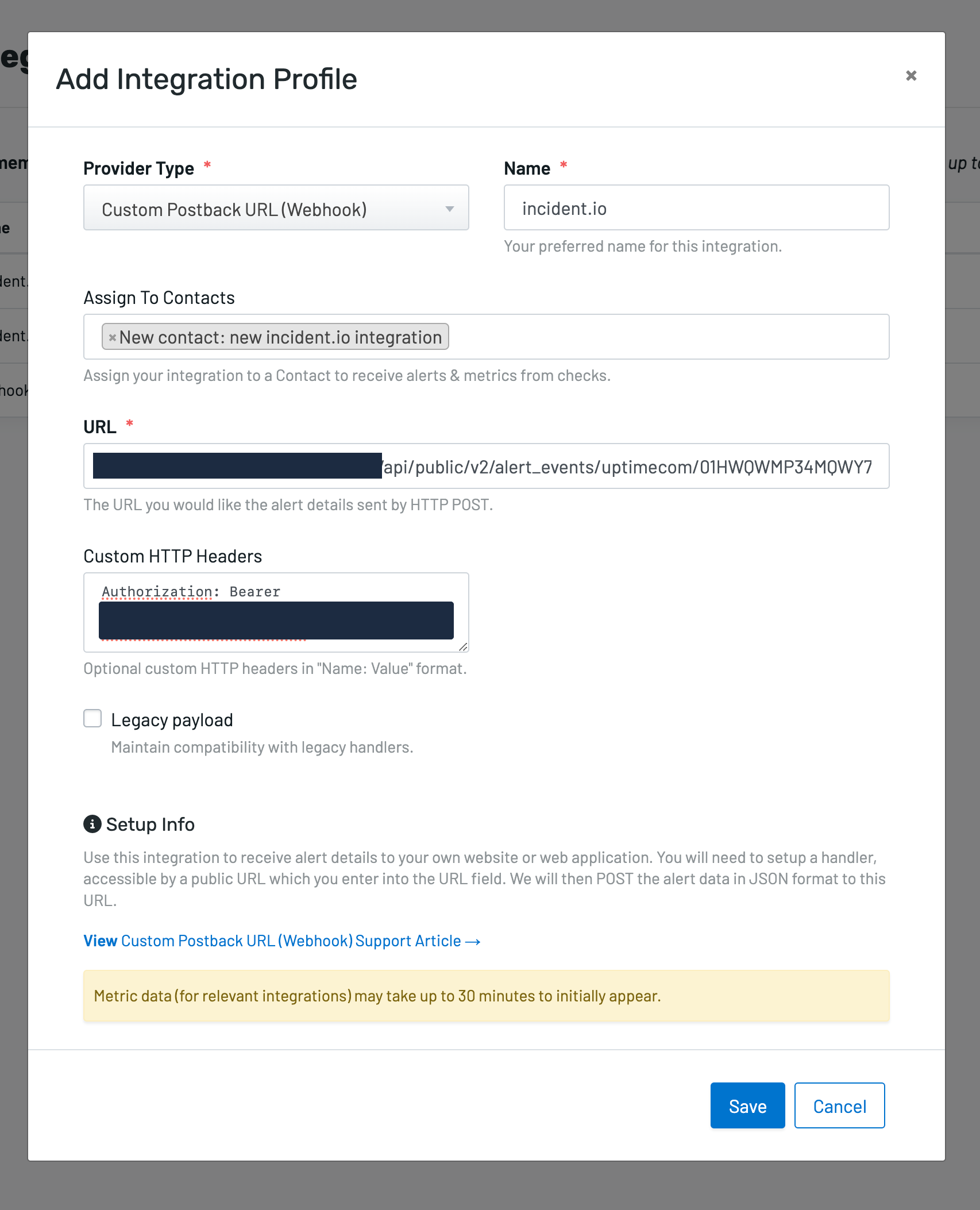
6. Click 'New Profile' in the top right, and select 'Custom Postback URL (Webhook)' as the provider type.
7. Assign the integration to an existing Uptime.com contact or create a new contact for the integration.
8. Grab the webhook URL and Authorization token provided to you on the incident.io alert source and paste them in to 'URL' and 'Custom HTTP Headers' field.
5. Switch to your Uptime.com dashboard and navigate to Notifications: Integrations.
6. Click 'New Profile' in the top right, and select 'Custom Postback URL (Webhook)' as the provider type.
7. Assign the integration to an existing Uptime.com contact or create a new contact for the integration.
8. Grab the webhook URL and Authorization token provided to you on the incident.io alert source and paste them in to 'URL' and 'Custom HTTP Headers' field.
 9. Once you've clicked save, Uptime will prompt you to test the integration. Click 'Start Test' and make sure the test alert arrives.
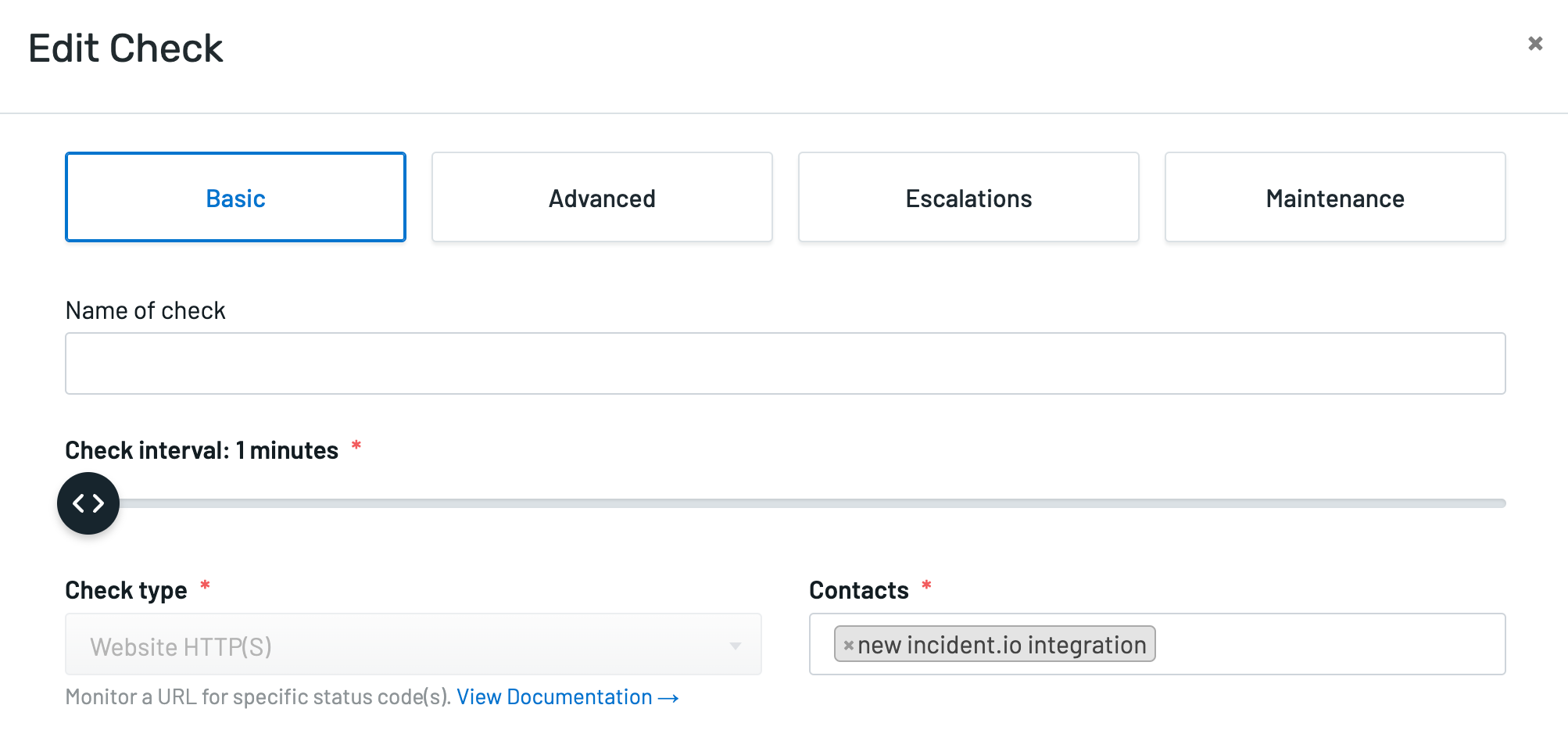
10. Navigate to 'Monitoring' to select the Uptime.com check(s) for which you want to receive alerts in incident.io and assign them to the contact you've assigned the Integration Profile to.
9. Once you've clicked save, Uptime will prompt you to test the integration. Click 'Start Test' and make sure the test alert arrives.
10. Navigate to 'Monitoring' to select the Uptime.com check(s) for which you want to receive alerts in incident.io and assign them to the contact you've assigned the Integration Profile to.
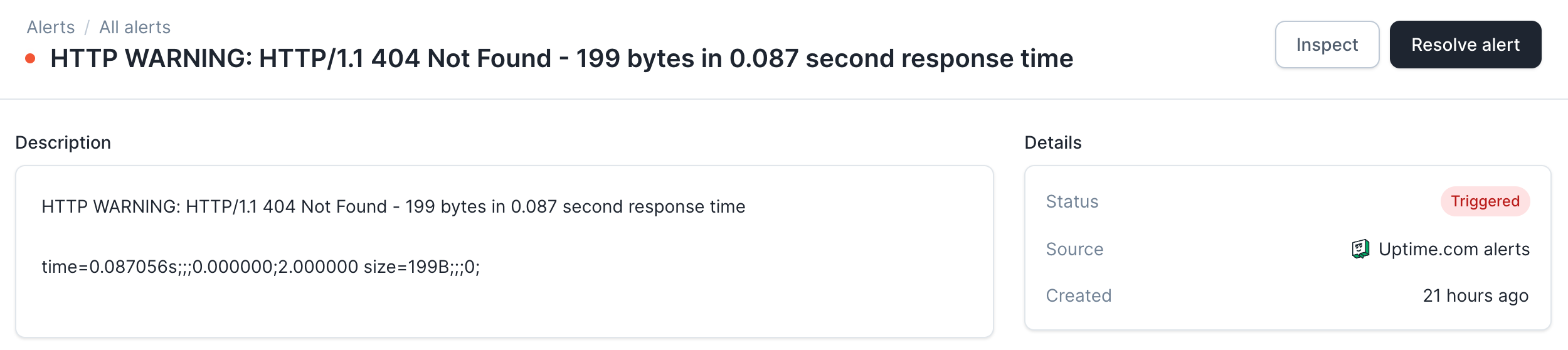
 And you're done! Next time an Uptime.com monitoring check fails, you'll receive an alert within incident.io.
 ## FAQs
When an Uptime.com monitoring check starts firing, you'll receive an alert in incident.io. If you receive additional failing checks from the monitor, these will be deduplicated in incident.io to limit alert noise.
**Uptime.com** ' `test` ' and ' `alert_raised` ' events map to the incident.io ' `firing` ' status. ' `alert_cleared` ' events map to the incident.io ' `resolved` ' status.
## FAQs
When an Uptime.com monitoring check starts firing, you'll receive an alert in incident.io. If you receive additional failing checks from the monitor, these will be deduplicated in incident.io to limit alert noise.
**Uptime.com** ' `test` ' and ' `alert_raised` ' events map to the incident.io ' `firing` ' status. ' `alert_cleared` ' events map to the incident.io ' `resolved` ' status.