> ## Documentation Index
> Fetch the complete documentation index at: https://docs.incident.io/llms.txt
> Use this file to discover all available pages before exploring further.
# Alerts and teams
> Route alerts to the right team, and control who can act on them
Now that you have [Alerts sources](https://app.incident.io/~/alerts/sources) set up, and have [extracted all your desired data](/integrations/json-alert-data) from the Alert JSON payload, such as Team, Status, etc. We can use this data to:
1. Set catalog-backed custom fields
2. Escalate to a team's escalation path
3. Announce to the team's Slack channel and so much more
In this article, we'll focus on escalating to the responsible team so that only the team responsible for a certain area will be notified, ensuring that the right people are involved from the beginning of an incident.
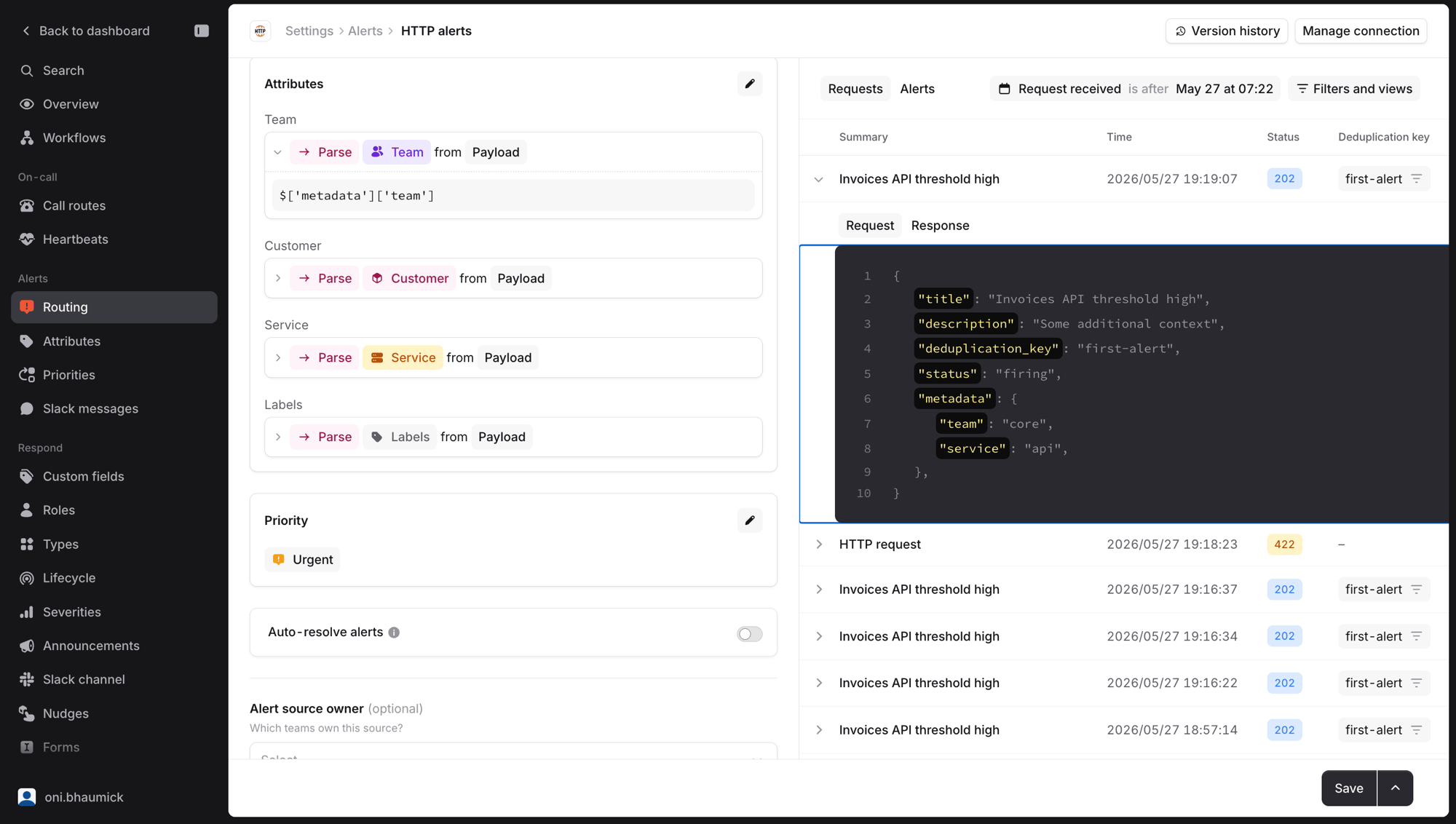 ## Setting the right attribute resource type
Before we can set these attributes, let's take a closer look at the "Team" Attribute. The return type of this attribute should be "Team" [Catalog](/catalog/catalog-setup) type, this is what will allow us to navigate to different attributes such as escalation path, Slack channels, and more.
## Setting the right attribute resource type
Before we can set these attributes, let's take a closer look at the "Team" Attribute. The return type of this attribute should be "Team" [Catalog](/catalog/catalog-setup) type, this is what will allow us to navigate to different attributes such as escalation path, Slack channels, and more.
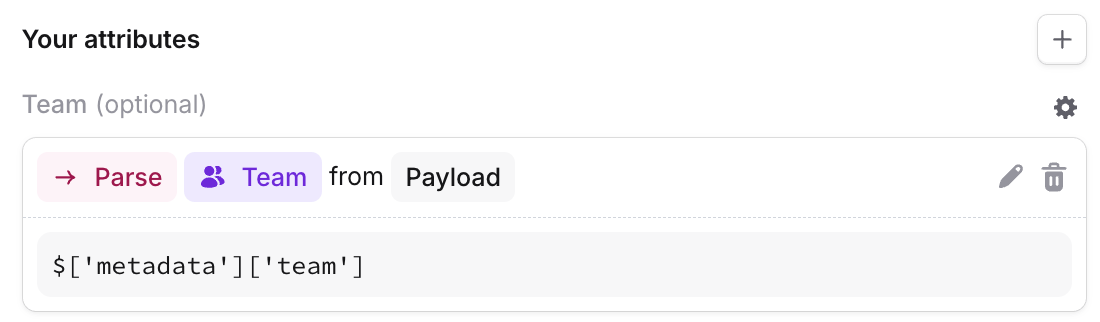 ## Escalating to the right escalation path
In the [Alert route](https://app.incident.io/~/alerts/routes), you can use these attributes to set values of custom fields, for example, by setting the "Responsible Team" custom field.
## Escalating to the right escalation path
In the [Alert route](https://app.incident.io/~/alerts/routes), you can use these attributes to set values of custom fields, for example, by setting the "Responsible Team" custom field.
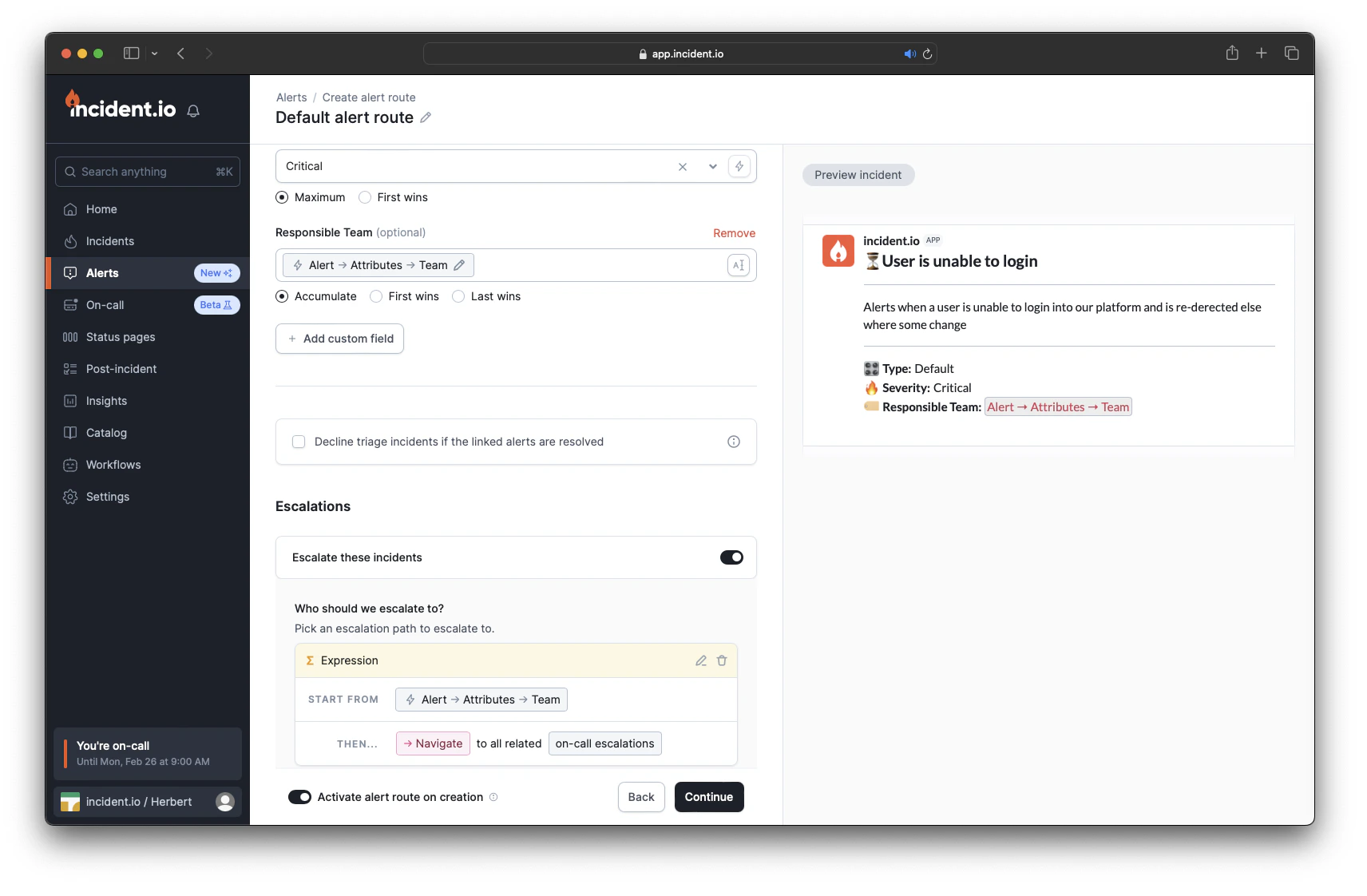 Furthermore, you can use the value that was set by this attribute to navigate to this team's escalation path, by taking advantage of the Catalog mapping.
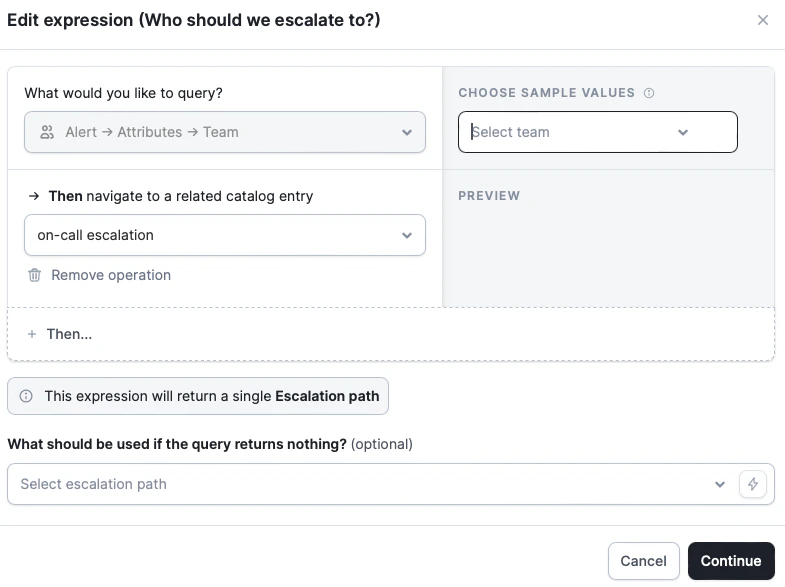 Using the "Account" value that was extracted from the alert source, we can set this value in the custom field by using the catalog entry alias.
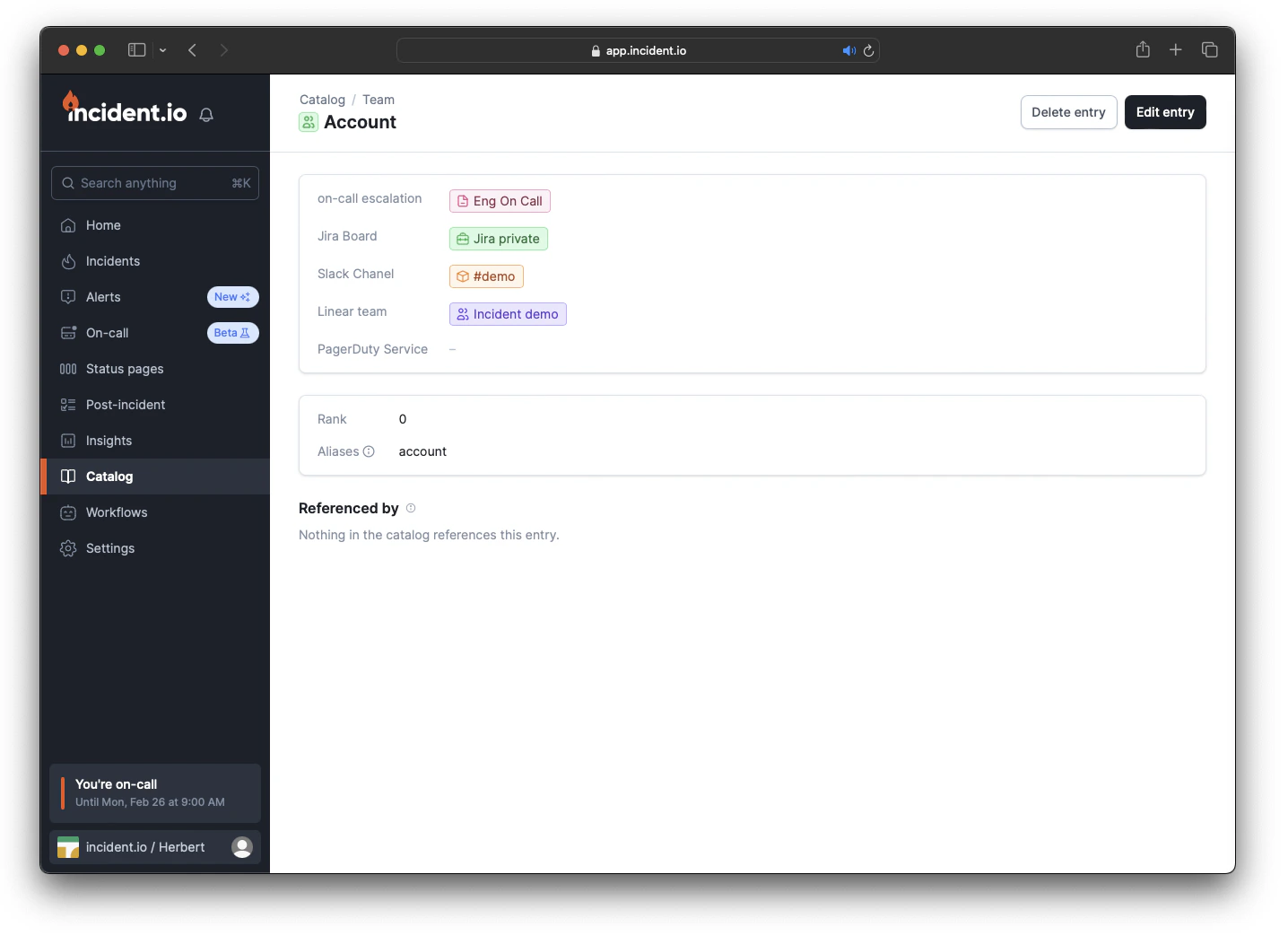 That's It!! You have now successfully set a custom field and escalated to the right Team's escalations path by extracting a data point from your alerts payload, setting it to the Team's custom field, and navigating to their escalation path
This will only work if your Catalog type has aliases set for each of their entries.
## Owning teams and permissions
By default, anyone in your organization can resolve any alert and acknowledge, snooze, or cancel any escalation. For most teams that's exactly what you want. But if you're a larger organization, you might prefer to keep those actions within the team that's responsible for an alert, so an engineer in one team can't accidentally resolve a page that belongs to another.
You can do this with **team-based permissions**. The permission that controls these actions is **Take actions on alerts and escalations**. It covers resolving alerts, and acknowledging, snoozing, and cancelling escalations. By default it's granted to everyone, but you can instead grant it to specific [team roles](/admin/team-roles), so that it only applies to the alerts and escalations a team owns.
When it's granted at the team level, the team that "owns" an alert is determined by its **Team attribute**, the same attribute you set up above for routing. The work you've already done to tag alerts with a team does double duty: it routes the alert *and* decides who's allowed to act on it.
If an alert has no Team attribute (or the source doesn't extract one), it has no owning team. When this permission is granted at the team level, only people who still have it granted globally will be able to act on those alerts.
### Who can resolve an alert?
When the permission is granted at the team level rather than globally, you can resolve an alert if either of the following is true:
* You have the permission granted globally (for example, an admin)
* You're a member of a team that owns the alert, with the permission granted to that team
Alerts are still auto-resolved as normal, regardless of who triggers it.
### Who can act on an escalation?
By default, anyone who can see an escalation can acknowlege, snooze, or cancel it. If you've configured team-level permissions, then any of the following grant you permission to act on an escalation:
* You have the permission granted globally (for example as an account-level admin)
* You're a member of a team that owns the alert the escalation came from, with the permission granted to that team
* You're a member of the team that owns the escalation path the escalation was sent to, with the permission granted to that team
* **You were paged by the escalation**: anyone notified can always acknowledge or snooze it, even if they're not on the owning team. This protects you from a misrouted alert paging someone who then can't make it stop.
For how to set this up, see [Restrict escalation response to a team](/admin/restrict-escalation-response).
That's It!! You have now successfully set a custom field and escalated to the right Team's escalations path by extracting a data point from your alerts payload, setting it to the Team's custom field, and navigating to their escalation path
This will only work if your Catalog type has aliases set for each of their entries.
## Owning teams and permissions
By default, anyone in your organization can resolve any alert and acknowledge, snooze, or cancel any escalation. For most teams that's exactly what you want. But if you're a larger organization, you might prefer to keep those actions within the team that's responsible for an alert, so an engineer in one team can't accidentally resolve a page that belongs to another.
You can do this with **team-based permissions**. The permission that controls these actions is **Take actions on alerts and escalations**. It covers resolving alerts, and acknowledging, snoozing, and cancelling escalations. By default it's granted to everyone, but you can instead grant it to specific [team roles](/admin/team-roles), so that it only applies to the alerts and escalations a team owns.
When it's granted at the team level, the team that "owns" an alert is determined by its **Team attribute**, the same attribute you set up above for routing. The work you've already done to tag alerts with a team does double duty: it routes the alert *and* decides who's allowed to act on it.
If an alert has no Team attribute (or the source doesn't extract one), it has no owning team. When this permission is granted at the team level, only people who still have it granted globally will be able to act on those alerts.
### Who can resolve an alert?
When the permission is granted at the team level rather than globally, you can resolve an alert if either of the following is true:
* You have the permission granted globally (for example, an admin)
* You're a member of a team that owns the alert, with the permission granted to that team
Alerts are still auto-resolved as normal, regardless of who triggers it.
### Who can act on an escalation?
By default, anyone who can see an escalation can acknowlege, snooze, or cancel it. If you've configured team-level permissions, then any of the following grant you permission to act on an escalation:
* You have the permission granted globally (for example as an account-level admin)
* You're a member of a team that owns the alert the escalation came from, with the permission granted to that team
* You're a member of the team that owns the escalation path the escalation was sent to, with the permission granted to that team
* **You were paged by the escalation**: anyone notified can always acknowledge or snooze it, even if they're not on the owning team. This protects you from a misrouted alert paging someone who then can't make it stop.
For how to set this up, see [Restrict escalation response to a team](/admin/restrict-escalation-response).