> ## Documentation Index
> Fetch the complete documentation index at: https://docs.incident.io/llms.txt
> Use this file to discover all available pages before exploring further.
# Sending alerts to Slack channels
You can now use alert routes to send all, or some, of your alerts coming into incident.io into Slack channels. You might want to do this if:
* You want to increase awareness about what alerts are coming through to incident.io
* You want a space directly in Slack to take actions from your alerts
* You want to declare incidents manually from alerts, rather than automatically
## Enabling sending alerts to Slack
You can choose to enable sending alerts to Slack from an alert route. Once enabled, you'll be able to select private or public channels to send your alerts to.
## Filtering the alerts you send to Slack
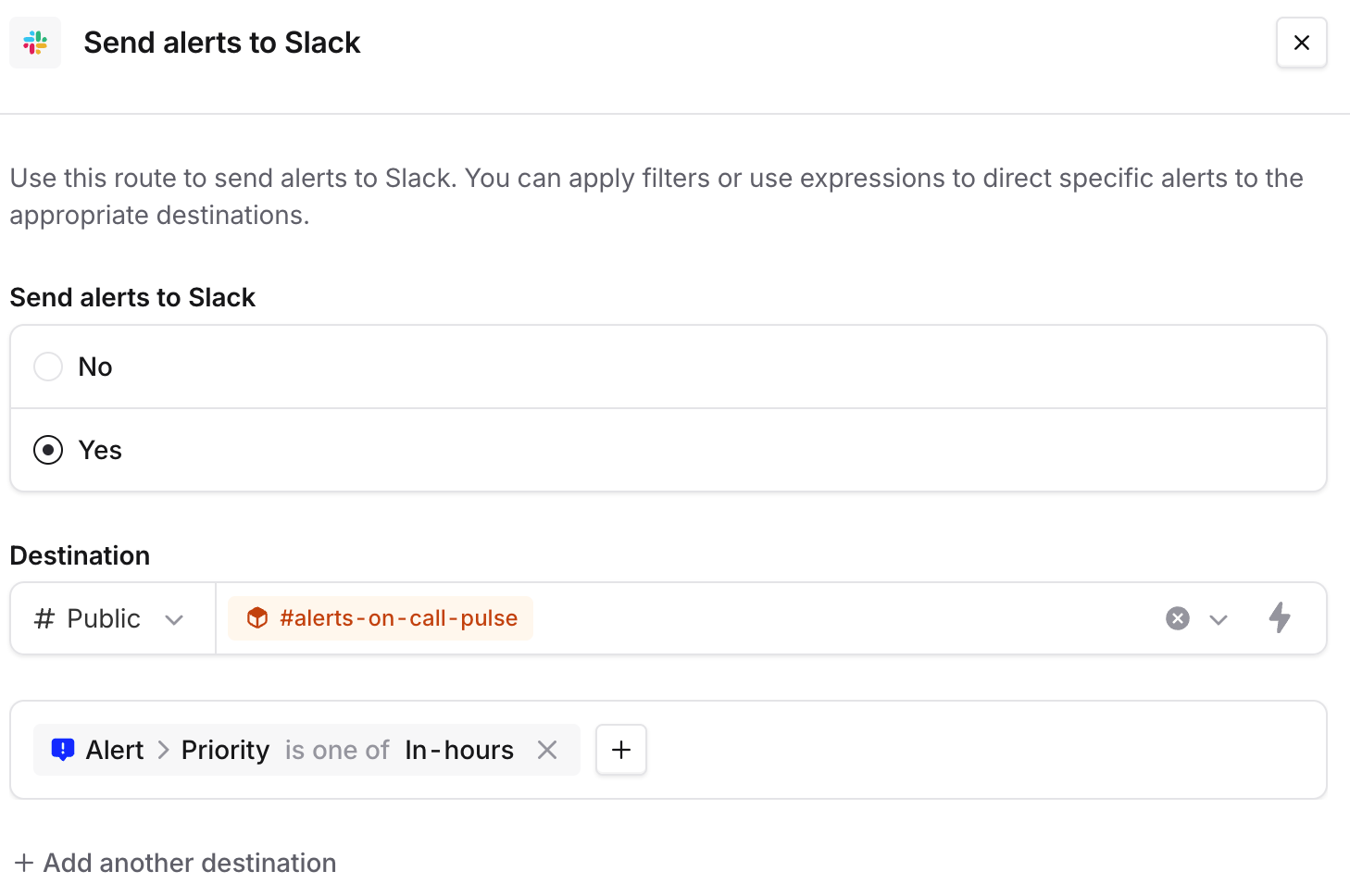 If you only want to send a subset of your alerts to Slack, you can add filter conditions when you configure the Slack channels.
## Sending alerts to a different channel according to the alert
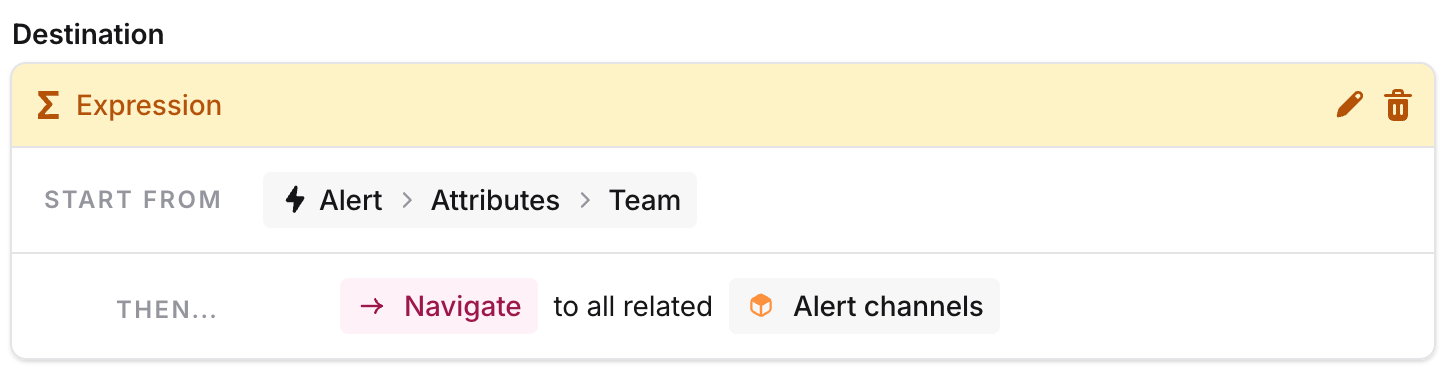
Using expressions and the Catalog, you can choose to send alerts to different Slack channels according to alert attributes.
For example, if you have a `Team` alert attribute, and your `Team` has a `Slack Channel` attribute, you'll be able to dynamically pick where to send your alerts:
If you only want to send a subset of your alerts to Slack, you can add filter conditions when you configure the Slack channels.
## Sending alerts to a different channel according to the alert
Using expressions and the Catalog, you can choose to send alerts to different Slack channels according to alert attributes.
For example, if you have a `Team` alert attribute, and your `Team` has a `Slack Channel` attribute, you'll be able to dynamically pick where to send your alerts:
 You can read more about configuring alert attributes [here](/on-call/catalog-integration)
## Taking actions from the alert
From an alert in Slack, you’ll be able to:
* Declare an incident, or join one if it already exists
* Go to the alert’s source - this could be a Grafana dashboard, an external issue, or a custom URL
* Silence an alert, for alert sources that support it
* Resolve an alert
* Go to the alert in the [incident.io](http://incident.io/) dashboard, and view more from there!
If your alert route is set to create private incidents, incidents declared from an alert in Slack will be created as private. The person declaring the incident will be automatically invited.
You can read more about configuring alert attributes [here](/on-call/catalog-integration)
## Taking actions from the alert
From an alert in Slack, you’ll be able to:
* Declare an incident, or join one if it already exists
* Go to the alert’s source - this could be a Grafana dashboard, an external issue, or a custom URL
* Silence an alert, for alert sources that support it
* Resolve an alert
* Go to the alert in the [incident.io](http://incident.io/) dashboard, and view more from there!
If your alert route is set to create private incidents, incidents declared from an alert in Slack will be created as private. The person declaring the incident will be automatically invited.