> ## Documentation Index
> Fetch the complete documentation index at: https://docs.incident.io/llms.txt
> Use this file to discover all available pages before exploring further.

# Adding Panther as an Alert Source

This article provides step by step instructions for setting up Panther as an alert source within incident.io.

## Instructions

1. Head over to the [Alerts](https://app.incident.io/~/alerts/sources) section in your incident.io dashboard
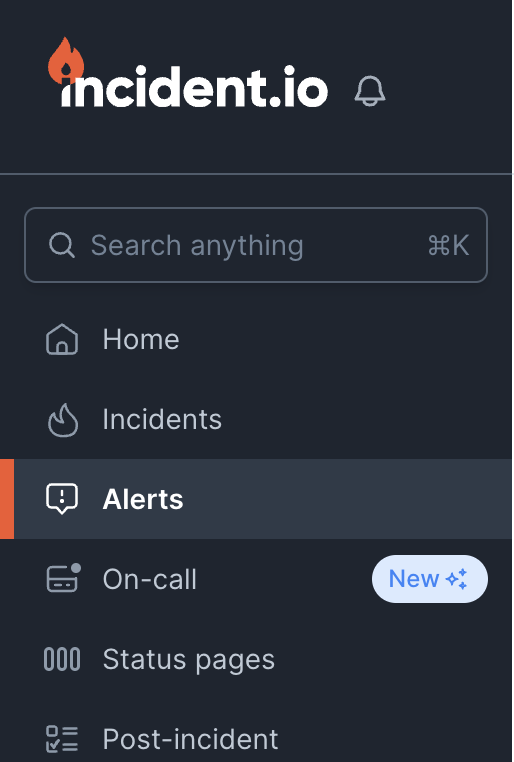
<img src="https://mintcdn.com/incidentio-18bb4170/_tV3mgrVYiHDUZXz/images/help-centre/adding-panther-as-an-alert-source/screenshot-1.png?fit=max&auto=format&n=_tV3mgrVYiHDUZXz&q=85&s=4703b2f6f3edf307cd7641c31b965195" alt="" width="514" height="762" data-path="images/help-centre/adding-panther-as-an-alert-source/screenshot-1.png" />

2. Select the sources tab at the top of the page

<img src="https://mintcdn.com/incidentio-18bb4170/_tV3mgrVYiHDUZXz/images/help-centre/adding-panther-as-an-alert-source/screenshot-2.png?fit=max&auto=format&n=_tV3mgrVYiHDUZXz&q=85&s=b047954fe13b46f56111c05ccc2f5db5" alt="" width="962" height="342" data-path="images/help-centre/adding-panther-as-an-alert-source/screenshot-2.png" />

3. Press the 'New alert source' button

<img src="https://mintcdn.com/incidentio-18bb4170/_tV3mgrVYiHDUZXz/images/help-centre/adding-panther-as-an-alert-source/screenshot-3.png?fit=max&auto=format&n=_tV3mgrVYiHDUZXz&q=85&s=3e808bf6c36464d00ece1dafa2e1ddf6" alt="" width="1516" height="222" data-path="images/help-centre/adding-panther-as-an-alert-source/screenshot-3.png" />

4. Search for 'Panther' and click continue to create the alert source
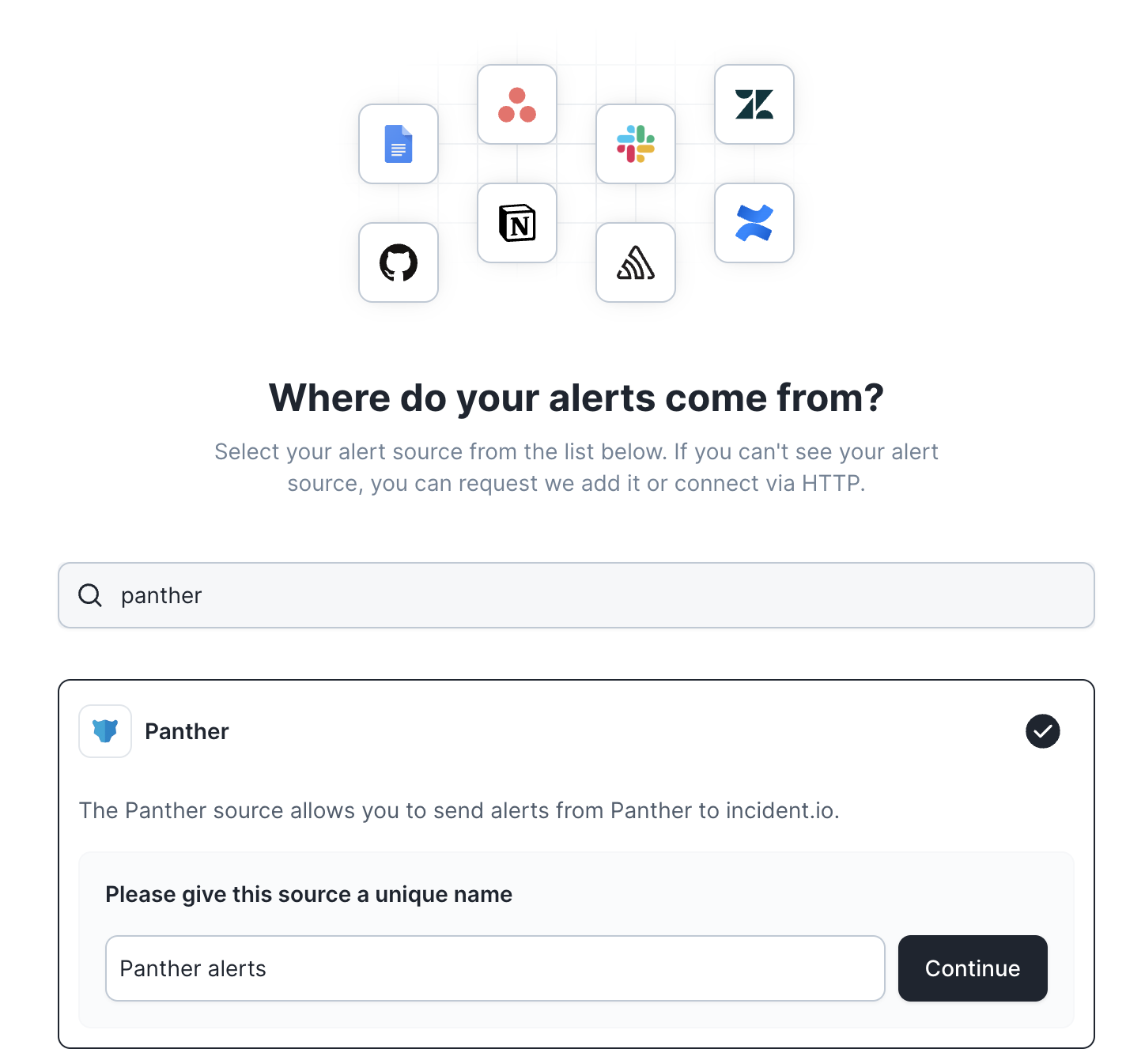
<img src="https://mintcdn.com/incidentio-18bb4170/_tV3mgrVYiHDUZXz/images/help-centre/adding-panther-as-an-alert-source/screenshot-4.png?fit=max&auto=format&n=_tV3mgrVYiHDUZXz&q=85&s=42ff6dd9209c6f017f796dead7788182" alt="" width="1424" height="1346" data-path="images/help-centre/adding-panther-as-an-alert-source/screenshot-4.png" />

5. Switch over to your Panther dashboard, and select 'Alert Destinations' under the 'Configure' section
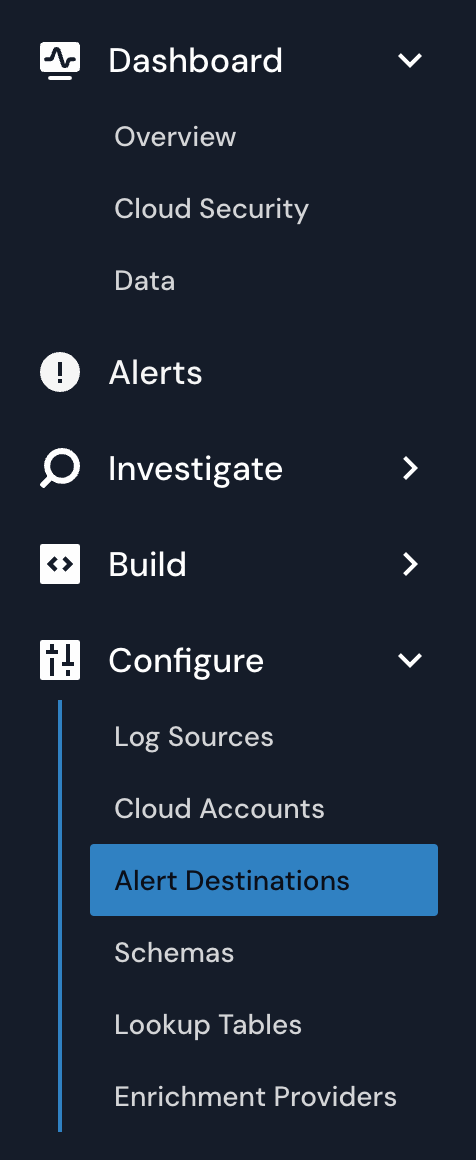
<img src="https://mintcdn.com/incidentio-18bb4170/_tV3mgrVYiHDUZXz/images/help-centre/adding-panther-as-an-alert-source/screenshot-5.png?fit=max&auto=format&n=_tV3mgrVYiHDUZXz&q=85&s=22a2ce21c3064b73a52b652e532ff0c3" alt="" width="476" height="1160" data-path="images/help-centre/adding-panther-as-an-alert-source/screenshot-5.png" />

6. If you already have another alert destination set up, click the 'Create New' button in the top right hand corner. Otherwise, click 'Add your first Destination'.

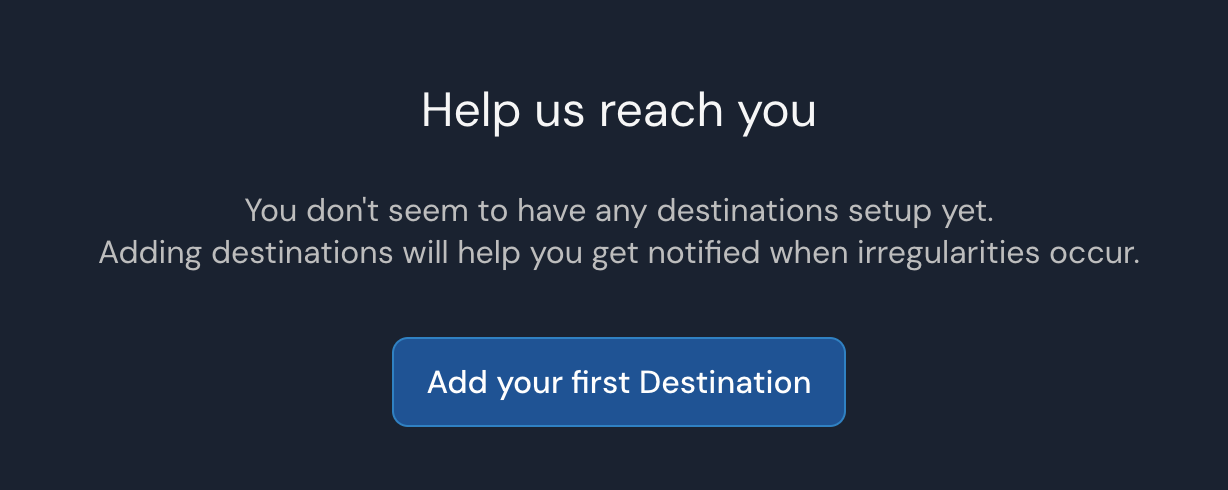
<img src="https://mintcdn.com/incidentio-18bb4170/_tV3mgrVYiHDUZXz/images/help-centre/adding-panther-as-an-alert-source/screenshot-6.png?fit=max&auto=format&n=_tV3mgrVYiHDUZXz&q=85&s=30261bfbdeea808a25695301f79f7298" alt="" width="2474" height="158" data-path="images/help-centre/adding-panther-as-an-alert-source/screenshot-6.png" />

<img src="https://mintcdn.com/incidentio-18bb4170/_tV3mgrVYiHDUZXz/images/help-centre/adding-panther-as-an-alert-source/screenshot-7.png?fit=max&auto=format&n=_tV3mgrVYiHDUZXz&q=85&s=06c911418528f43f3f0513ba57a4a931" alt="" width="1228" height="490" data-path="images/help-centre/adding-panther-as-an-alert-source/screenshot-7.png" />

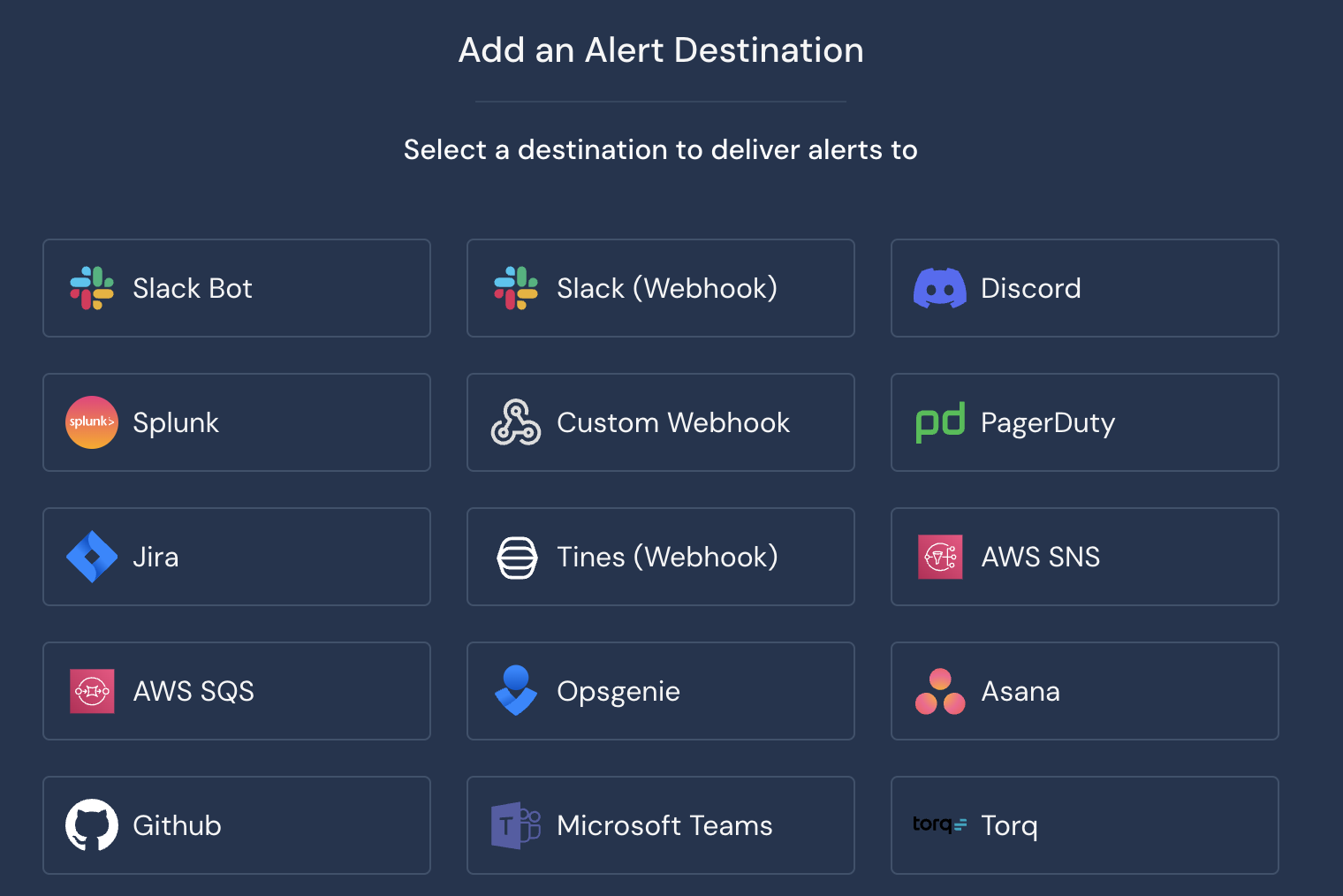
7. Choose 'Custom Webhook' from the list of destinations
<img src="https://mintcdn.com/incidentio-18bb4170/_tV3mgrVYiHDUZXz/images/help-centre/adding-panther-as-an-alert-source/screenshot-8.png?fit=max&auto=format&n=_tV3mgrVYiHDUZXz&q=85&s=c76cd0ac9c595452155d632bedd747c6" alt="" width="1520" height="1014" data-path="images/help-centre/adding-panther-as-an-alert-source/screenshot-8.png" />

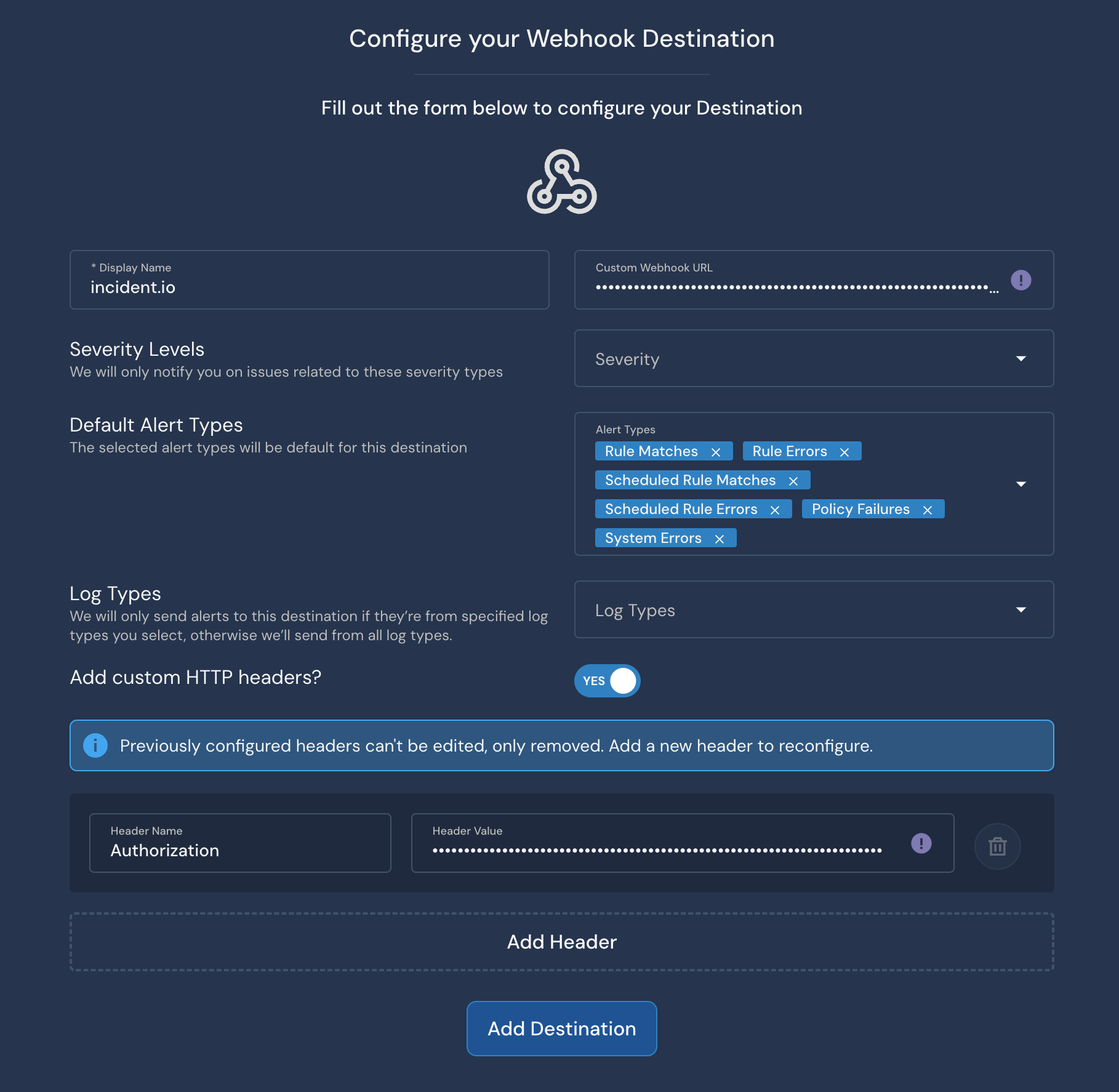
8. Copy the Webhook URL provided to you after you created a Panther alert source in the incident.io dashboard, and make sure to add a custom HTTP header for 'Authorization'. The value for this header is provided to you in the incident.io dashboard, alongside the Webhook URL.
<img src="https://mintcdn.com/incidentio-18bb4170/_tV3mgrVYiHDUZXz/images/help-centre/adding-panther-as-an-alert-source/screenshot-9.png?fit=max&auto=format&n=_tV3mgrVYiHDUZXz&q=85&s=99b1db1fc55ebd8795133ac8275354d2" alt="" width="1818" height="1774" data-path="images/help-centre/adding-panther-as-an-alert-source/screenshot-9.png" />

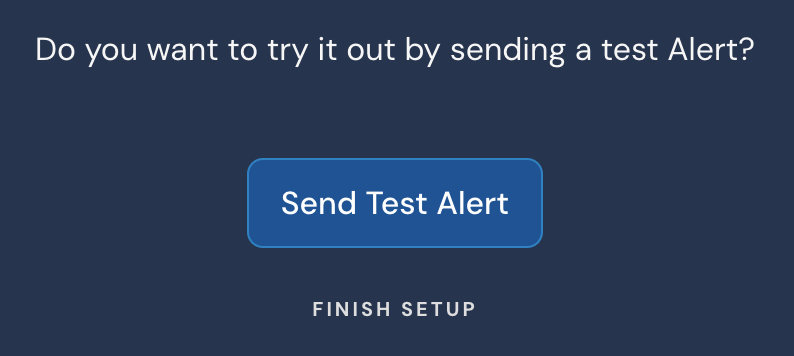
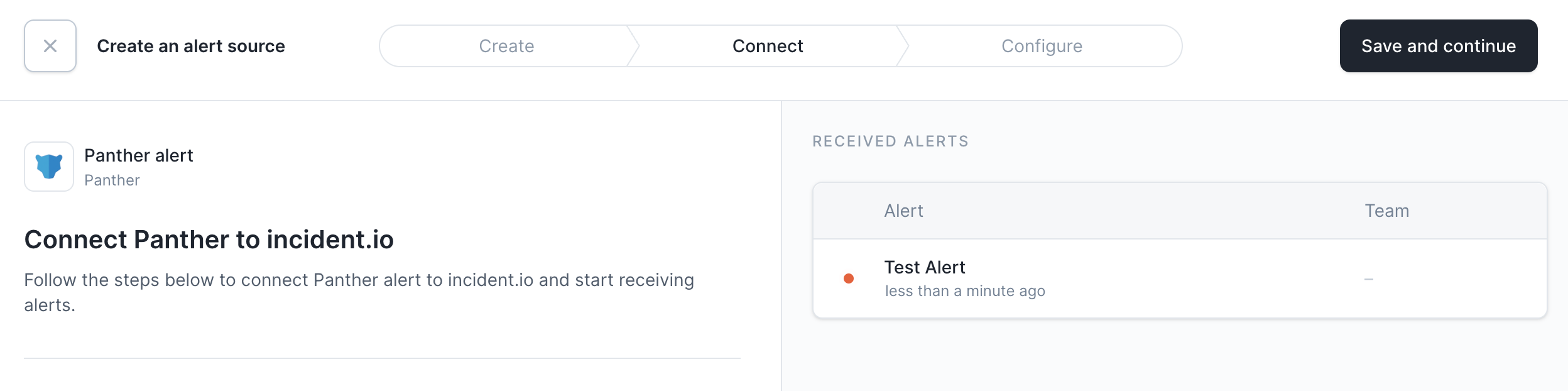
9. Click 'Add Destination' and then 'Send Test Alert' to test your integration. You should be able to see a test alert in your incident.io dashboard!
<img src="https://mintcdn.com/incidentio-18bb4170/_tV3mgrVYiHDUZXz/images/help-centre/adding-panther-as-an-alert-source/screenshot-10.png?fit=max&auto=format&n=_tV3mgrVYiHDUZXz&q=85&s=ffab7648bd422250cf91457732bb11c4" alt="" width="794" height="356" data-path="images/help-centre/adding-panther-as-an-alert-source/screenshot-10.png" />

<img src="https://mintcdn.com/incidentio-18bb4170/_tV3mgrVYiHDUZXz/images/help-centre/adding-panther-as-an-alert-source/screenshot-11.png?fit=max&auto=format&n=_tV3mgrVYiHDUZXz&q=85&s=5edf16bfa7f0c3a39b793dd0d313a282" alt="" width="2496" height="622" data-path="images/help-centre/adding-panther-as-an-alert-source/screenshot-11.png" />
