> ## Documentation Index
> Fetch the complete documentation index at: https://docs.incident.io/llms.txt
> Use this file to discover all available pages before exploring further.
# Adding Nagios as an Alert Source
This article provides step by step instructions for setting up Nagios Core as an alert source within incident.io.
## Instructions
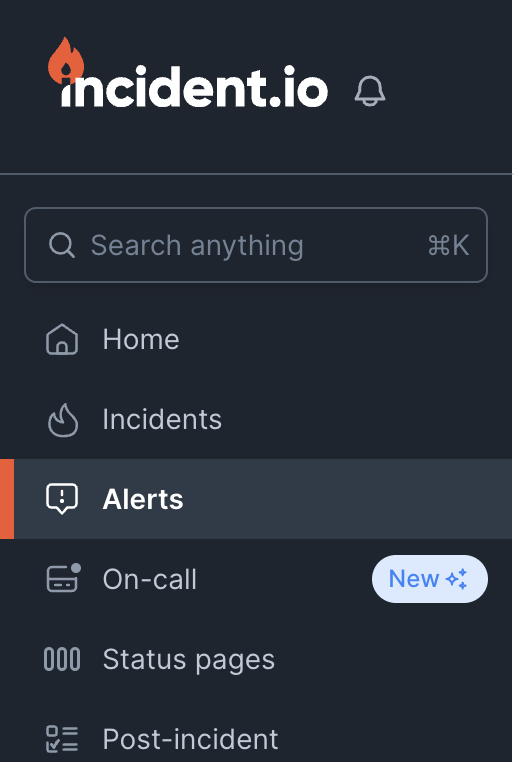
1. Head over to the [Alerts](https://app.incident.io/~/alerts/sources) section in your incident.io dashboard
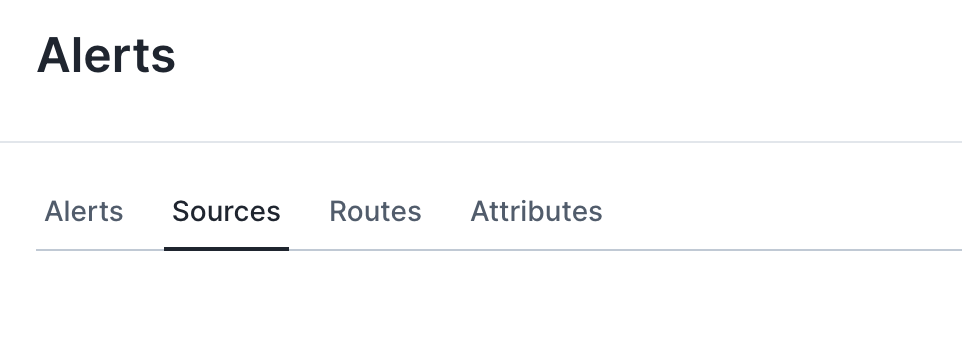
 2. Select the sources tab at the top of the page
 3. Press the 'New alert source' button
 4. Search for Nagios and click continue to create the alert source
5. Install the incident-io [Nagios Plugin](https://github.com/incident-io/nagios-plugin) by following the instructions in the GitHub repo and enter the URL and token as prompted by the alert source page.
4. Search for Nagios and click continue to create the alert source
5. Install the incident-io [Nagios Plugin](https://github.com/incident-io/nagios-plugin) by following the instructions in the GitHub repo and enter the URL and token as prompted by the alert source page.