> ## Documentation Index
> Fetch the complete documentation index at: https://docs.incident.io/llms.txt
> Use this file to discover all available pages before exploring further.
# Customizing alert messages
> Control which information is displayed in alert messages sent to Slack or Teams channels.
Alerts are routed into Slack or Teams in various ways:
* Sent directly to channels
* Escalated to a channel or a user
* Attached to incident channels
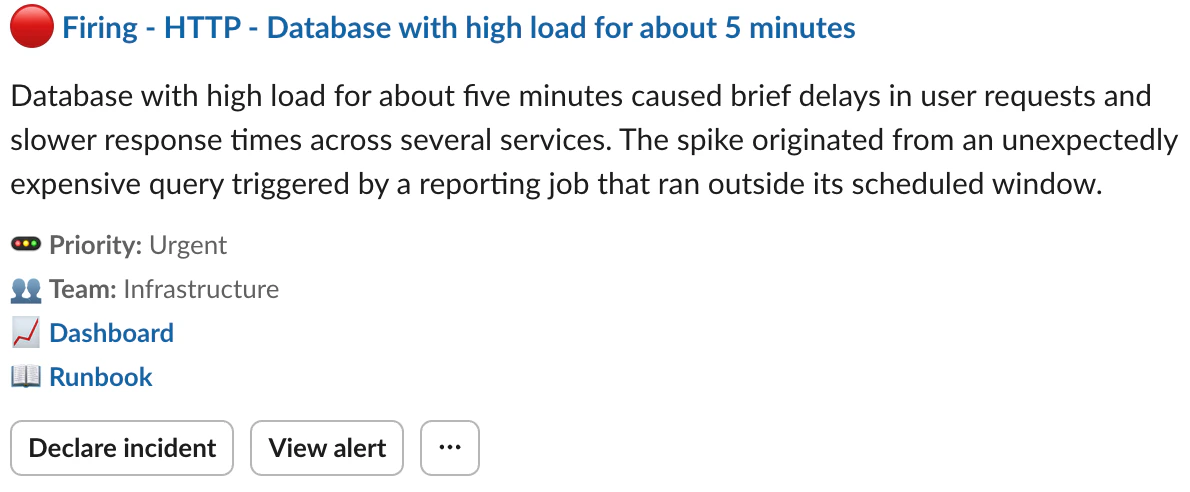 You can now use templates to control which information is displayed in these alert messages, so that your responders can infer crucial context and filter out noise at a glance.
## Creating a template
Manage your templates in Settings > Slack / Teams Messages.
By default, all admins have the permission to manage alert message templates: this can be configured in Settings > Permissions.
You can now use templates to control which information is displayed in these alert messages, so that your responders can infer crucial context and filter out noise at a glance.
## Creating a template
Manage your templates in Settings > Slack / Teams Messages.
By default, all admins have the permission to manage alert message templates: this can be configured in Settings > Permissions.
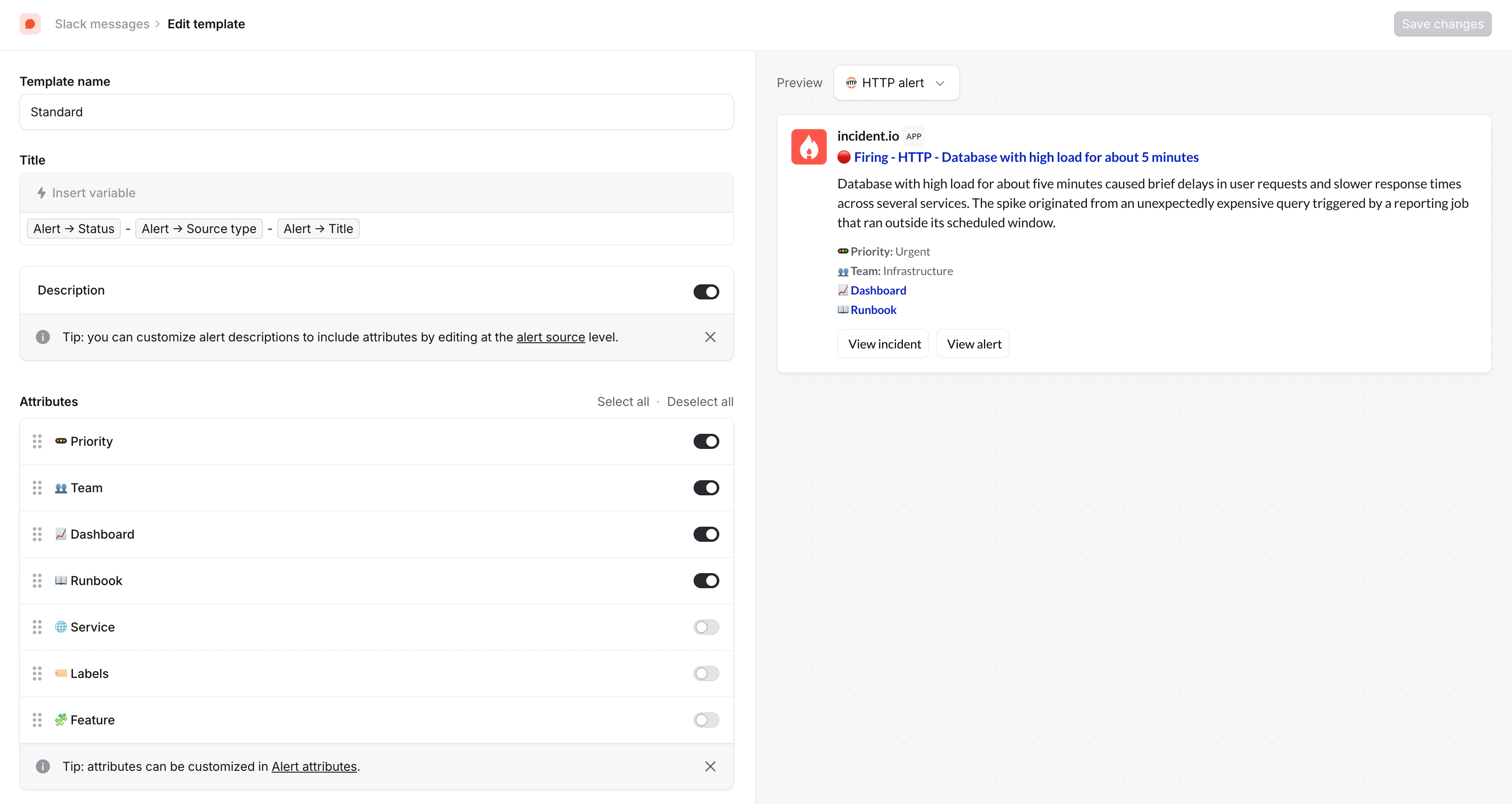 **Title**
Customize the message title with alert variables such as the title, status and the source type. The alert status (i.e. firing or resolved) will be kept up to date in the title.
**Description**
Configure whether to show the alert's description. Descriptions are set at the alert source level, and can be customized per alert source.
**Attributes**
Configure the visibility and order of [alert attributes](/alerts/attributes-and-priorities) in the message.
You can preview how your changes will be applied using real alert data from your different alert sources.
## Applying templates to alert routes
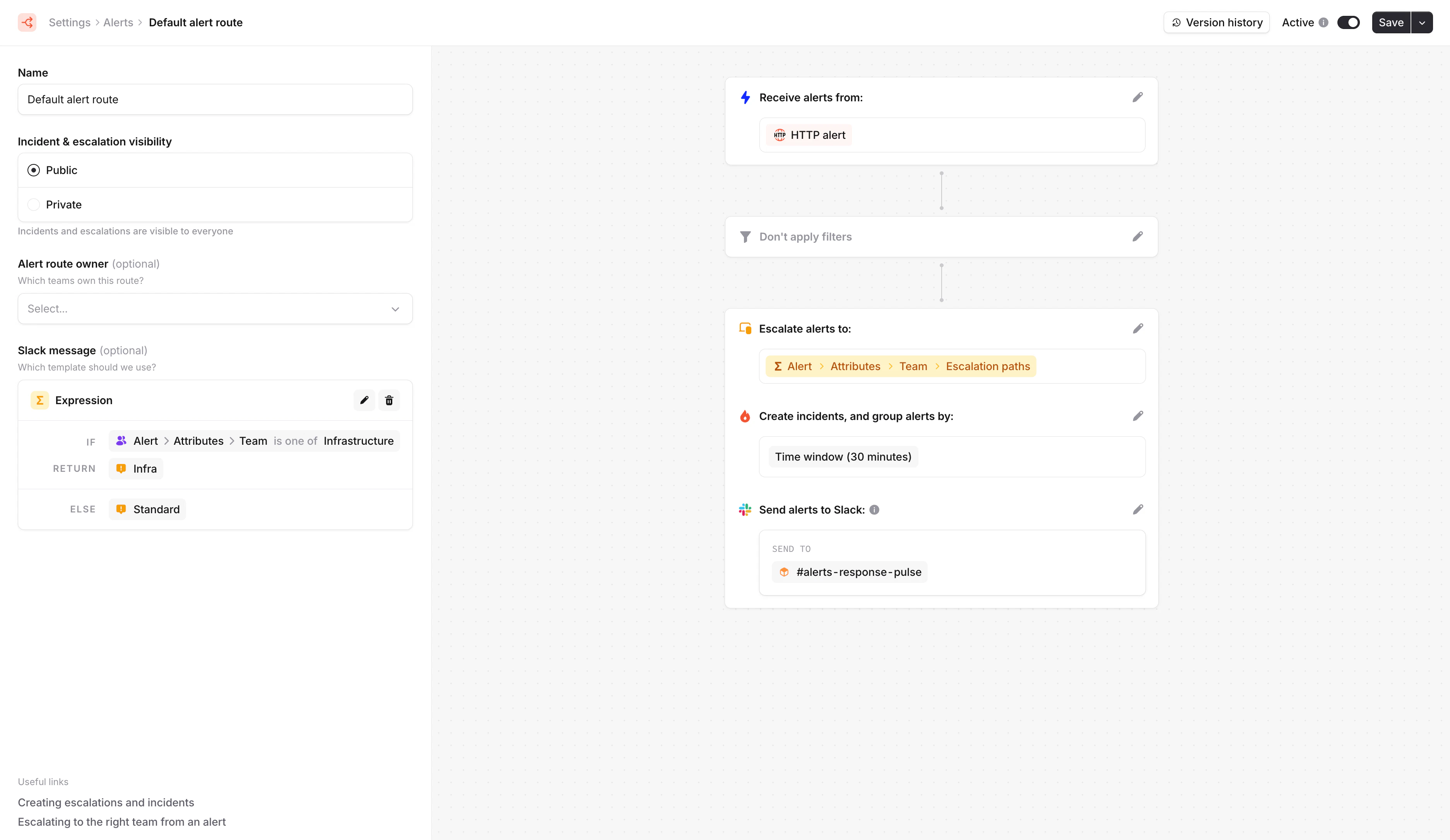
You can configure which template an alert route should use. If no template is specified, then we will apply the default template. The default template can be changed in Settings > Slack / Teams Messages.
You can select a specific template to use, or use an expression. For example, you can conditionally select templates based on alert attributes, alert source types and more.
**Title**
Customize the message title with alert variables such as the title, status and the source type. The alert status (i.e. firing or resolved) will be kept up to date in the title.
**Description**
Configure whether to show the alert's description. Descriptions are set at the alert source level, and can be customized per alert source.
**Attributes**
Configure the visibility and order of [alert attributes](/alerts/attributes-and-priorities) in the message.
You can preview how your changes will be applied using real alert data from your different alert sources.
## Applying templates to alert routes
You can configure which template an alert route should use. If no template is specified, then we will apply the default template. The default template can be changed in Settings > Slack / Teams Messages.
You can select a specific template to use, or use an expression. For example, you can conditionally select templates based on alert attributes, alert source types and more.