> ## Documentation Index
> Fetch the complete documentation index at: https://docs.incident.io/llms.txt
> Use this file to discover all available pages before exploring further.
# Extracting JSON alert data
When configuring alerts you can choose to extract specific fields you care about from the JSON payload of your alert.
You can manage this by navigating to [Alerts > Sources](https://app.incident.io/~/alerts/sources) and editing the alert source you wish to extract information from.
While editing the alert, click on the icon in the attributes section.
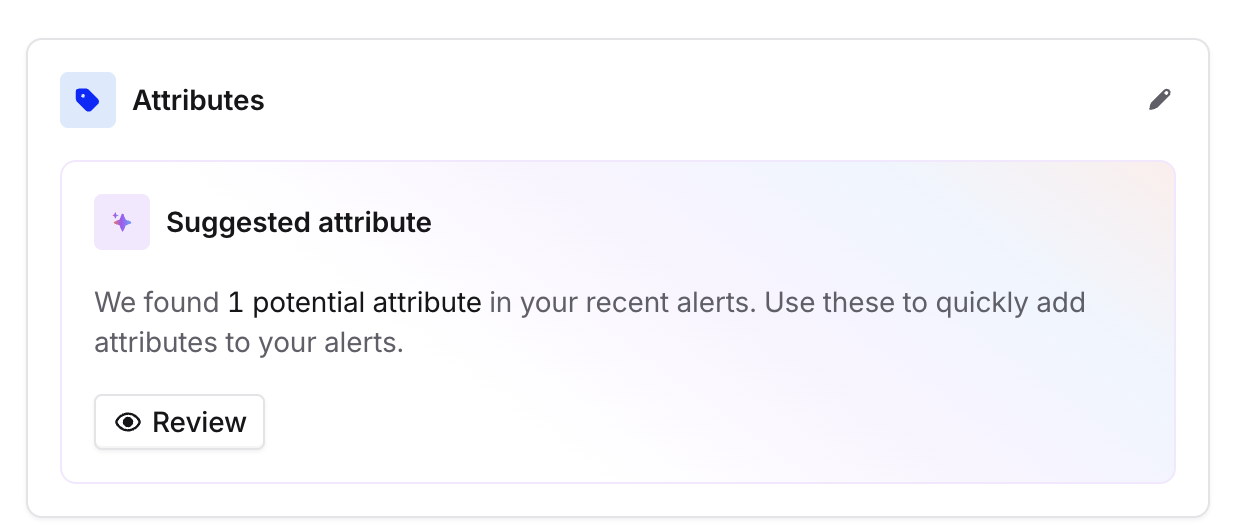 Once you are ready to add a new attribute, you can choose to add attributes through the use of AI, we will parse through the payload and suggest attributes that are commonly seen and can be linked to a catalog type.
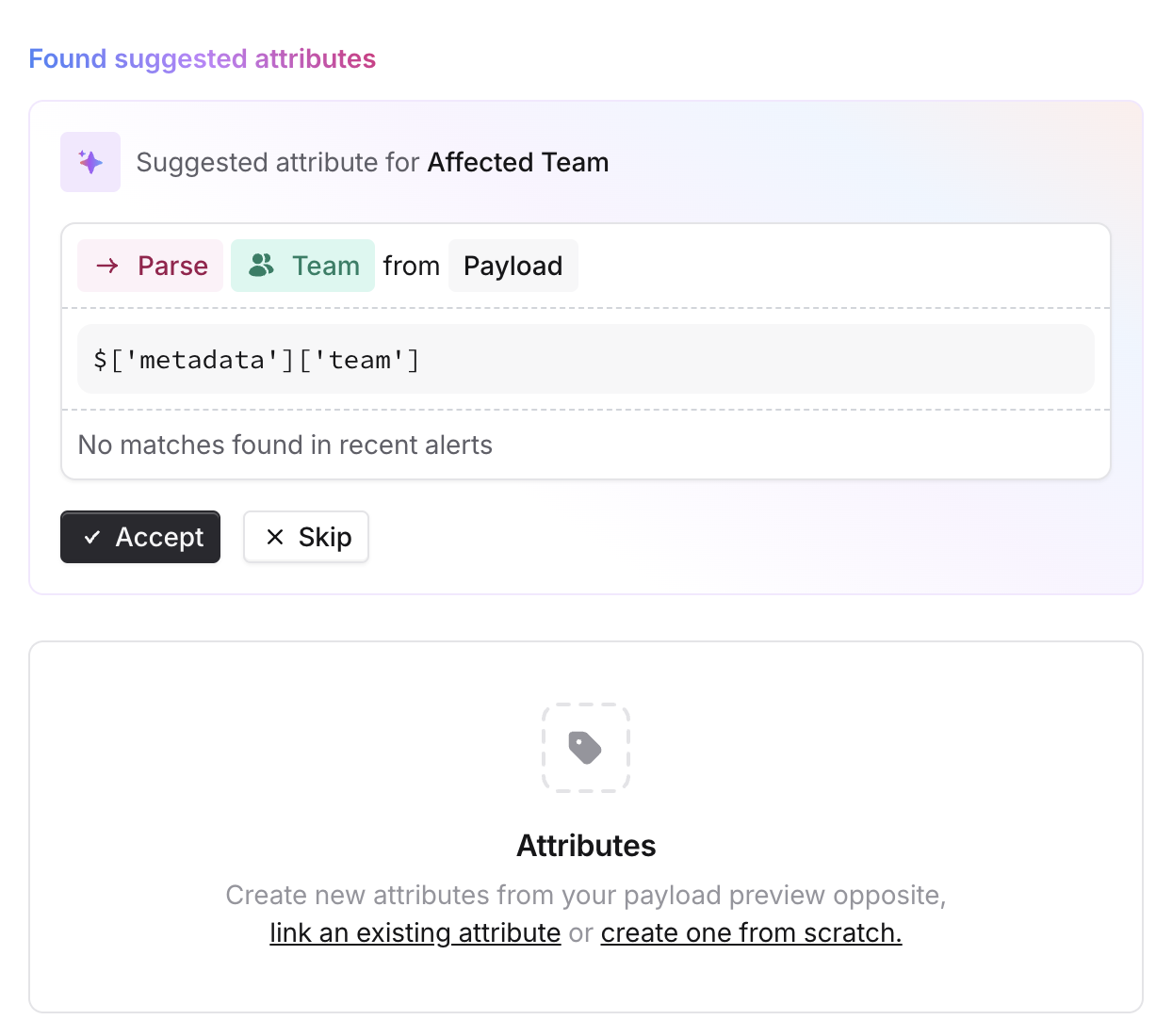
Or you can choose to link an existing attribute or start from scratch by parsing the payload directly.
Once you are ready to add a new attribute, you can choose to add attributes through the use of AI, we will parse through the payload and suggest attributes that are commonly seen and can be linked to a catalog type.
Or you can choose to link an existing attribute or start from scratch by parsing the payload directly.
 ***
## Extracting fields from JSON
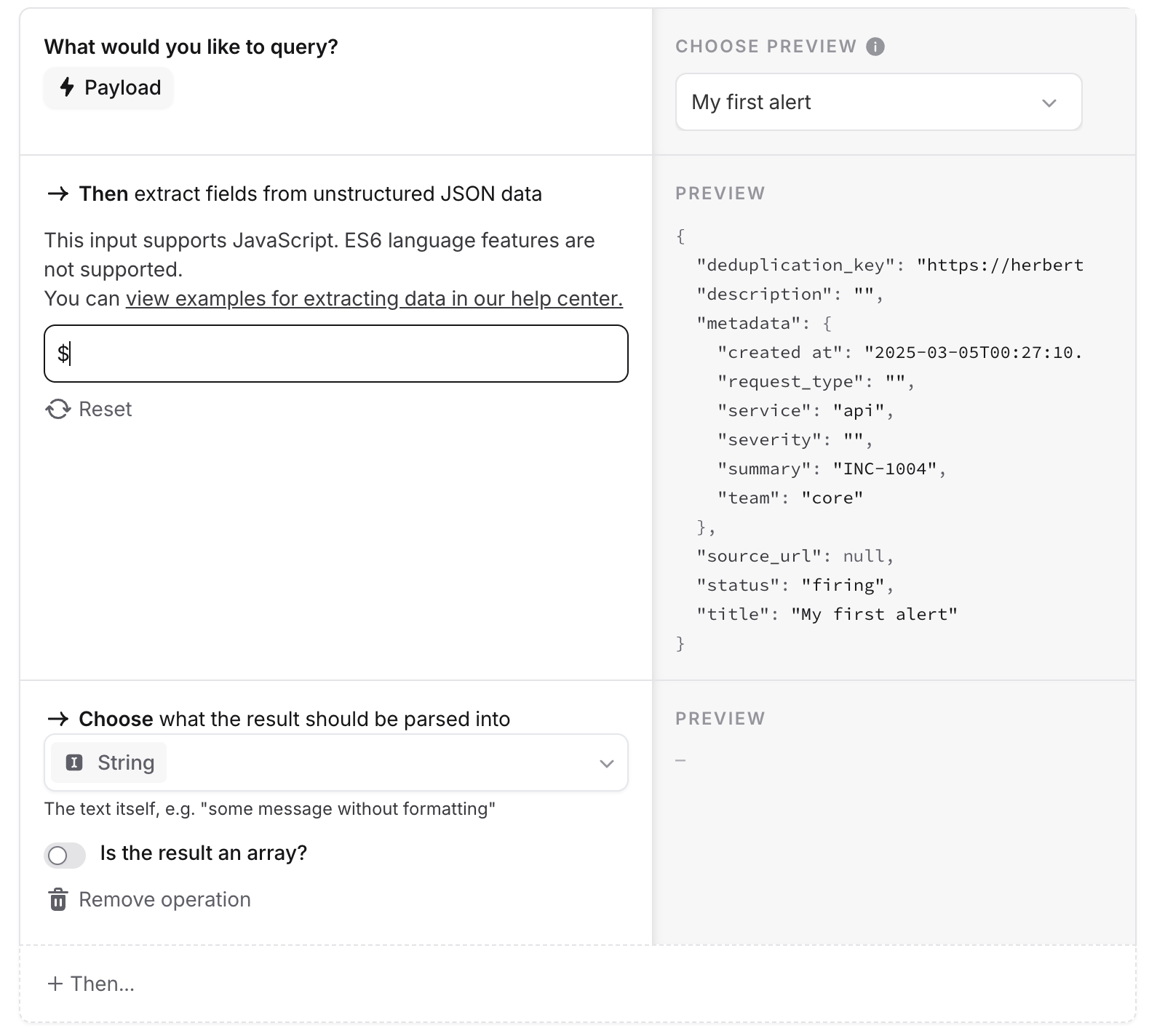
You can see the alert payload for all the alerts you've received.
The input for extracting data works with Javascript, but without any ES6 language features.
**ES6 language features are not supported** This means there is no support for arrow functions, template literals, some string functions, and other features [listed here](https://www.w3schools.com/js/js_es6.asp)
***
## Extracting fields from JSON
You can see the alert payload for all the alerts you've received.
The input for extracting data works with Javascript, but without any ES6 language features.
**ES6 language features are not supported** This means there is no support for arrow functions, template literals, some string functions, and other features [listed here](https://www.w3schools.com/js/js_es6.asp)
 ## Options to extract values from the payload
## 1. Extract a simple field
If you click on any field displayed in the payload, you'll automatically see this value extracted.
For example, to extract the `service` field from your metadata, use
```javascript theme={null}
$.metadata.service;
```
This will dynamically fetch whichever value is in the `service` field and apply it to your alert.
## 2. Map array fields
To map an array field, we can use standard Javascript.
In our JSON payload, our tags field has the following format:
```javascript theme={null}
tags: ['feature:api', 'feature:payments', 'service:api'];
```
To filter only certain values from our tags, we can use Javascript filtering:
```javascript theme={null}
$.metadata.tags.filter(function(tag) { return tag.startsWith("feature:") })
// This returns the following
feature:api, feature:payments
```
To map your array, you can also use standard Javascript functions:
```javascript theme={null}
$.metadata.tags.map(function (tag) {
return tag.split(':')[1];
});
// This returns the following
(api, payments);
```
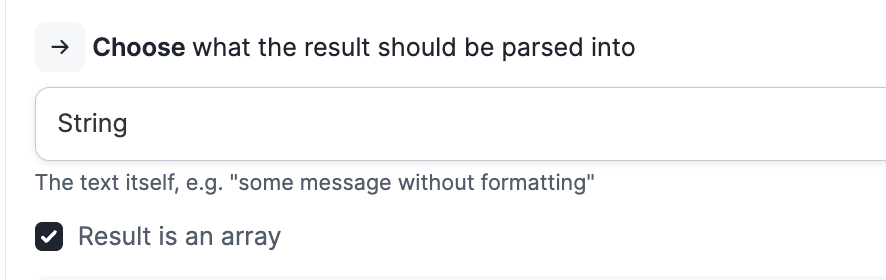
To ensure that your output preserves all values from your array, select *Result is an array.*
Otherwise, your result will just select the first value of your array.
## Options to extract values from the payload
## 1. Extract a simple field
If you click on any field displayed in the payload, you'll automatically see this value extracted.
For example, to extract the `service` field from your metadata, use
```javascript theme={null}
$.metadata.service;
```
This will dynamically fetch whichever value is in the `service` field and apply it to your alert.
## 2. Map array fields
To map an array field, we can use standard Javascript.
In our JSON payload, our tags field has the following format:
```javascript theme={null}
tags: ['feature:api', 'feature:payments', 'service:api'];
```
To filter only certain values from our tags, we can use Javascript filtering:
```javascript theme={null}
$.metadata.tags.filter(function(tag) { return tag.startsWith("feature:") })
// This returns the following
feature:api, feature:payments
```
To map your array, you can also use standard Javascript functions:
```javascript theme={null}
$.metadata.tags.map(function (tag) {
return tag.split(':')[1];
});
// This returns the following
(api, payments);
```
To ensure that your output preserves all values from your array, select *Result is an array.*
Otherwise, your result will just select the first value of your array.
 ## 3. You can write a custom JavaScript snippet
We support Javascript ES5, so you can write custom code that will allow you to get creative on how you extract values from the payload. If you're a bit rusty with Javascript then it can also be well worth asking an AI coding assistant to help write any given expression - a prompt of " *write an expression to do x in Javascript using only ES5* " usually works quite well
## 3. You can write a custom JavaScript snippet
We support Javascript ES5, so you can write custom code that will allow you to get creative on how you extract values from the payload. If you're a bit rusty with Javascript then it can also be well worth asking an AI coding assistant to help write any given expression - a prompt of " *write an expression to do x in Javascript using only ES5* " usually works quite well