> ## Documentation Index
> Fetch the complete documentation index at: https://docs.incident.io/llms.txt
> Use this file to discover all available pages before exploring further.
# Grouping alerts
> Group related alerts into an alert group so you can triage, escalate and attach them to incidents as one.
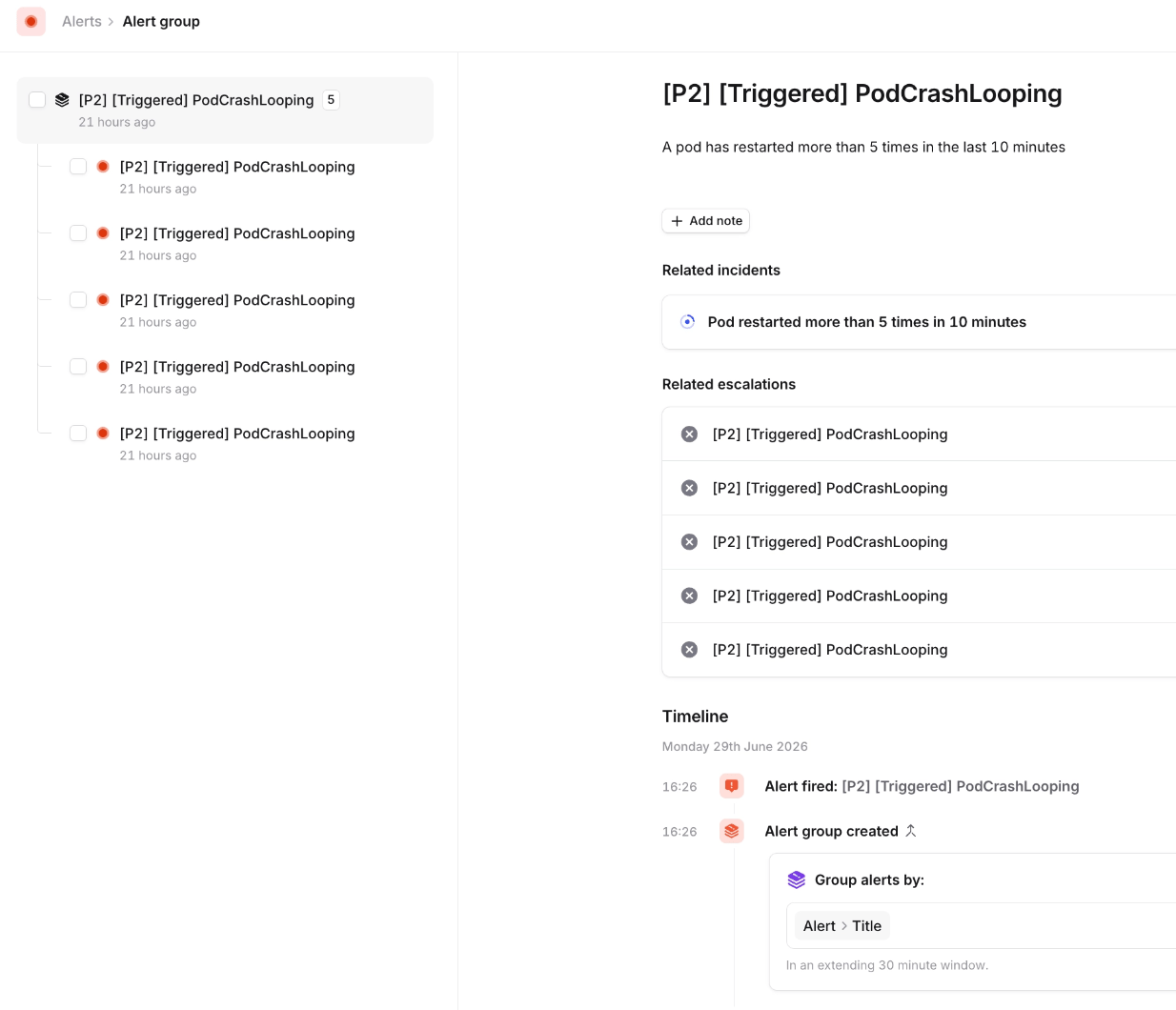
Alert sources can fire many alerts for the same underlying issue. **Alert grouping** groups those related alerts into a single **alert group**, so you can triage, escalate and attach them to an incident once — instead of handling each alert on its own.
We're currently migrating organisations onto our new alert grouping. While your organisation is being migrated, you may not yet be able to configure grouping outside of incidents. Once you're fully migrated, you'll have access to everything described below.
## How it works
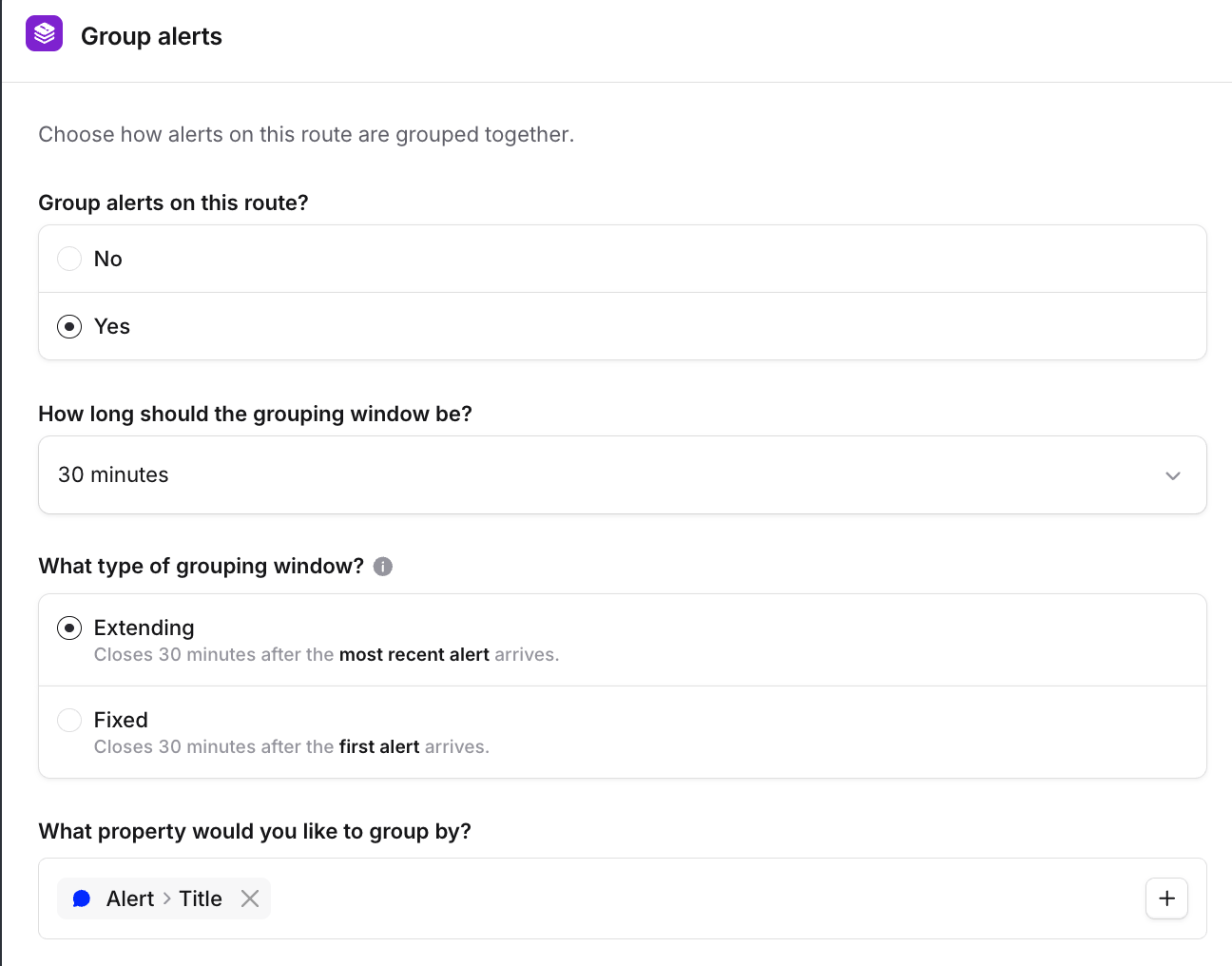
When grouping is enabled on an alert route, each incoming alert is matched to a group using the attributes you've chosen to group by, such as service or region. Alerts that share a key join the same group, as long as they arrive within the group's time window. Windows can be configured in two ways:
* **Fixed window** — the group stays open for a set time after it's created.
* **Extending window** — the window resets each time a new alert joins, so the group stays open while related alerts keep arriving.
An alert group is a bucket of alerts and it takes its **title and description from the first alert** to join.
 ## Setting up grouping
Grouping can be configured per alert route:
1. Open the alert route you want to group alerts on.
2. Enable grouping and choose the **attributes** to group by.
3. Choose a **fixed** or **extending** window.
## Setting up grouping
Grouping can be configured per alert route:
1. Open the alert route you want to group alerts on.
2. Enable grouping and choose the **attributes** to group by.
3. Choose a **fixed** or **extending** window.
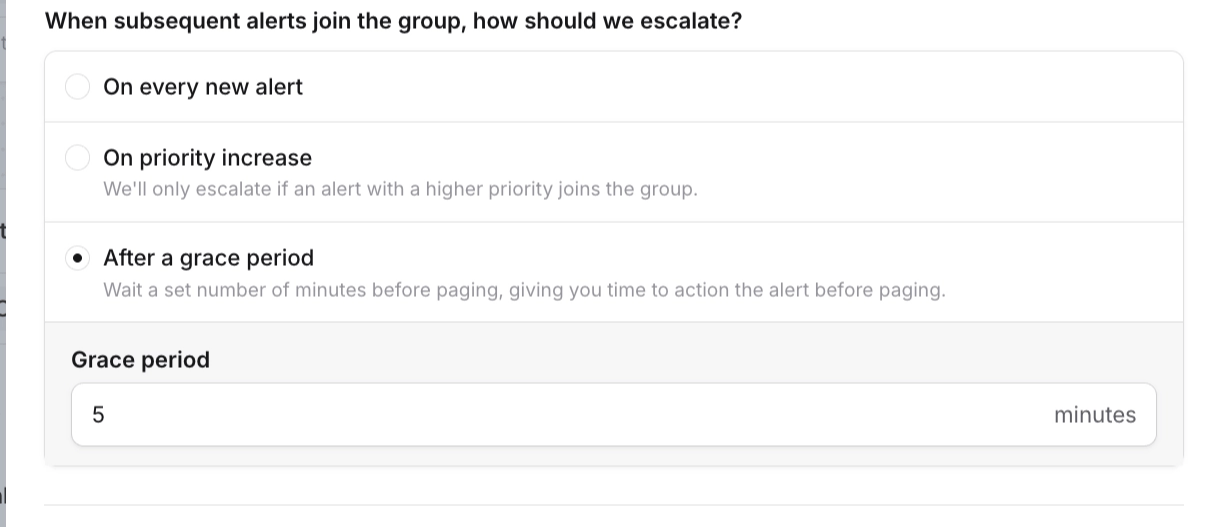
 You can then choose to create an incident from grouped alerts, and whether alerts should also create escalations. When they do, you control how a group pages as new alerts join:
* **On every new alert** — page each time an alert joins the group.
* **On priority increase** — only page when an alert with a higher priority joins the group.
* **After a grace period** — wait a set number of minutes before paging, giving you time to action the alert first.
You can then choose to create an incident from grouped alerts, and whether alerts should also create escalations. When they do, you control how a group pages as new alerts join:
* **On every new alert** — page each time an alert joins the group.
* **On priority increase** — only page when an alert with a higher priority joins the group.
* **After a grace period** — wait a set number of minutes before paging, giving you time to action the alert first.
 ## Attaching groups to incidents
If incident creation is enabled on the route, alert groups are attached to incidents automatically. You can also attach a group to a new or existing incident yourself.
## Managing alerts in a group
From Slack, Teams or the dashboard, you can take an alert out of its group and:
* **Reprocess it** — send it back through the alert route as if it were new (it won't rejoin the group).
* **Create a new incident** from it.
* **Attach it to an existing incident**.
* **Leave it ungrouped** — remove it from the group and do nothing else.
## FAQs
Not yet — a group's title and description come from the first alert to join it, and aren't editable.
No. Groups close automatically when their window expires, or when all attached incidents are resolved. You can
resolve a group's alerts, but there's no manual close.
You can detach other groups attached to an incident, but not the group that originally opened it.
As part of the alert routing configuration, you can choose a Slack or Teams channel to post messages when alerts go
through the route. These messages don't currently contain information about the alert group.
## Attaching groups to incidents
If incident creation is enabled on the route, alert groups are attached to incidents automatically. You can also attach a group to a new or existing incident yourself.
## Managing alerts in a group
From Slack, Teams or the dashboard, you can take an alert out of its group and:
* **Reprocess it** — send it back through the alert route as if it were new (it won't rejoin the group).
* **Create a new incident** from it.
* **Attach it to an existing incident**.
* **Leave it ungrouped** — remove it from the group and do nothing else.
## FAQs
Not yet — a group's title and description come from the first alert to join it, and aren't editable.
No. Groups close automatically when their window expires, or when all attached incidents are resolved. You can
resolve a group's alerts, but there's no manual close.
You can detach other groups attached to an incident, but not the group that originally opened it.
As part of the alert routing configuration, you can choose a Slack or Teams channel to post messages when alerts go
through the route. These messages don't currently contain information about the alert group.