> ## Documentation Index
> Fetch the complete documentation index at: https://docs.incident.io/llms.txt
> Use this file to discover all available pages before exploring further.
# Adding BigPanda as an alert source
> Turn BigPanda incidents into incident.io alerts, with two-way resolution
Connect BigPanda as an alert source to create an incident.io alert for each BigPanda incident. Resolution flows both ways: closing the incident in BigPanda resolves the alert here, and resolving the alert here closes the incident back in BigPanda.
incident.io reads BigPanda's native webhook payload directly, so you don't need to configure a custom body template. Alerts are keyed on the BigPanda `incident.id`, which means updates, closes, and re-opens all match back to the same incident.io alert.
This integration works with BigPanda **incidents** — the correlated objects BigPanda produces. The individual alerts
BigPanda ingests from its own sources are not sent to incident.io.
## Before you start
You'll need the required administrative permissions in both incident.io and BigPanda.
## Create a BigPanda API key
incident.io uses a BigPanda API key to close incidents back in BigPanda when you resolve an alert here. We recommend generating that key with a dedicated **service account** rather than a personal login, so the integration keeps working when people leave and its actions are clearly attributable.
1. In BigPanda, create a new service account for incident.io — for example `incident.io` — and give it the **Admin** role. You can find this under `Settings` → `Access Management` → `Service Accounts`.
2. Generate a new API key attached to the service account with no expiration. This is the key you'll give incident.io in the next step. You can find this under `Settings` → `Access Management` → `API Keys`. You can create a service account key by selecting service account in the `Create Key` Modal. Please select an appropriate expiration and make sure to note its expiry if you do set it to expire.
Tying the key to a service account means it survives staff changes, and any incident BigPanda shows as resolved by
`incident.io` is clearly attributed to that account.
## Install the BigPanda integration
The integration stores the API key used to resolve incidents back in BigPanda.
In incident.io, go to **Settings → Integrations** and find **BigPanda**.
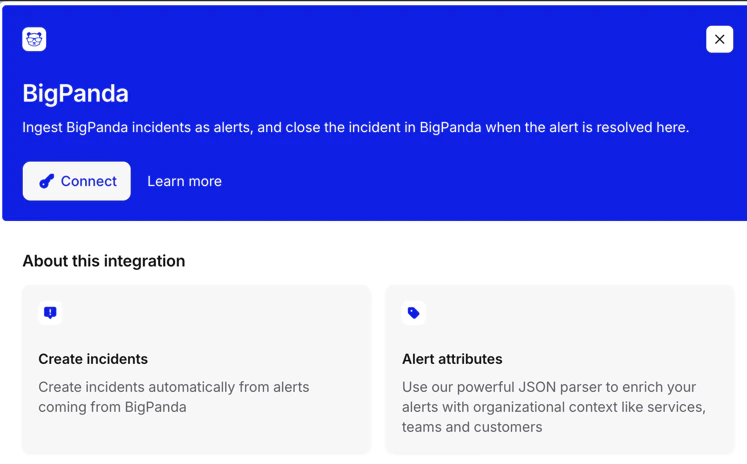 Click **Connect** and paste the **API key** you created above.
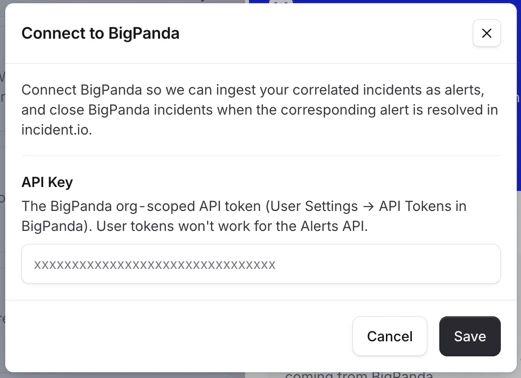 On save, `incident.io` validates the key against BigPanda before storing it, so an invalid key is rejected up front.
## Create the alert source
1. Head over to the [Alerts](https://app.incident.io/~/alerts/sources) section in your incident.io dashboard.
2. Select the **Sources** tab at the top of the page.
3. Press the **New alert source** button.
4. Search for **BigPanda** and click continue to create the alert source.
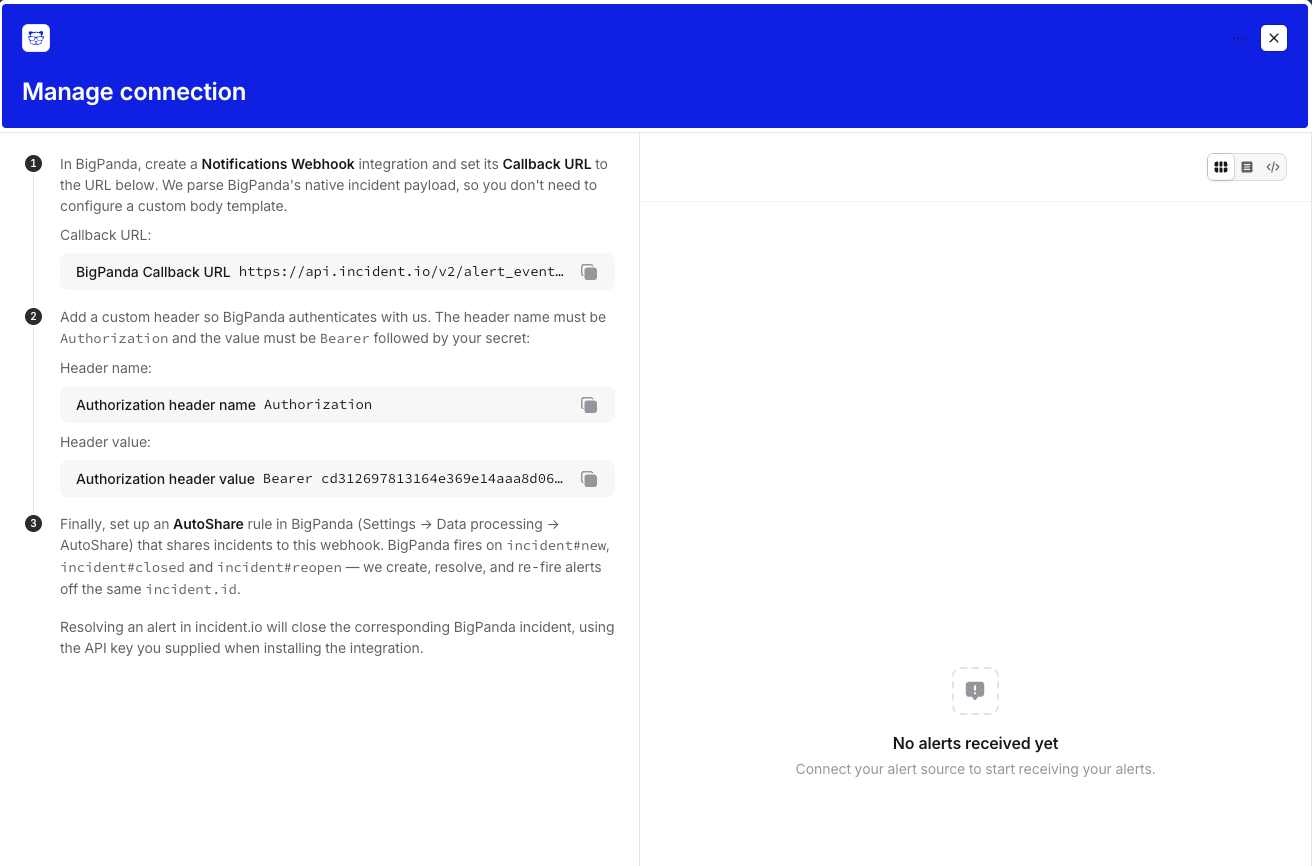
5. Copy the **Callback URL** and **bearer token** shown on the setup page — you'll paste these into BigPanda next.
On save, `incident.io` validates the key against BigPanda before storing it, so an invalid key is rejected up front.
## Create the alert source
1. Head over to the [Alerts](https://app.incident.io/~/alerts/sources) section in your incident.io dashboard.
2. Select the **Sources** tab at the top of the page.
3. Press the **New alert source** button.
4. Search for **BigPanda** and click continue to create the alert source.
5. Copy the **Callback URL** and **bearer token** shown on the setup page — you'll paste these into BigPanda next.
 ## Configure BigPanda
1. In BigPanda, create a **Webhooks** integration (search for "Webhooks" in BigPanda's integrations).
2. Set its **Callback URL** to the URL from the incident.io setup page.
3. Add a custom header so BigPanda authenticates with us:
* **Header name:** `Authorization`
* **Header value:** `Bearer `
4. Set up an **AutoShare** rule (`Settings` → `Data processing` → `AutoShare`) that shares incidents to this webhook. Point the rule at the webhook you just created and use a filter to choose which incidents are shared — leave it unfiltered to send everything, or scope it to a subset (for example by environment or source). In the AutoShare config, we recommend setting the delay to none and adding a delay on the `incident.io` side if needed. This means alerts are present even if they fire too briefly to page someone.
## Configure BigPanda
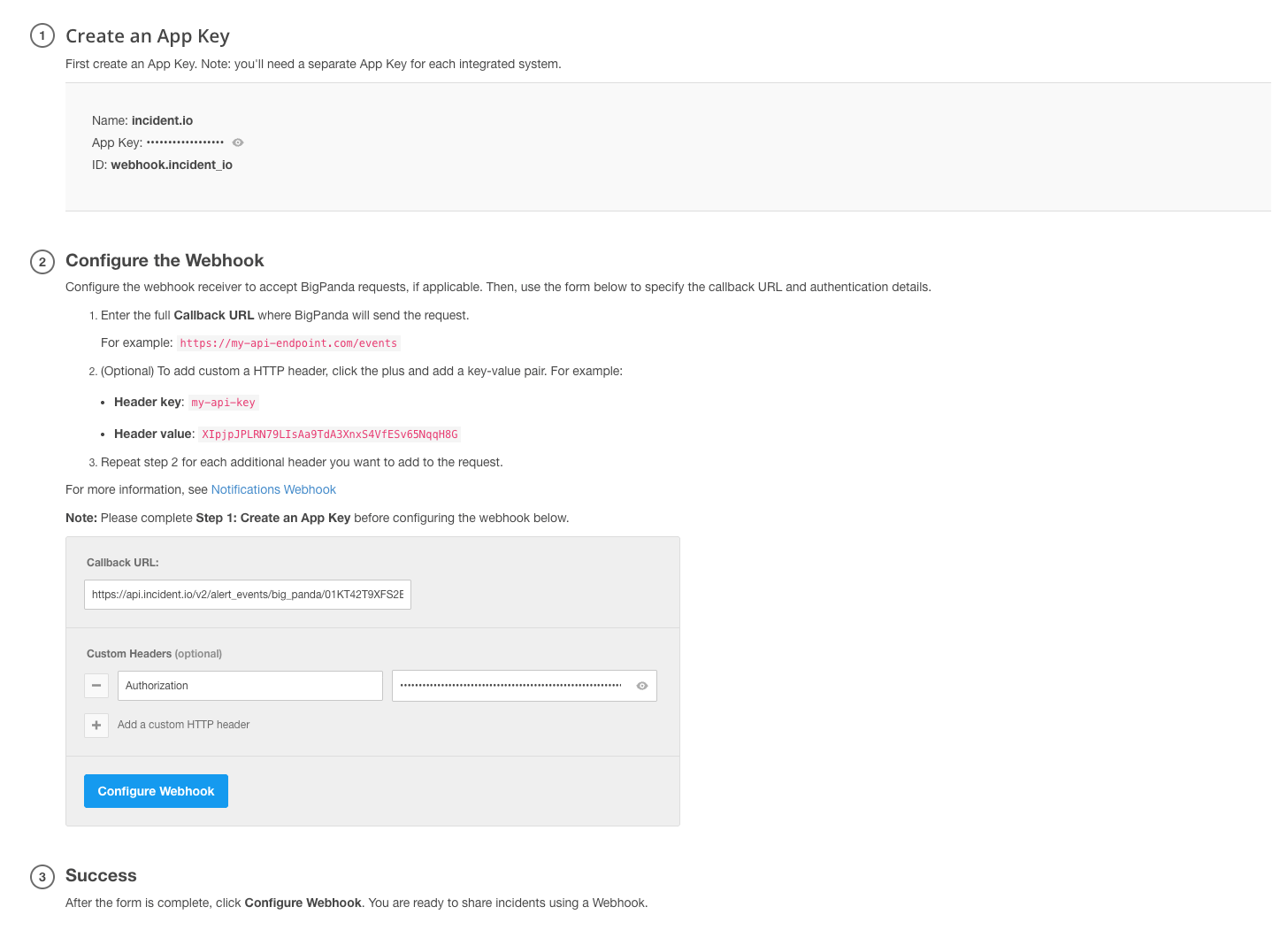
1. In BigPanda, create a **Webhooks** integration (search for "Webhooks" in BigPanda's integrations).
2. Set its **Callback URL** to the URL from the incident.io setup page.
3. Add a custom header so BigPanda authenticates with us:
* **Header name:** `Authorization`
* **Header value:** `Bearer `
4. Set up an **AutoShare** rule (`Settings` → `Data processing` → `AutoShare`) that shares incidents to this webhook. Point the rule at the webhook you just created and use a filter to choose which incidents are shared — leave it unfiltered to send everything, or scope it to a subset (for example by environment or source). In the AutoShare config, we recommend setting the delay to none and adding a delay on the `incident.io` side if needed. This means alerts are present even if they fire too briefly to page someone.
 ## How it works
BigPanda fires lifecycle events that incident.io maps onto an alert's status:
| BigPanda event | What happens in incident.io |
| ----------------- | --------------------------- |
| `incident#new` | Creates a firing alert |
| `incident#closed` | Resolves the alert |
| `incident#reopen` | Re-fires the alert |
Because every event is keyed on the BigPanda `incident.id`, a close followed by a re-open lands on the same alert rather than creating a new one.
When you resolve the alert in incident.io, we close the corresponding BigPanda incident using the API key you supplied when installing the integration. This keeps the two systems in sync — without it, the BigPanda incident would stay open and could re-fire the alert on the next webhook.
## How it works
BigPanda fires lifecycle events that incident.io maps onto an alert's status:
| BigPanda event | What happens in incident.io |
| ----------------- | --------------------------- |
| `incident#new` | Creates a firing alert |
| `incident#closed` | Resolves the alert |
| `incident#reopen` | Re-fires the alert |
Because every event is keyed on the BigPanda `incident.id`, a close followed by a re-open lands on the same alert rather than creating a new one.
When you resolve the alert in incident.io, we close the corresponding BigPanda incident using the API key you supplied when installing the integration. This keeps the two systems in sync — without it, the BigPanda incident would stay open and could re-fire the alert on the next webhook.