> ## Documentation Index
> Fetch the complete documentation index at: https://docs.incident.io/llms.txt
> Use this file to discover all available pages before exploring further.
# User roles and permissions
> Control user access with base roles and custom permissions
User permissions in incident.io are controlled through base roles and custom roles. Each user has one base role that determines their core permissions, plus optional custom roles can grant additional permissions.
Configure roles at **Settings → Permissions → Account-level**. Assign roles to individual users at **Settings → Users → Users tab**.
For information on how roles interact with billing, see [seat types](/admin/seat-types).
## Base roles
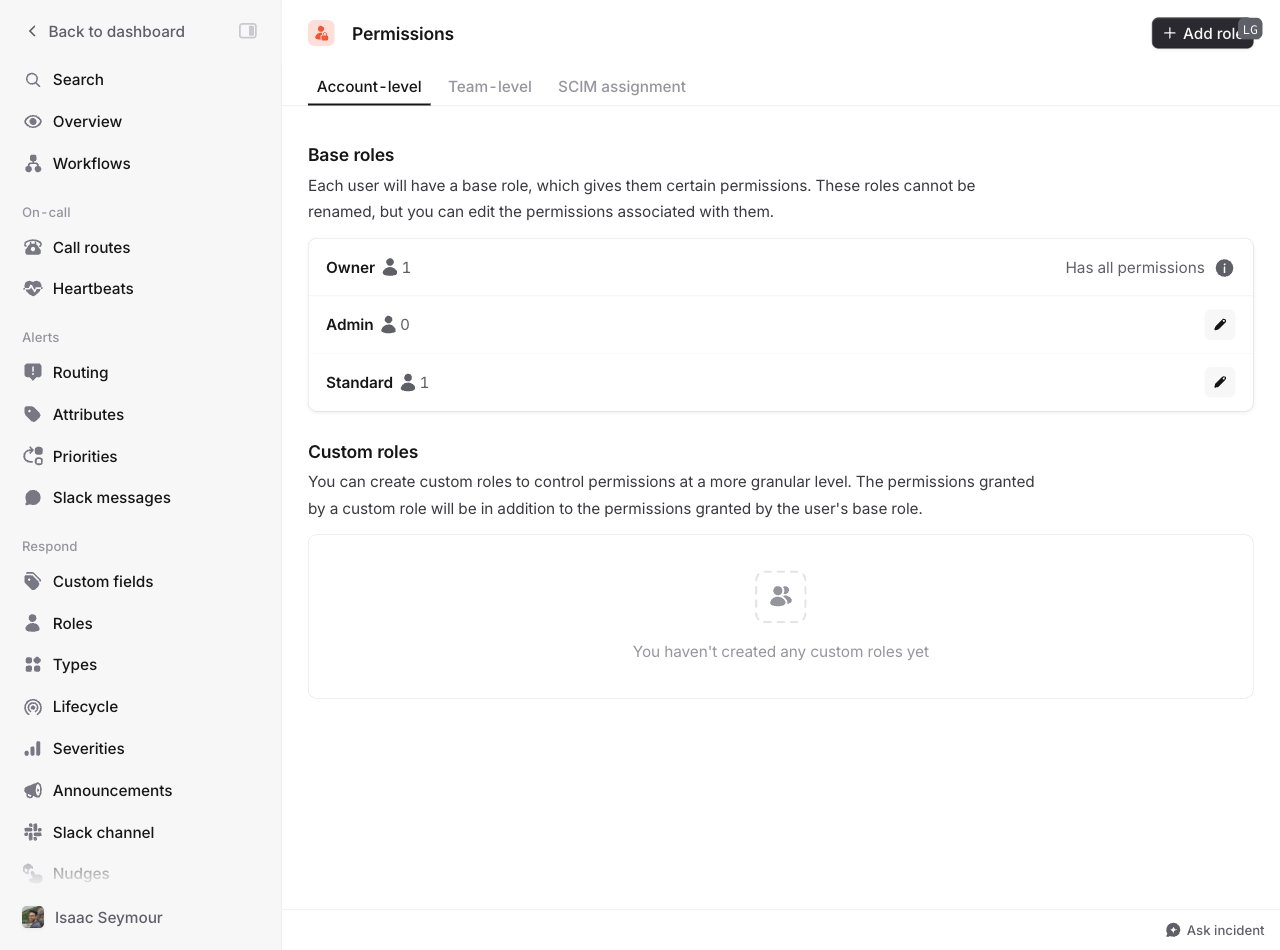
Every user has a base role that determines their default permissions. There are three base roles:
* **Standard** — default role for all users. Can view and declare incidents. Responders with this role can participate in incident response.
* **Admin** — all Standard permissions, plus the ability to manage organization settings and billing.
* **Owner** — full access to all incident.io features and settings.
Viewers can only have the Standard role. To assign a user the Admin or Owner role, they must have a Responder or On-call seat.
### Default permissions by role
| Permission | Standard | Admin | Owner |
| ------------------------------------------------------------------- | -------- | ----- | ----- |
| Use incident.io via Slack and dashboard (view and create incidents) | ✅ | ✅ | ✅ |
| Create and edit workflows and announcement rules | ✅ | ✅ | ✅ |
| View organization settings (except billing) | ✅ | ✅ | ✅ |
| Edit organization settings | ❌ | ✅ | ✅ |
| View and edit billing settings | ❌ | ✅ | ✅ |
| View all private incidents (including those they are not part of) | ❌ | ❌ | ✅ |
Slack workspace admins already have access to all private Slack channels, so they can access all private incidents
regardless of their incident.io role.
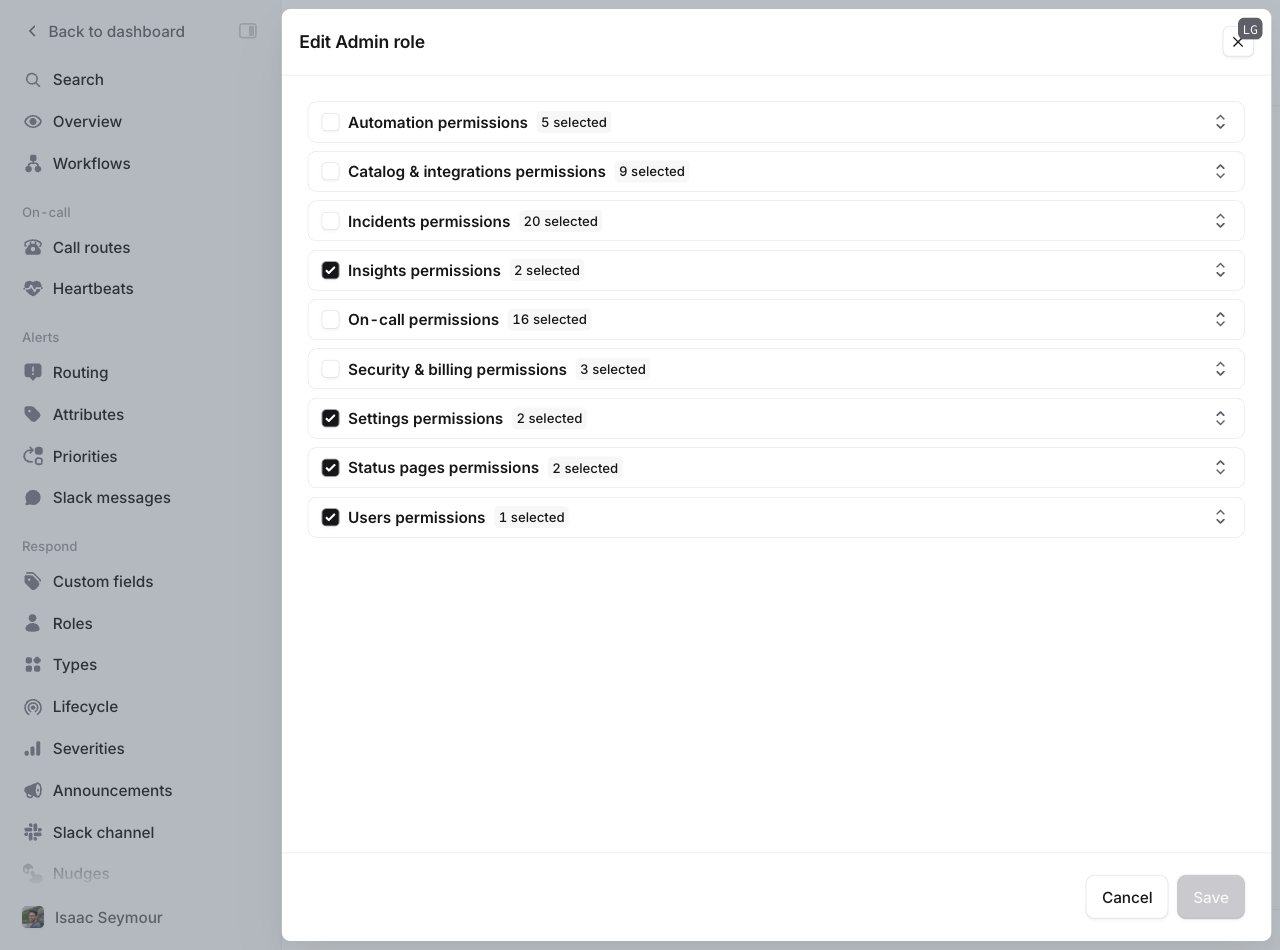
You can customize base role permissions at **Settings → Permissions → Account-level**. Click the edit icon on any base role to modify its permissions. For example, you could restrict billing access so only Owners can manage billing settings.
 ## Custom roles
Custom roles grant specific permissions to individual users beyond their base role. They only add permissions — they never remove them. A user receives the union of all permissions from their base role plus any assigned custom roles.
**Example custom roles:**
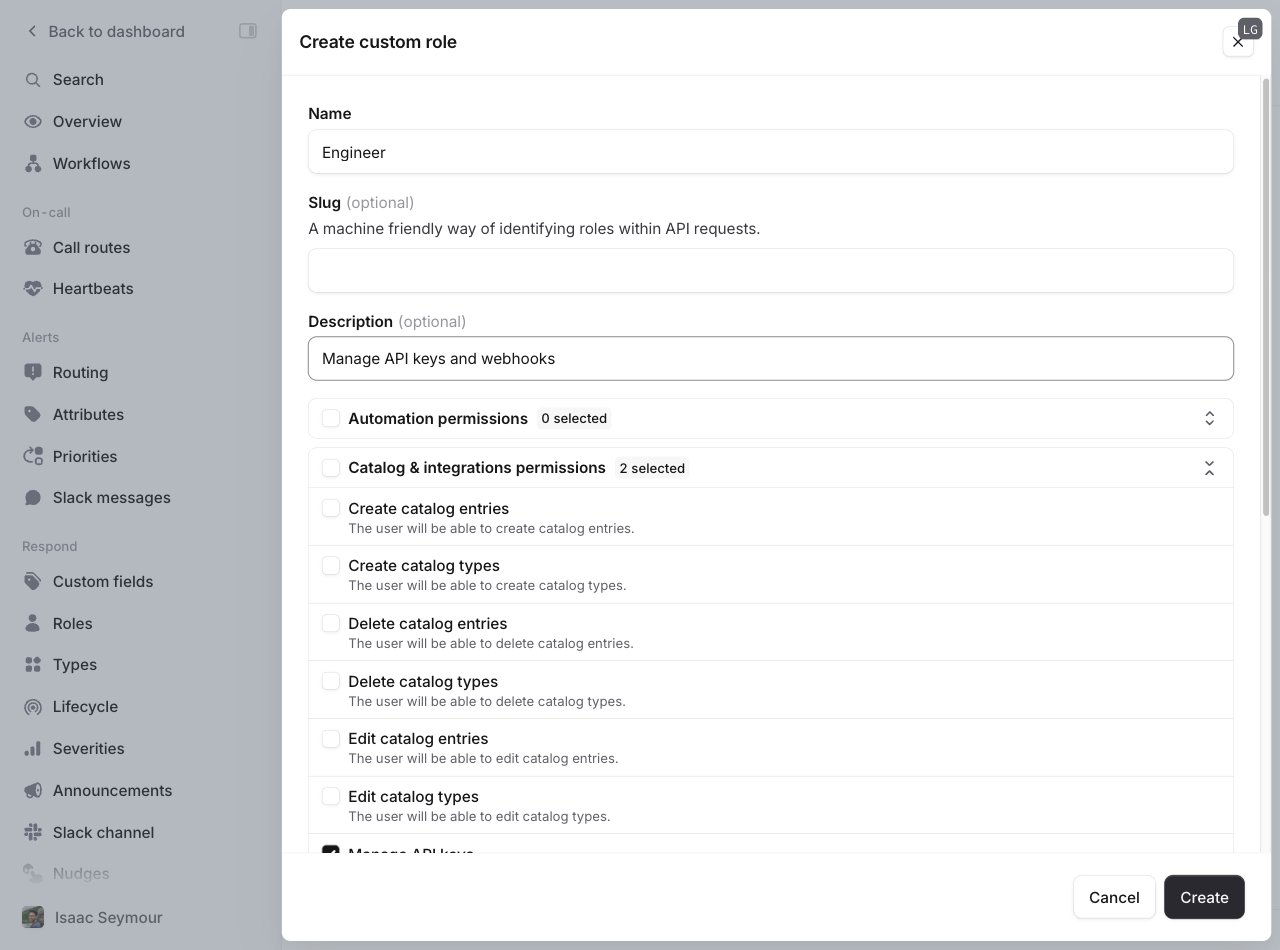
* **Engineer** — manage API keys and webhooks
* **Finance** — manage billing settings and on-call pay reports
* **Security** — view all private incidents
To create a custom role, go to **Settings → Permissions → Account-level** and click **Add role**. Define the role name, description, and specific permissions to grant.
## Custom roles
Custom roles grant specific permissions to individual users beyond their base role. They only add permissions — they never remove them. A user receives the union of all permissions from their base role plus any assigned custom roles.
**Example custom roles:**
* **Engineer** — manage API keys and webhooks
* **Finance** — manage billing settings and on-call pay reports
* **Security** — view all private incidents
To create a custom role, go to **Settings → Permissions → Account-level** and click **Add role**. Define the role name, description, and specific permissions to grant.
 ## Managing user permissions
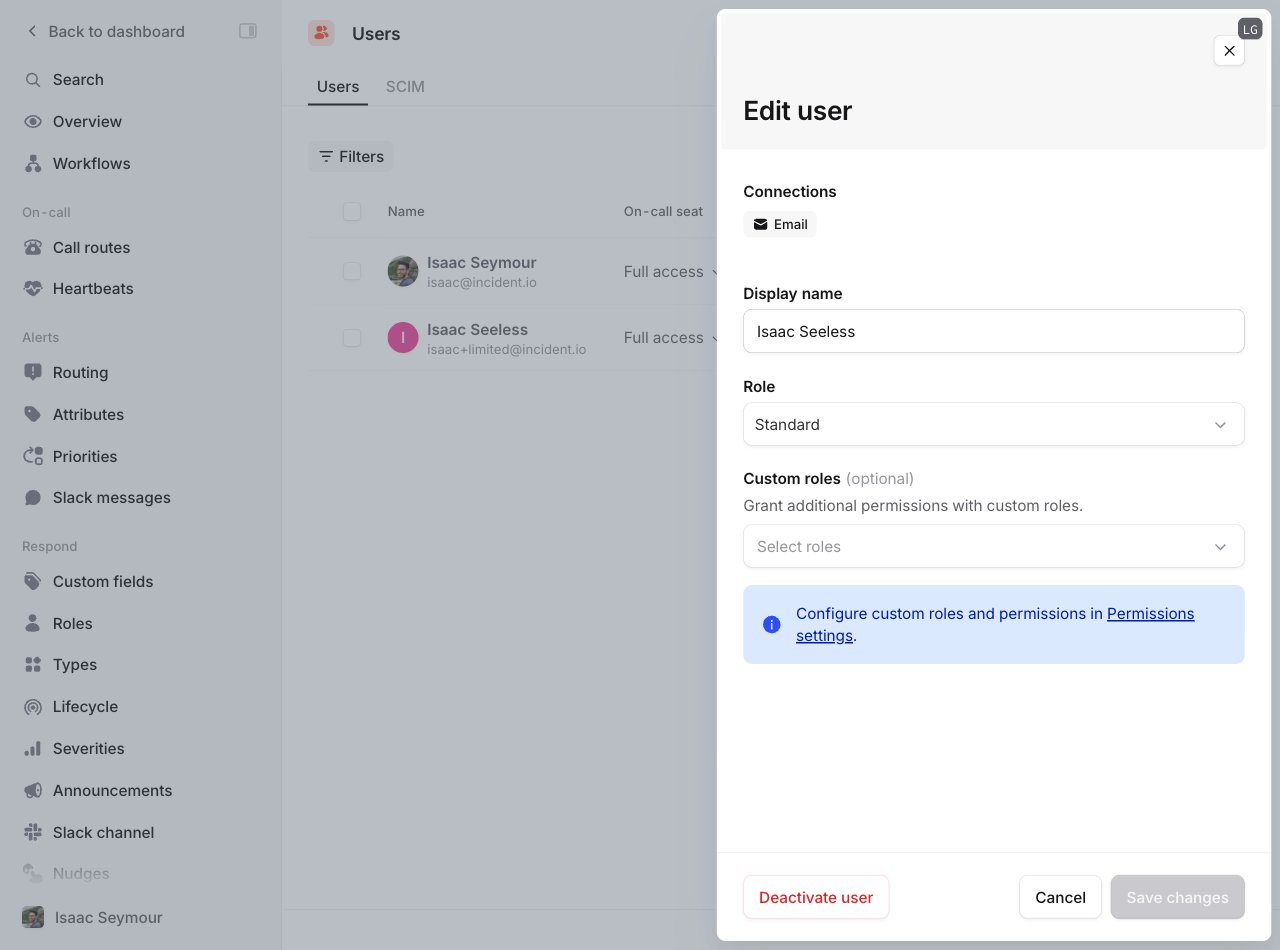
View and edit user permissions at **Settings → Users → Users tab**. Each row shows the user's current seat type, base role, and custom roles.
To modify a user's permissions, open the **⋯** menu next to their name and choose **Edit details**. You can change their base role or add custom roles. Users can hold multiple custom roles simultaneously.
## Managing user permissions
View and edit user permissions at **Settings → Users → Users tab**. Each row shows the user's current seat type, base role, and custom roles.
To modify a user's permissions, open the **⋯** menu next to their name and choose **Edit details**. You can change their base role or add custom roles. Users can hold multiple custom roles simultaneously.