> ## Documentation Index
> Fetch the complete documentation index at: https://docs.incident.io/llms.txt
> Use this file to discover all available pages before exploring further.
# User management
> How users are added to incident.io and how to manage them
There are several ways users get added to your organization, depending on your setup.
## Adding users
| Method | How it works |
| ---------------------------- | ----------------------------------------------------------------------------------------------------------------------------------------------------------------------------------------------------------------------------------------------------------- |
| **Slack or Microsoft Teams** | Users are automatically created when they join an incident channel or interact with incident.io in your communications platform. This is the most common way users are added. |
| **SAML SSO** | Users are created on their first sign-in through your identity provider. See [SAML SSO setup](/admin/saml-sso) for details. |
| **SCIM** | Users are automatically provisioned and deprovisioned from your identity provider. SCIM also manages permissions automatically. See [SCIM provisioning](/admin/scim) for details. |
| **Manual invite** | Invite users from **Settings → Users → Users tab**, or directly when creating or editing a schedule or escalation path. You can invite existing Slack/Teams users or invite people by email. See [Inviting users by email](#inviting-users-by-email) below. |
## Inviting users by email
You can invite users to your organization with just their email address. Note that this is only available to you if your organization has sign in with email or SAML login enabled, and is always disabled if your users are provisioned with SCIM.
To invite users:
1. Go to **Settings → Users → Users tab** and click **Invite user**.
2. Type/paste one or more email addresses. You can mix in existing Slack/Teams users in the same picker.
3. Choose the [seat type](/admin/seat-types) the new users should have, then click **Invite**.
### Inviting from a schedule or escalation path
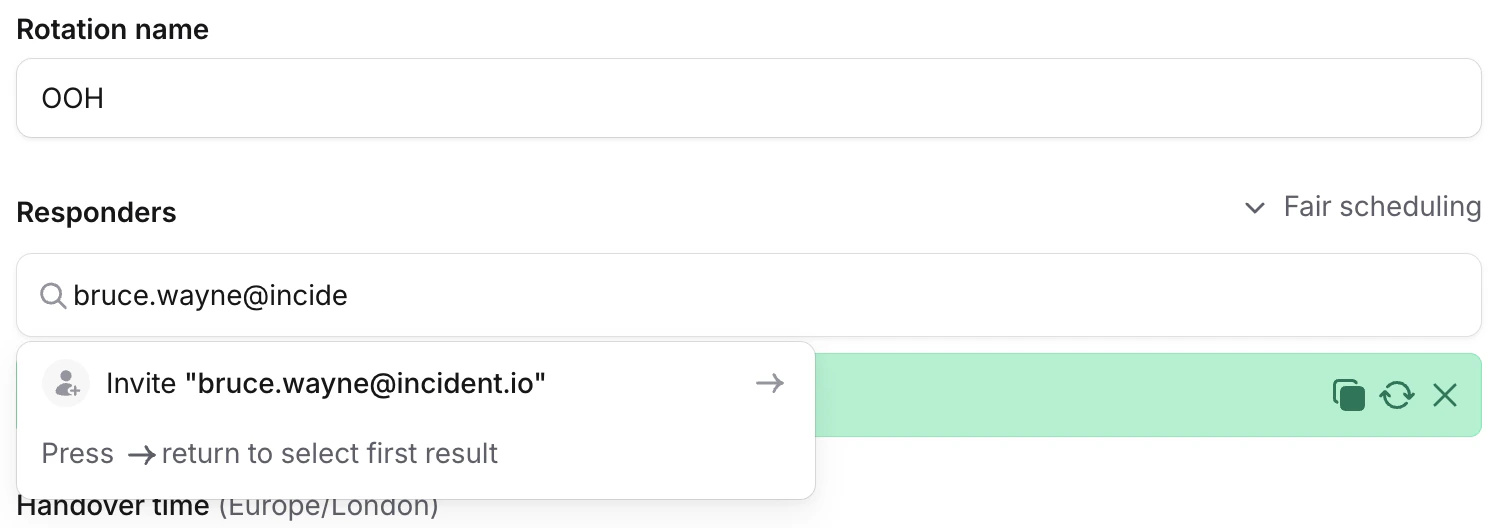
You can also invite new users while creating or editing a [schedule](/on-call/schedules) or [escalation path](/on-call/escalation-paths). Just type an email address into the user picker.
When you save, we'll create the user, give them an On-call seat, add them to the schedule or escalation path, and send them an email letting them know they've been added.
 ### Requirements
Inviting users by email requires the **Manage users** permission. Owners and Admins have it by default. You can also grant it via a [custom role](/admin/user-permissions#custom-roles).
Email invites aren't available if your organization uses [SCIM](/admin/scim), since user creation comes from your identity provider. If your [SAML config](/admin/saml-sso) has a domain allowlist, invites are limited to email addresses on those domains.
## Permissions
Each user has a base role (Standard, Admin, or Owner) that determines their core permissions, plus optional custom roles for additional permissions. This determines what they can do on the platform. See [user roles and permissions](/admin/user-permissions) for details.
See [seat types](/admin/seat-types) for details on seats and billing.
## Deactivating users
Users are automatically deactivated when they are deactivated in Slack or Microsoft Teams. If you use [SCIM](/admin/scim), users are also deactivated when unassigned from the application in your identity provider.
To manually deactivate a user, go to **Settings → Users → Users tab**, click the three dot menu next to their name, click **Edit details**, and deactivate them. The same edit menu lets you rename email-only users. Both actions require the **Manage users** permission.
## Duplicate users
If a user has multiple accounts (for example, from joining via both Slack or Microsoft Teams and SAML with different email addresses), you can merge them. See [duplicate users](/admin/duplicate-users) for details.
## FAQs
Already-active members are skipped silently, they won't get a duplicate account or a second invite. You'll see a
summary after submitting that tells you how many were invited and how many already existed.
No. If your SAML config has a domain allowlist, invites are limited to those domains. To invite someone from a
different domain, add the domain to your allowlist first.
Yes. The seat type you pick is applied as soon as the invite is sent. If you invite someone with a Responder or
On-call seat, that seat is consumed from your plan right away.
### Requirements
Inviting users by email requires the **Manage users** permission. Owners and Admins have it by default. You can also grant it via a [custom role](/admin/user-permissions#custom-roles).
Email invites aren't available if your organization uses [SCIM](/admin/scim), since user creation comes from your identity provider. If your [SAML config](/admin/saml-sso) has a domain allowlist, invites are limited to email addresses on those domains.
## Permissions
Each user has a base role (Standard, Admin, or Owner) that determines their core permissions, plus optional custom roles for additional permissions. This determines what they can do on the platform. See [user roles and permissions](/admin/user-permissions) for details.
See [seat types](/admin/seat-types) for details on seats and billing.
## Deactivating users
Users are automatically deactivated when they are deactivated in Slack or Microsoft Teams. If you use [SCIM](/admin/scim), users are also deactivated when unassigned from the application in your identity provider.
To manually deactivate a user, go to **Settings → Users → Users tab**, click the three dot menu next to their name, click **Edit details**, and deactivate them. The same edit menu lets you rename email-only users. Both actions require the **Manage users** permission.
## Duplicate users
If a user has multiple accounts (for example, from joining via both Slack or Microsoft Teams and SAML with different email addresses), you can merge them. See [duplicate users](/admin/duplicate-users) for details.
## FAQs
Already-active members are skipped silently, they won't get a duplicate account or a second invite. You'll see a
summary after submitting that tells you how many were invited and how many already existed.
No. If your SAML config has a domain allowlist, invites are limited to those domains. To invite someone from a
different domain, add the domain to your allowlist first.
Yes. The seat type you pick is applied as soon as the invite is sent. If you invite someone with a Responder or
On-call seat, that seat is consumed from your plan right away.