> ## Documentation Index
> Fetch the complete documentation index at: https://docs.incident.io/llms.txt
> Use this file to discover all available pages before exploring further.
# Team roles
> Give teams control over their own workflows, escalation paths, schedules, incident types, announcements, and more
[Team roles](https://app.incident.io/~/settings/permissions/team) let you give teams the ability to manage their own config without letting them change another team's. Each resource can be owned by a different team: one alert route could be managed by Team A while another is managed by Team B.
Team roles rely on having [teams set up](/catalog/teams) in your catalog. If your organization doesn't use teams yet,
start there.
This page covers how team-based permissions work in general. For the specifics of each resource, see:
* [Alerts and escalations](/admin/restrict-escalation-response) — resolving alerts and responding to escalations
* [Incident types and lifecycles](/admin/restrict-incident-type-management)
* [Workflows](/admin/restrict-workflow-management)
* [Announcements](/admin/restrict-announcement-management) — a team's announcement rules and post templates
Escalation paths, schedules, alert routes, alert sources, and [API keys](/admin/api-keys) work the same way.
Team roles are **in addition to** [account-level roles](/admin/user-permissions). If someone can manage something at
the account level, they can make changes even if they're not on the team that owns it. This lets a small set of admins
step in across teams.
## How team-based permissions work
Giving a team control of its own resources follows the same shape wherever you do it:
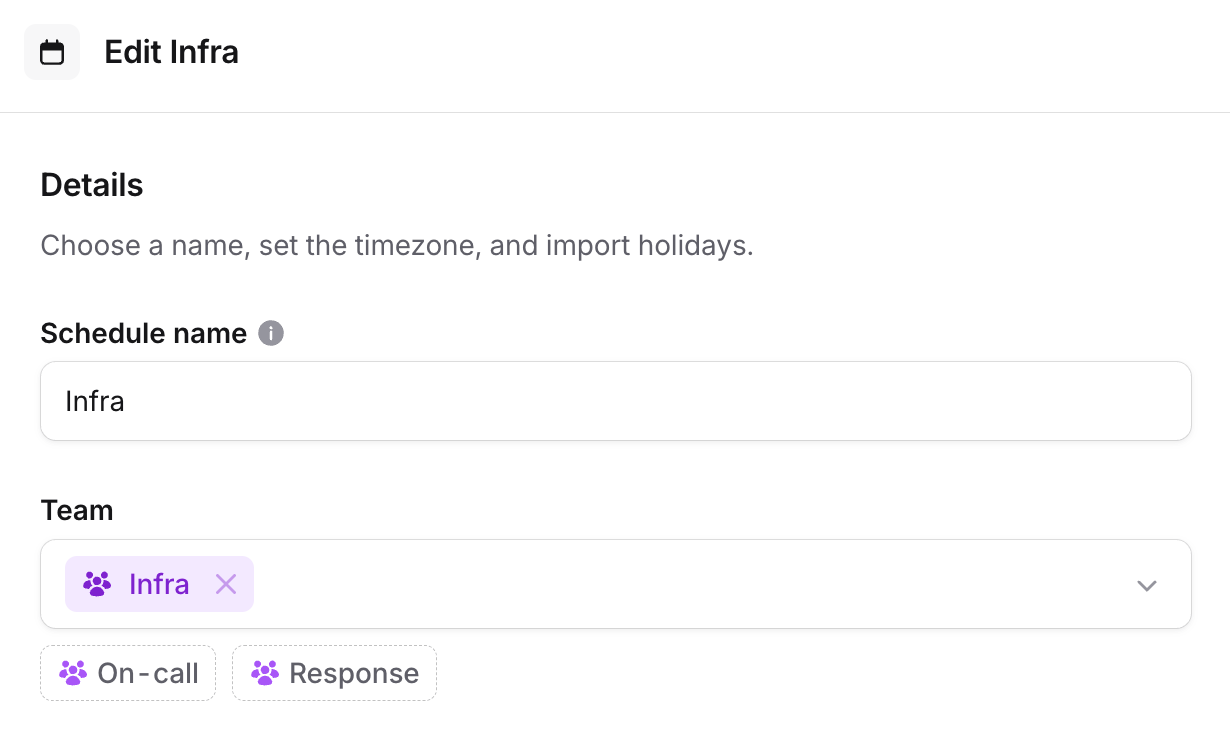
1. **Give the resource an owning team.** Where you set this depends on the resource (see the pages linked above). A resource with no owning team behaves as it did before you started. See [Team resources](/catalog/team-resources) for what ownership means.
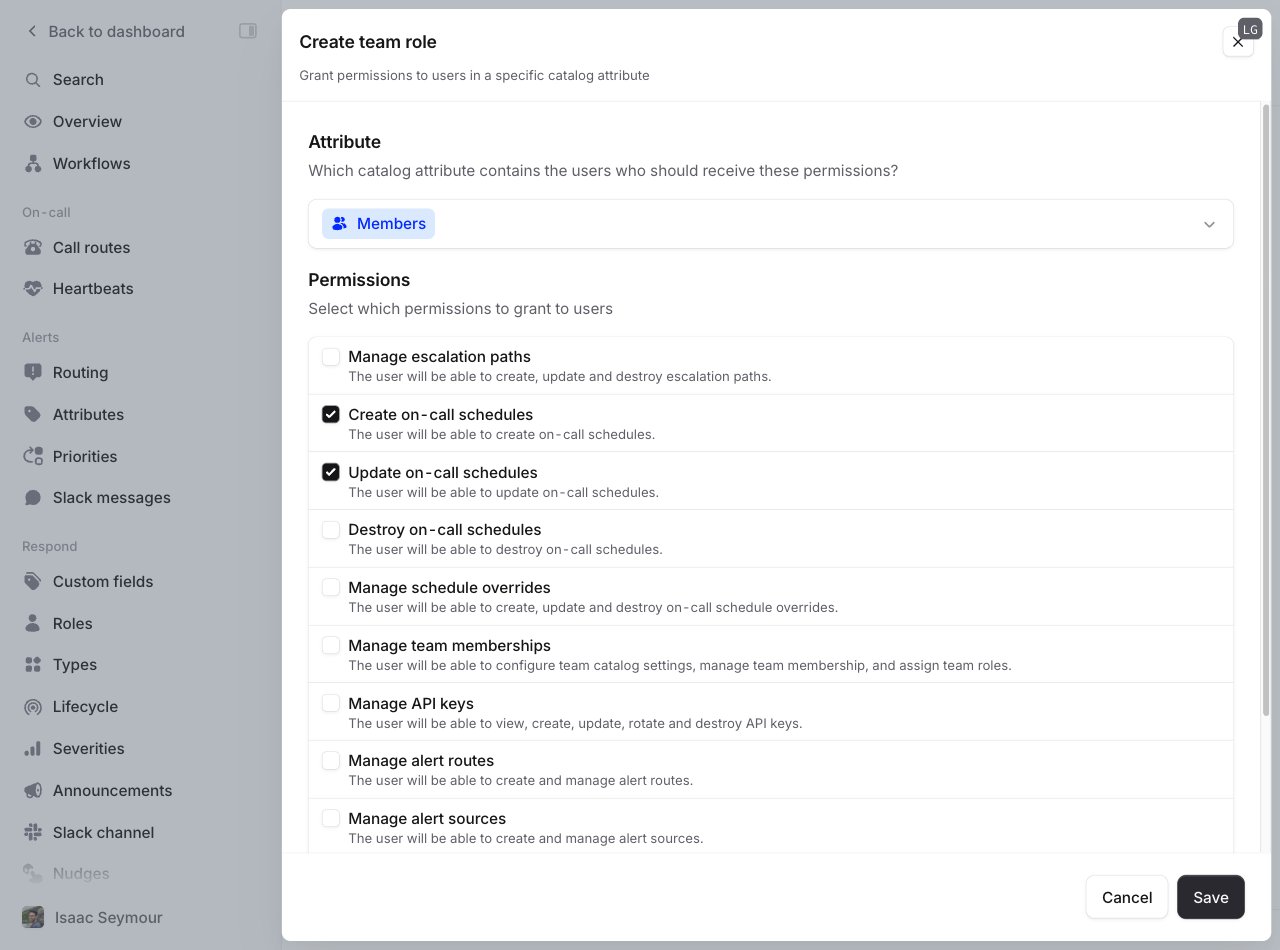
2. **Create a team role with the permission.** At [**Settings → Permissions → Team-level**](https://app.incident.io/~/settings/permissions/team), create a team role (or edit an existing one) and select the relevant permission.
3. **Remove the account-level default**, if the permission is granted to everyone. Some permissions (like **Manage workflows** or **Manage announcements**) are in the **Standard** base role out of the box, so everyone holds them account-wide. Until you remove that grant at [**Settings → Permissions → Account-level**](https://app.incident.io/~/settings/permissions), team ownership has no effect on who can manage the resource.
4. **Confirm it's working.** Someone outside an owning team sees the relevant controls disabled, with a tooltip explaining they don't have permission for that resource. Members of the owning team, and anyone who holds the permission account-wide, can manage it as normal.
 ## Assigning team roles
Who has which team role is controlled via the catalog. Each team role corresponds to an attribute on your Team catalog type (you can [configure which catalog type represents your teams here](https://app.incident.io/~/settings/teams)). You can view and change who has which role from the **Members** tab of the team's page.
## Assigning team roles
Who has which team role is controlled via the catalog. Each team role corresponds to an attribute on your Team catalog type (you can [configure which catalog type represents your teams here](https://app.incident.io/~/settings/teams)). You can view and change who has which role from the **Members** tab of the team's page.
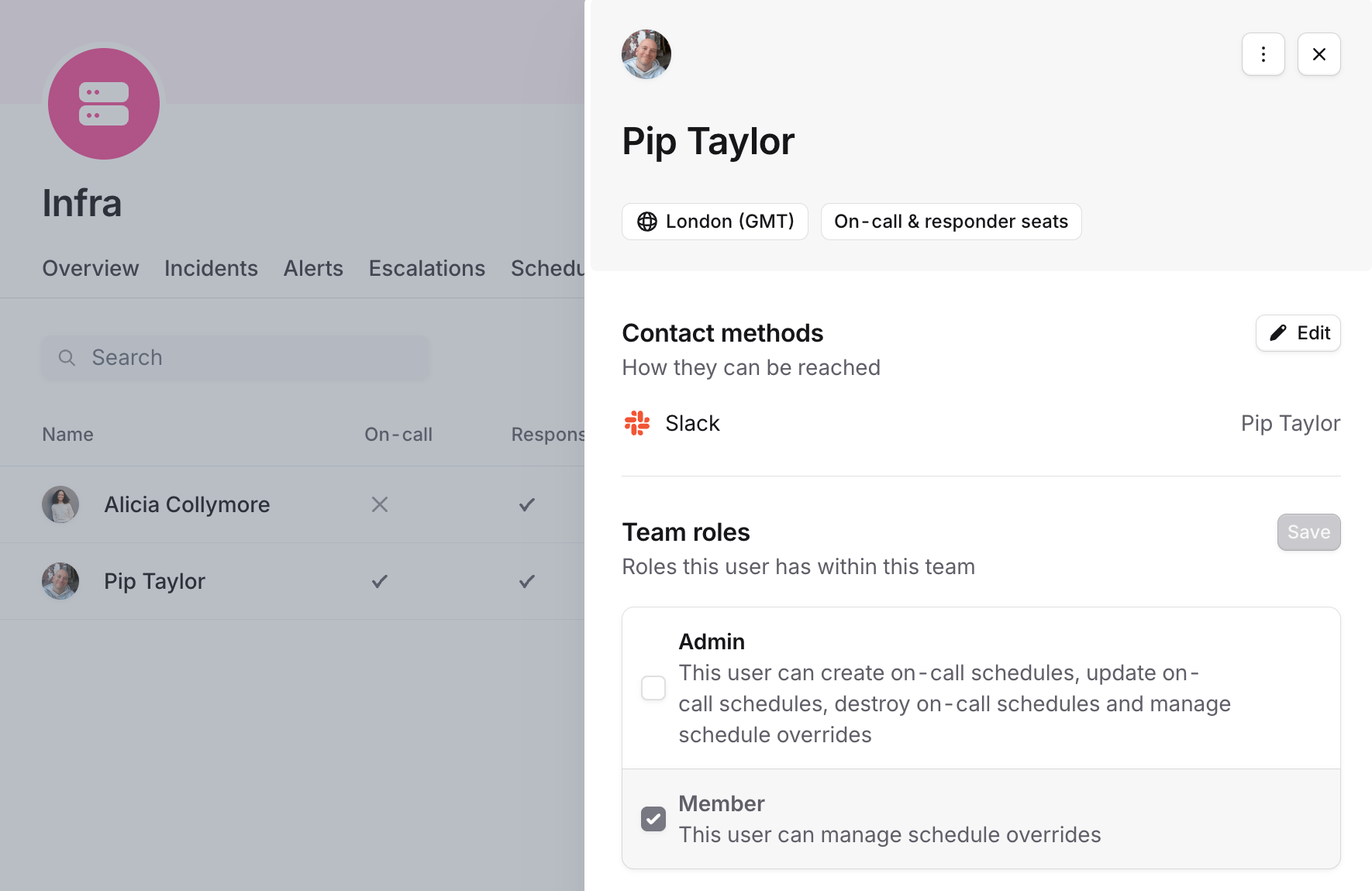 You can configure multiple team roles (for example Members and Admins) so that some people on a team get additional permissions the rest don't. Users can hold multiple roles on a team, and if they do, they get the union of permissions across all of them.
If your teams are controlled externally (for example via Linear, GitHub, the catalog importer, or Terraform), then
anyone who can update teams in the external system can control which users have team roles within incident.io.
## Example: team-owned schedules
Say you want everyone on a team to create schedule overrides, but only the team's managers to edit the schedule itself.
First, make sure the schedule is owned by the right team:
You can configure multiple team roles (for example Members and Admins) so that some people on a team get additional permissions the rest don't. Users can hold multiple roles on a team, and if they do, they get the union of permissions across all of them.
If your teams are controlled externally (for example via Linear, GitHub, the catalog importer, or Terraform), then
anyone who can update teams in the external system can control which users have team roles within incident.io.
## Example: team-owned schedules
Say you want everyone on a team to create schedule overrides, but only the team's managers to edit the schedule itself.
First, make sure the schedule is owned by the right team:
 Then create two team roles, one for members and one for admins, each granting the schedule permissions that group should have:
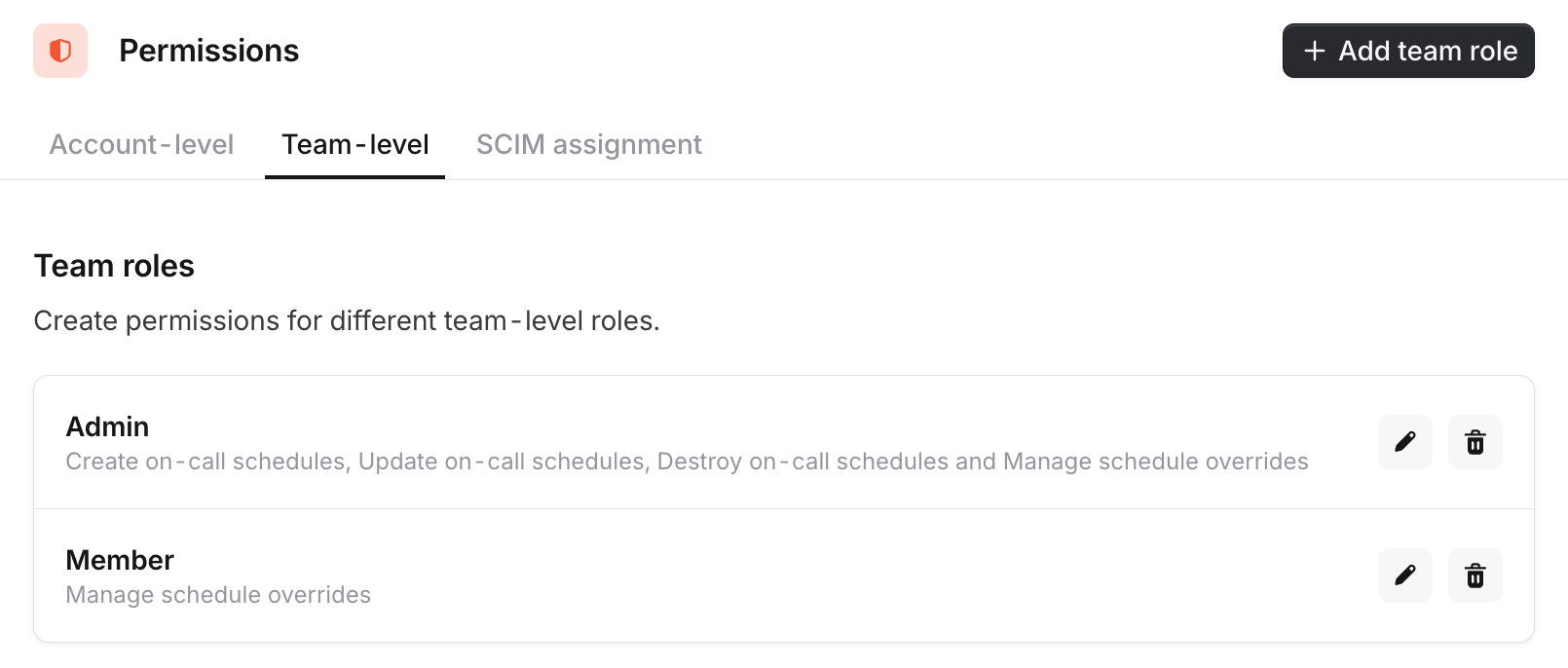 Assign those roles on the team's **Members** tab, as [above](#assigning-team-roles). Now everyone on the team can create overrides for schedules they're on, but only the admins can change the schedule itself, like working hours and when shift handovers happen.
## FAQs
Reassigning ownership always requires the relevant permission granted **account-wide**. A team can manage a resource
they own, but they can't hand it to another team or remove their own team from it. This stops a team from quietly
giving away (or locking others out of) a shared resource.
They can be managed by anyone who holds the relevant permission account-wide. For permissions that are in the
**Standard** role by default (like **Manage workflows** or **Manage announcements**), that's everyone until you
remove it in step 3.
Yes. You can assign multiple owning teams, and a member of any one of them (with the permission granted to that
team) can manage the resource.
Yes. Anyone who holds a permission account-wide can manage any resource of that kind, regardless of which team owns
it. This lets a small set of administrators step in across teams.
Assign those roles on the team's **Members** tab, as [above](#assigning-team-roles). Now everyone on the team can create overrides for schedules they're on, but only the admins can change the schedule itself, like working hours and when shift handovers happen.
## FAQs
Reassigning ownership always requires the relevant permission granted **account-wide**. A team can manage a resource
they own, but they can't hand it to another team or remove their own team from it. This stops a team from quietly
giving away (or locking others out of) a shared resource.
They can be managed by anyone who holds the relevant permission account-wide. For permissions that are in the
**Standard** role by default (like **Manage workflows** or **Manage announcements**), that's everyone until you
remove it in step 3.
Yes. You can assign multiple owning teams, and a member of any one of them (with the permission granted to that
team) can manage the resource.
Yes. Anyone who holds a permission account-wide can manage any resource of that kind, regardless of which team owns
it. This lets a small set of administrators step in across teams.