> ## Documentation Index
> Fetch the complete documentation index at: https://docs.incident.io/llms.txt
> Use this file to discover all available pages before exploring further.
# Role restrictions
> Control who can be assigned to incident roles and what they can do
Role restrictions let you control who's eligible to be assigned specific roles during an incident, and what permissions each role grants. For example, you may want only members of your Security team to be the Incident Lead for Security incidents, and grant that role permission to manage the incident lifecycle.
Restrictions and permissions are configured per [incident type](/incidents/incident-types), so you can tailor each role to match the needs of different incident types. Role-level permissions are available on the [Enterprise plan](https://incident.io/pricing).
## Setting up
To configure a role, head to **[Settings → Types](https://app.incident.io/~/settings/incident-types)** and select the incident type you want to configure. Scroll to the **Roles** section.
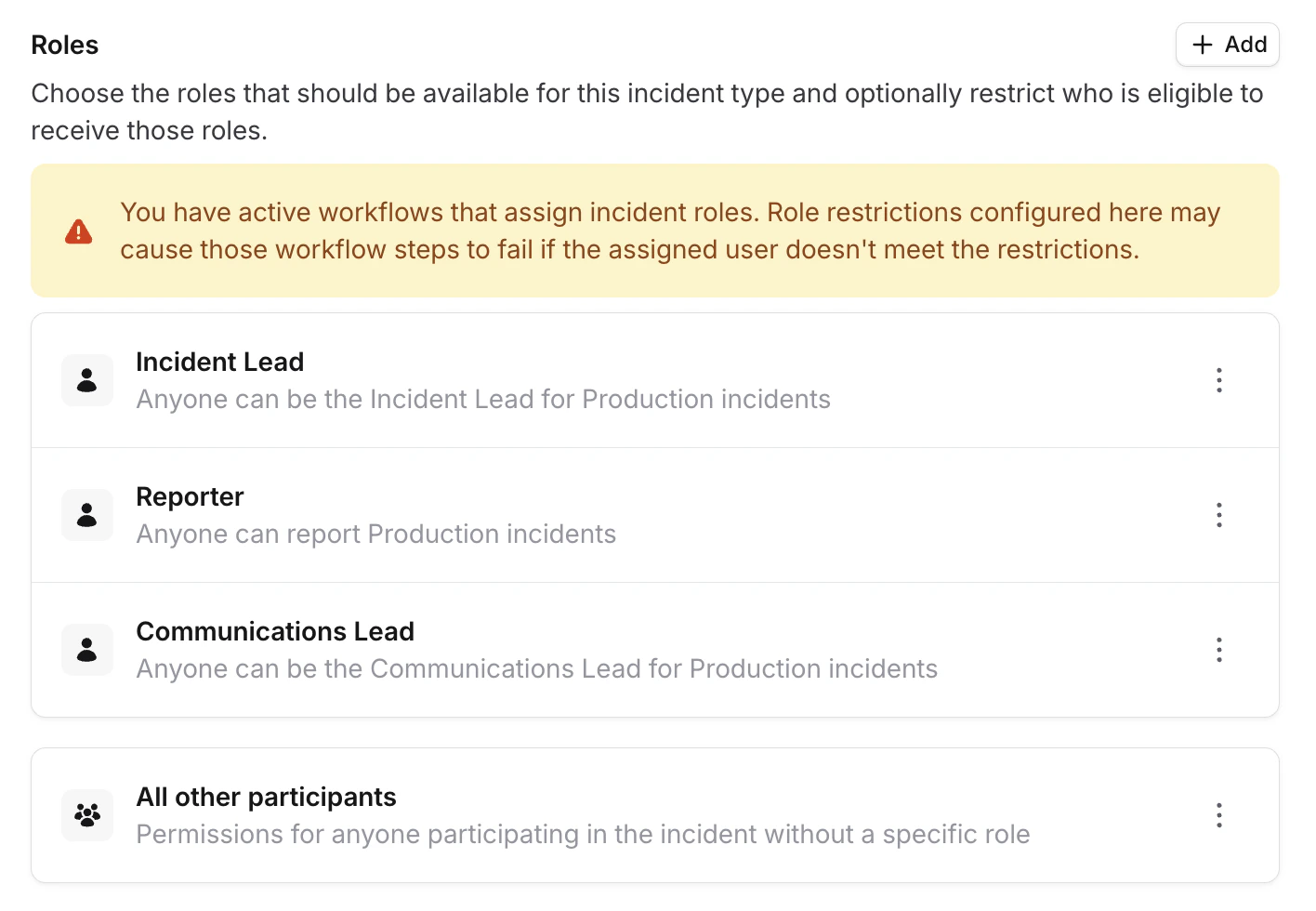 Click the three-dot menu on any role and select **Configure role** to open the configuration drawer. The drawer has two sections: **Who can get this role?** and **Grant additional permissions**.
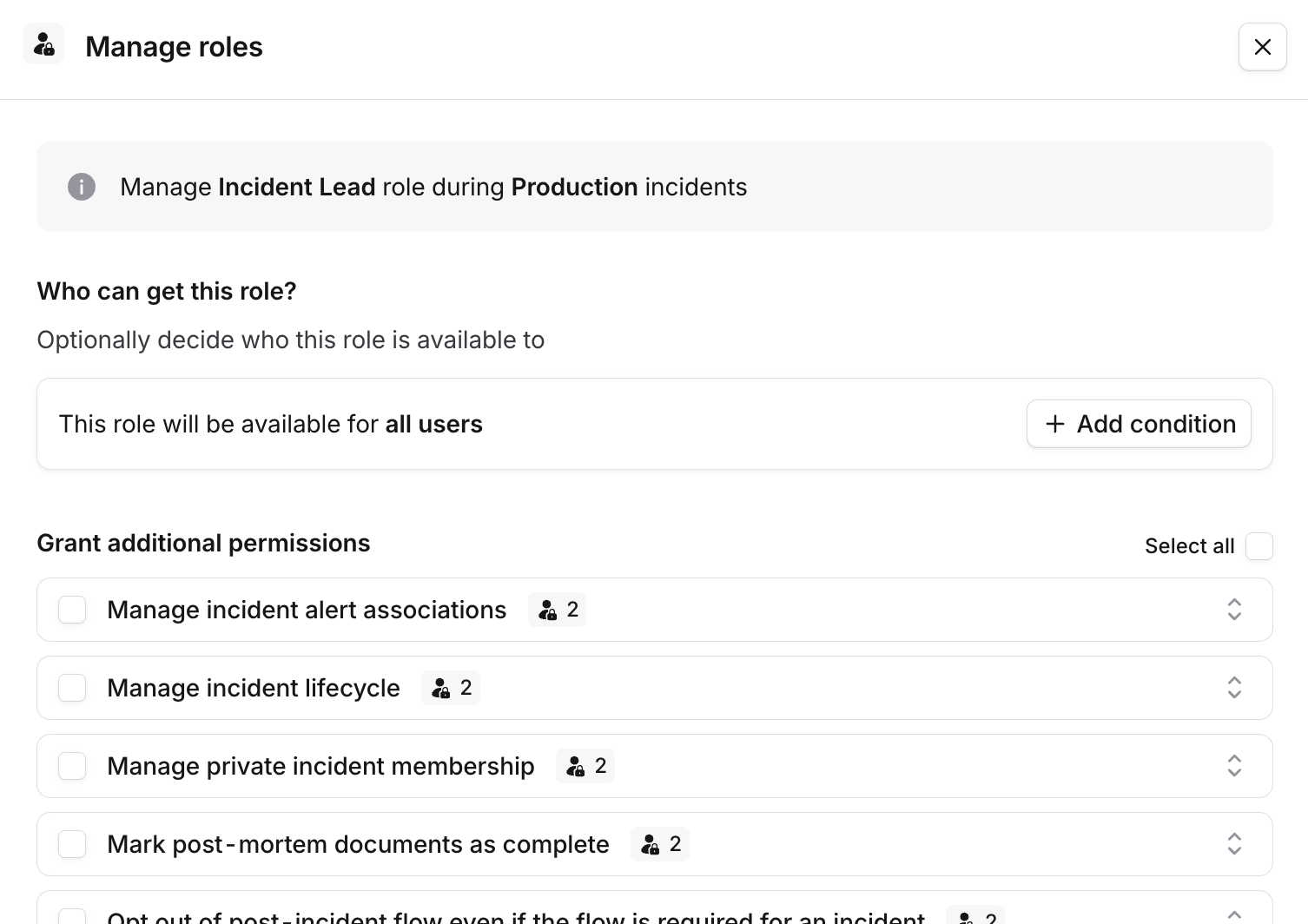 ## Who can get this role?
Restrictions are built using the expression builder. Select a user attribute to restrict on, choose an operator, and pick the values to match against.
## Who can get this role?
Restrictions are built using the expression builder. Select a user attribute to restrict on, choose an operator, and pick the values to match against.
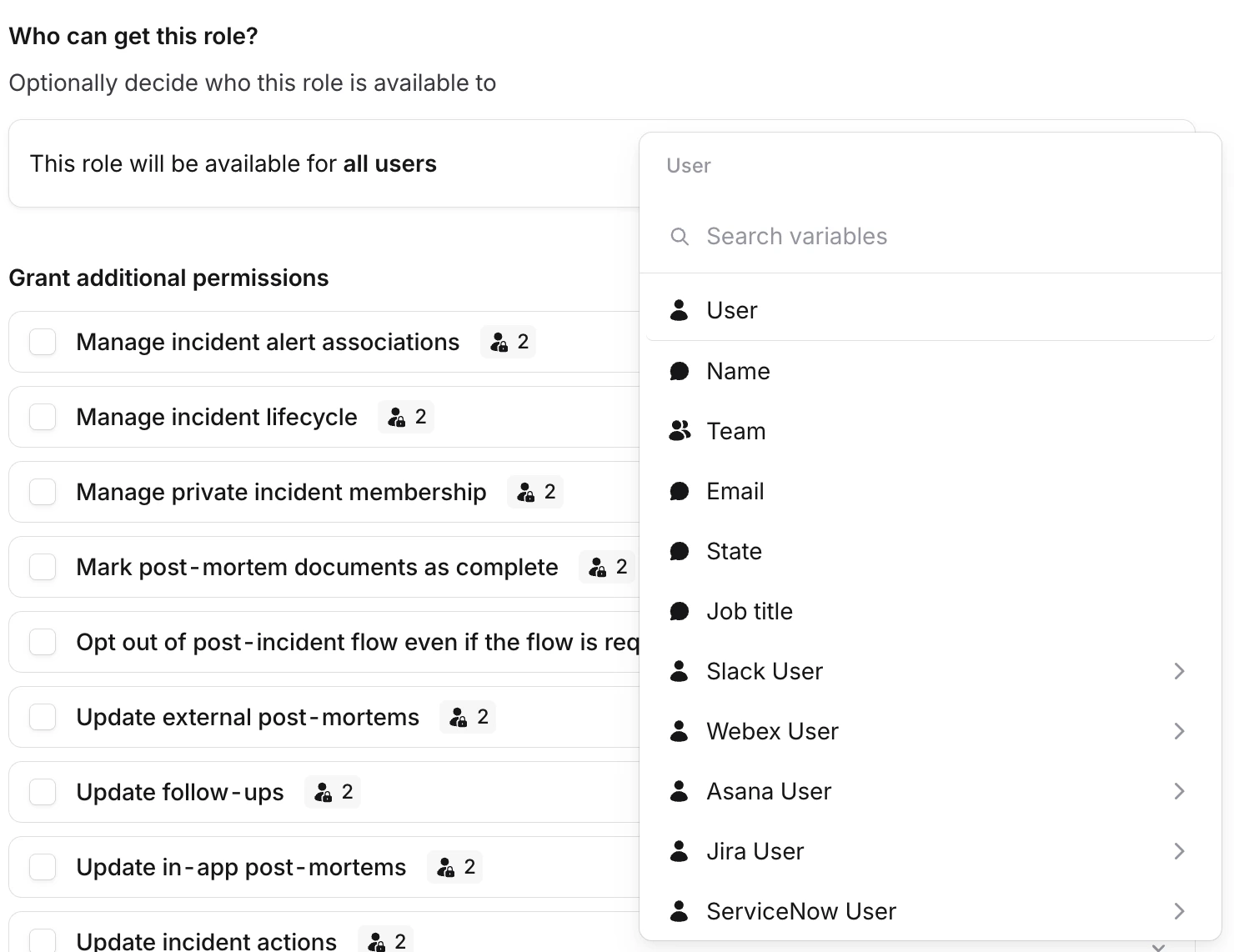 Common examples include restricting a role to a specific list of users, or to members of a particular team. You can also restrict based on any user attribute or custom catalog type connected to users.
You can combine multiple conditions:
* **Conditions within the same group** use AND logic - all conditions must be met
* **Separate groups** use OR logic - any group can match
Common examples include restricting a role to a specific list of users, or to members of a particular team. You can also restrict based on any user attribute or custom catalog type connected to users.
You can combine multiple conditions:
* **Conditions within the same group** use AND logic - all conditions must be met
* **Separate groups** use OR logic - any group can match
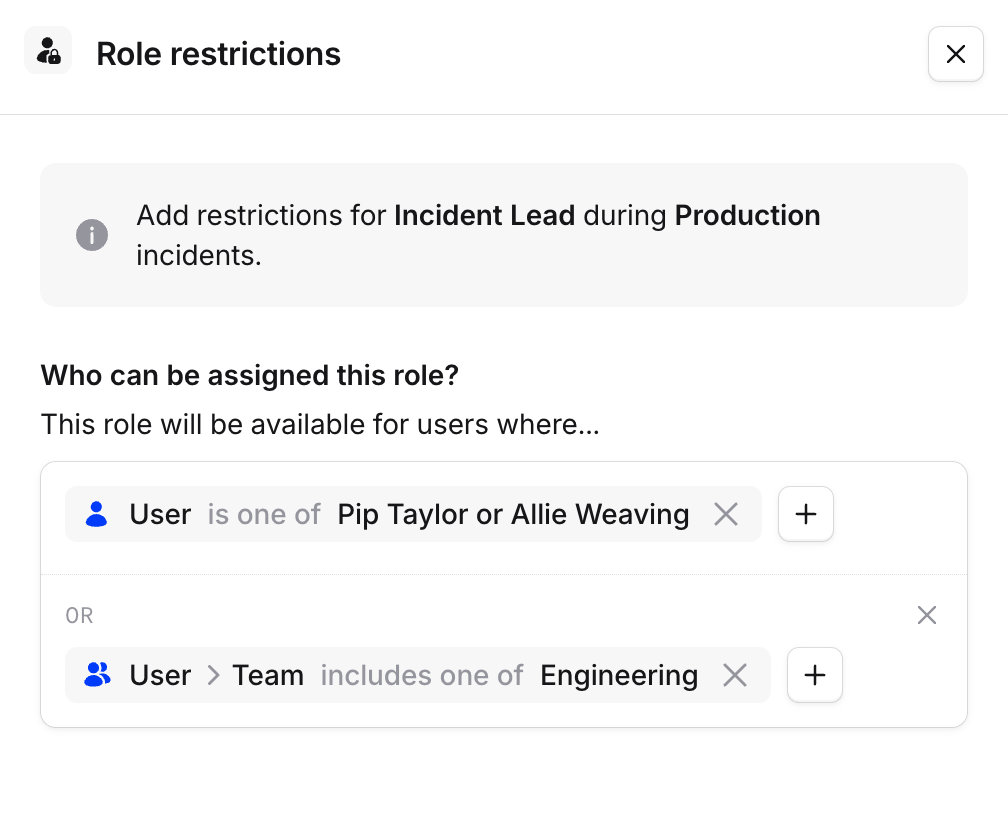 Once saved, restrictions are displayed beneath each role in the Roles section so you know which roles have restrictions set.
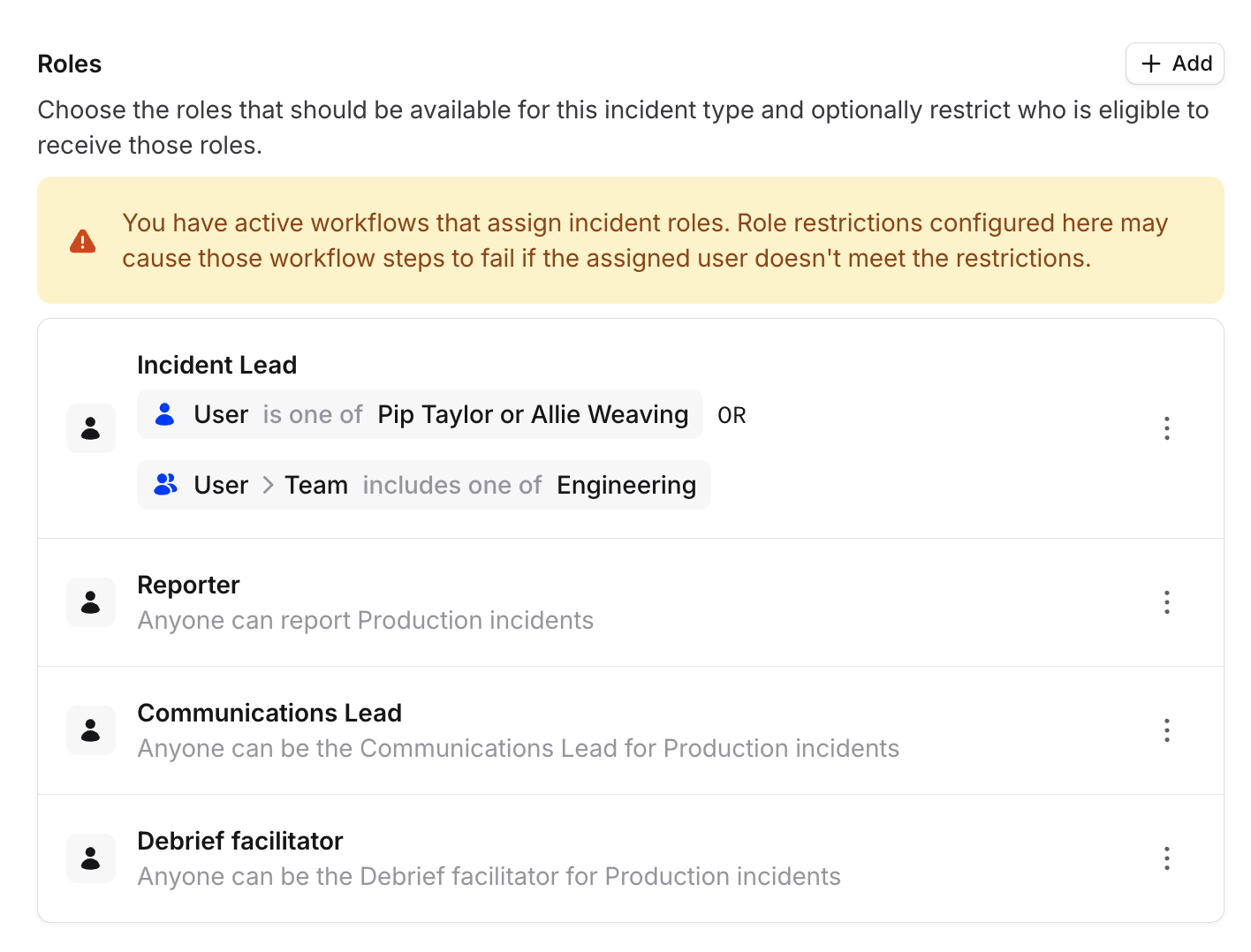 Users who don't meet a role's restrictions will appear disabled in role assignment dropdowns. If someone attempts to assign a restricted user directly, an error message explains why the assignment can't be made.
Restrictions are enforced wherever incident roles are assigned:
* **Slack** - when assigning roles via `/inc role` or the channel announcement buttons
* **Microsoft Teams** - when assigning roles via channel announcement buttons
* **Dashboard** - when picking roles during incident declaration or while managing an active incident
* **Workflows** - any steps that assign roles to ineligible users will cause the workflow to fail
## Grant additional permissions
The **Grant additional permissions** section lists permissions you can grant to users holding that role during incidents of this type. Check the ones you want to grant.
For example, you might grant the Incident Lead permission to manage the incident lifecycle and update fields, while giving the Communications Lead only permission to update the timeline.
Users who don't meet a role's restrictions will appear disabled in role assignment dropdowns. If someone attempts to assign a restricted user directly, an error message explains why the assignment can't be made.
Restrictions are enforced wherever incident roles are assigned:
* **Slack** - when assigning roles via `/inc role` or the channel announcement buttons
* **Microsoft Teams** - when assigning roles via channel announcement buttons
* **Dashboard** - when picking roles during incident declaration or while managing an active incident
* **Workflows** - any steps that assign roles to ineligible users will cause the workflow to fail
## Grant additional permissions
The **Grant additional permissions** section lists permissions you can grant to users holding that role during incidents of this type. Check the ones you want to grant.
For example, you might grant the Incident Lead permission to manage the incident lifecycle and update fields, while giving the Communications Lead only permission to update the timeline.
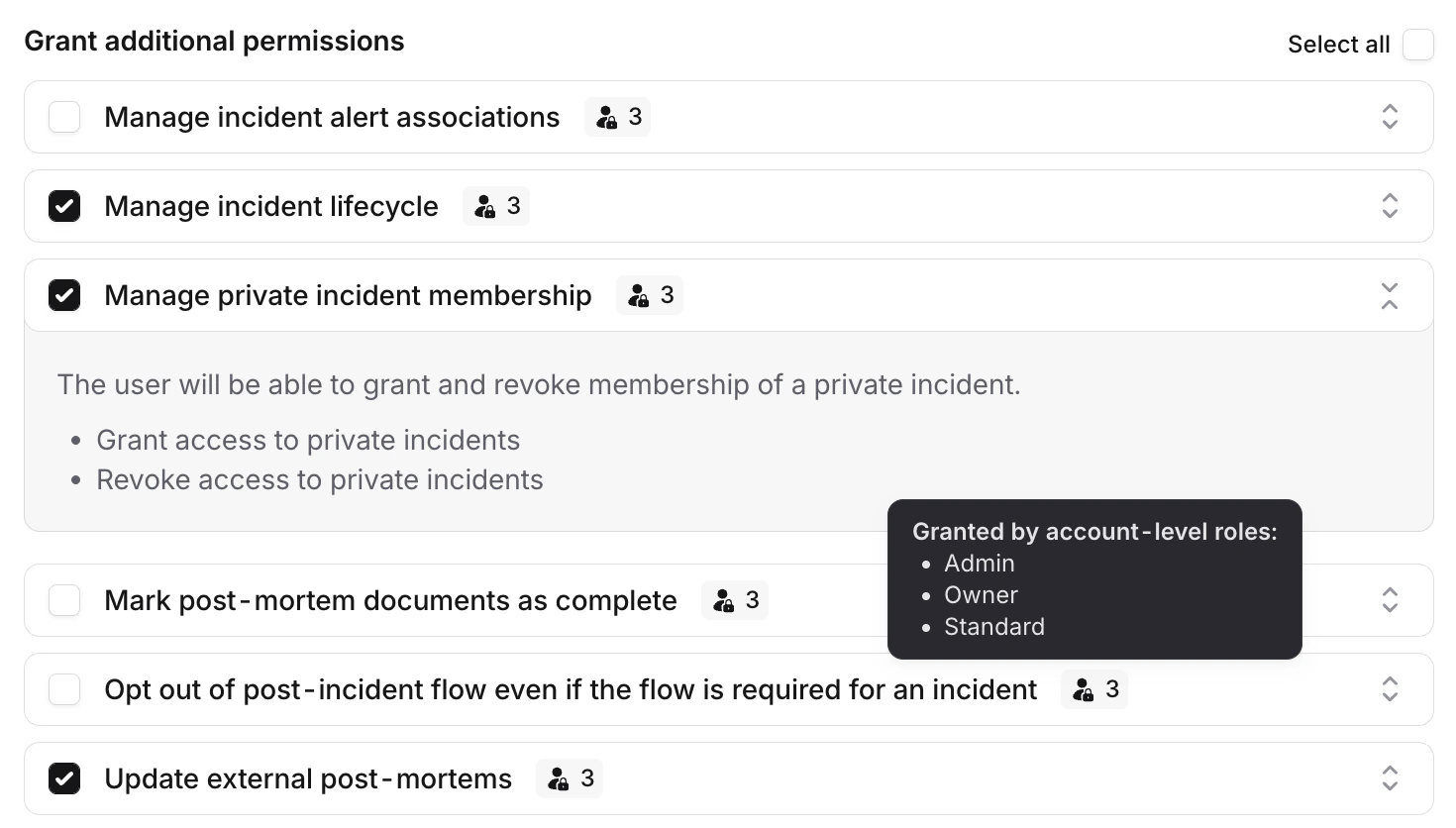 Permissions granted here are layered on top of any that a user already has through their account-level base or custom roles — you can grant additional permissions to an incident role, but not remove ones a user already has. Each permission shows which account-level roles already grant it, so you can see what a user would have access to regardless of their incident role.
If you're moving permissions from account-level roles to incident roles, set up your incident role permissions
**first**, then remove them from the account-level roles. This avoids a gap where users temporarily lose access to
permissions they need.
### All other participants
Below the named roles, there's an **All other participants** entry. Use this to configure permissions for anyone participating in the incident who doesn't hold a specific role.
This is useful for tightening permissions on sensitive incident types — for example, granting permission to update follow-ups or manage post-mortems only to the Incident Lead, while leaving other participants with more limited access.
## Workflows
If you have workflows that assign incident roles, adding restrictions may cause those workflow steps to fail. A workflow step will fail if the user it tries to assign doesn't meet the role's restrictions.
When you have active workflows that assign roles, you'll see a warning banner in the Roles section of your incident type settings reminding you of this.
Review your [workflows](/workflows) after adding role restrictions to make sure the users being assigned still meet the new requirements.
## FAQs
No - role restrictions are configured per incident type. You'll need to set up restrictions individually for each
type where you want them.
The role dropdown will show all users as disabled. Consider broadening your restrictions if this happens.
Permissions granted here are layered on top of any that a user already has through their account-level base or custom roles — you can grant additional permissions to an incident role, but not remove ones a user already has. Each permission shows which account-level roles already grant it, so you can see what a user would have access to regardless of their incident role.
If you're moving permissions from account-level roles to incident roles, set up your incident role permissions
**first**, then remove them from the account-level roles. This avoids a gap where users temporarily lose access to
permissions they need.
### All other participants
Below the named roles, there's an **All other participants** entry. Use this to configure permissions for anyone participating in the incident who doesn't hold a specific role.
This is useful for tightening permissions on sensitive incident types — for example, granting permission to update follow-ups or manage post-mortems only to the Incident Lead, while leaving other participants with more limited access.
## Workflows
If you have workflows that assign incident roles, adding restrictions may cause those workflow steps to fail. A workflow step will fail if the user it tries to assign doesn't meet the role's restrictions.
When you have active workflows that assign roles, you'll see a warning banner in the Roles section of your incident type settings reminding you of this.
Review your [workflows](/workflows) after adding role restrictions to make sure the users being assigned still meet the new requirements.
## FAQs
No - role restrictions are configured per incident type. You'll need to set up restrictions individually for each
type where you want them.
The role dropdown will show all users as disabled. Consider broadening your restrictions if this happens.