> ## Documentation Index
> Fetch the complete documentation index at: https://docs.incident.io/llms.txt
> Use this file to discover all available pages before exploring further.
# Restrict escalation response to a team
> Keep resolving alerts and responding to escalations within the team that owns them
By default, anyone in your organization can resolve any alert and acknowledge, snooze, or cancel any escalation. For most teams that's the right thing: anyone can jump in and help out.
As you grow, you might want tighter control to avoid someone accidentally taking
actions on alerts or escalations outside their remit. In incident.io, you can
restrict acting on alerts and escalations to only the team responsible for them,
so that someone in an unrelated team can't accidentally resolve a page or
silence an escalation they don't understand. This guide walks through setting
that up.
There's one important exception: anyone who's actually paged by an escalation
can always acknowledge or snooze it, so you can never be paged by something
you're not allowed to silence.
## Before you start
You'll need:
* **Teams set up in the catalog**, with the right people as members. See [Getting started with teams](/catalog/teams).
* **Alerts tagged with their owning team.** Team-based permissions use the Team attribute on an alert to decide which team owns it, so your alert sources need to extract a Team attribute. This is the same attribute used for routing (see [Alerts and teams](/alerts/team-routing) if you haven't set this up yet).
If an alert has no Team attribute, it has no owning team, and once you've set up the permissions below, only people with the permission granted globally (such as admins) will be able to act on it. Make sure the alerts you care about are tagged with a team before you start.
The permission you'll be working with is **Take actions on alerts and escalations**. It covers resolving alerts and acknowledging, snoozing, or cancelling escalations. It's granted to everyone through the Standard role by default, and the goal is to move it so it's only granted to each team for the alerts and escalations they own.
## Step 1: Create a team role with the permission
Go to **[Settings → Permissions](https://app.incident.io/~/settings/permissions)**, and on the **Team-level** tab create a team role (or edit an existing one), selecting **Take actions on alerts and escalations**.
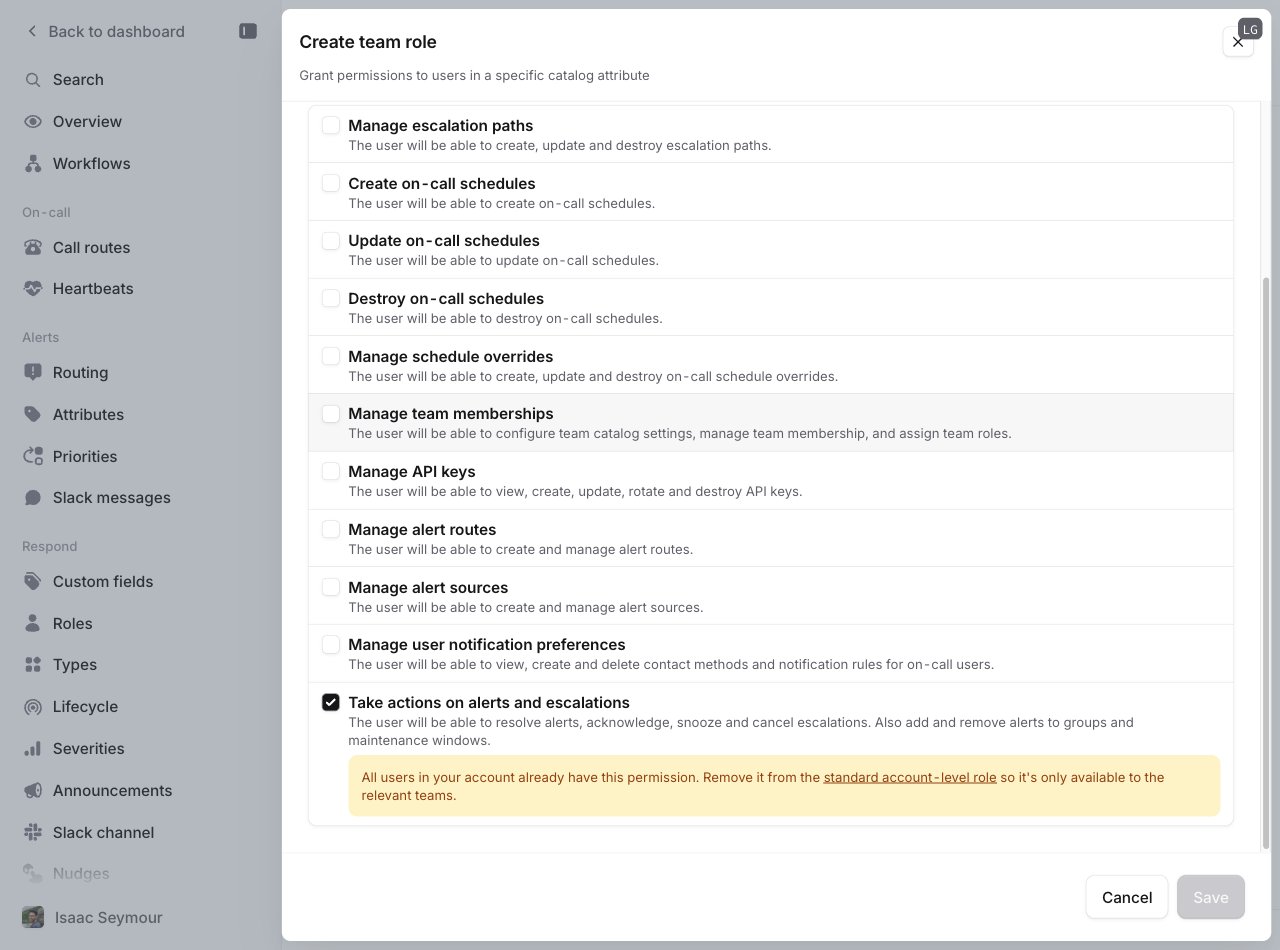 Assign this role to the members of each team who should be able to act on that team's alerts and escalations. You can control who has which role from the **Members** tab of the team's page. See [Team roles](/admin/team-roles) for more on how this works.
## Step 2: Remove the permission from the Standard role
Now that the right teams have the permission, remove it from Standard so it's no longer granted to everyone. Until you do, everyone keeps it globally and the restriction has no effect.
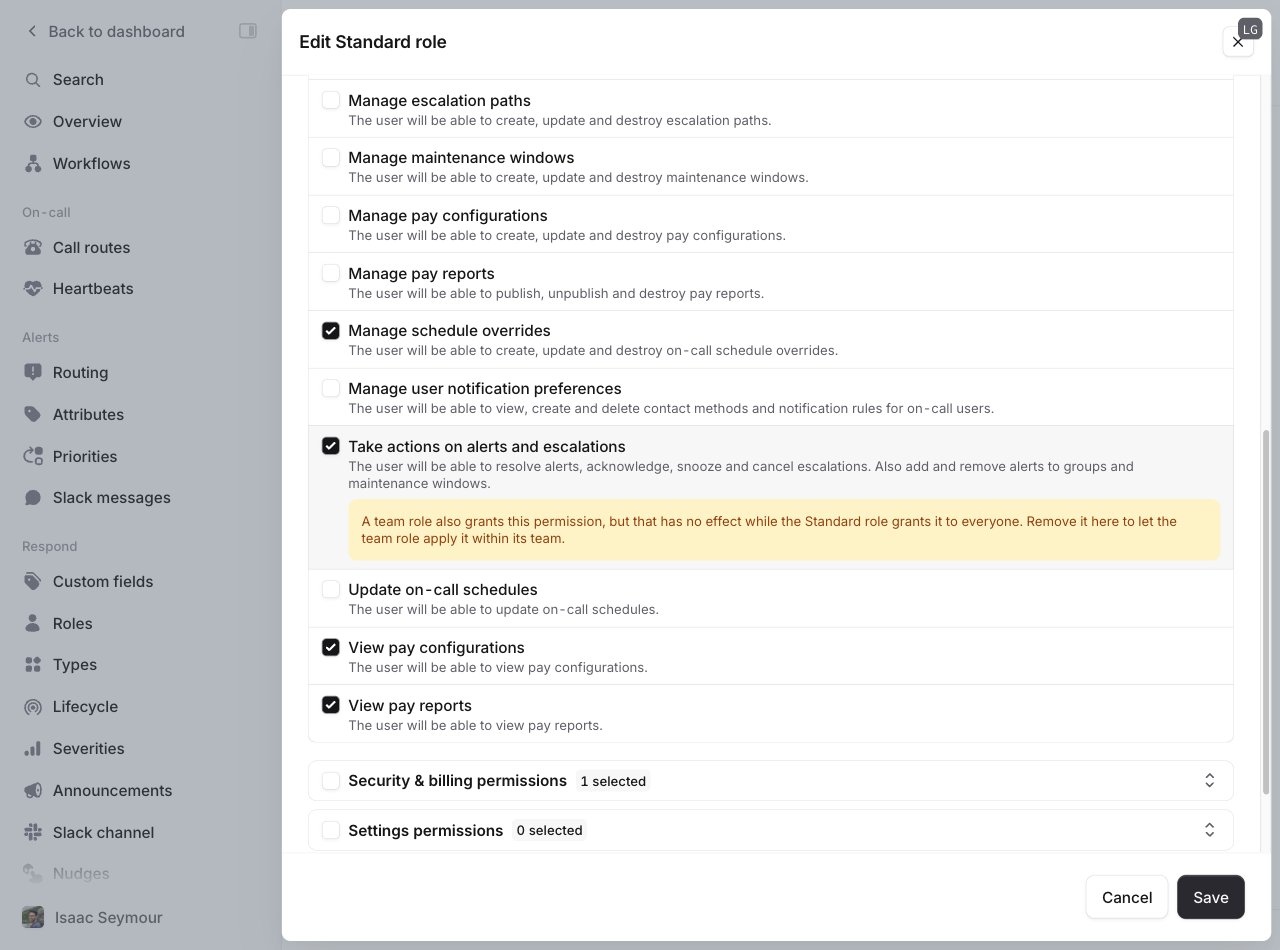
Go to **[Settings → Permissions](https://app.incident.io/~/settings/permissions)**, and on the **Account-level** tab, edit the **Standard** role. Uncheck **Take actions on alerts and escalations**, and save.
Assign this role to the members of each team who should be able to act on that team's alerts and escalations. You can control who has which role from the **Members** tab of the team's page. See [Team roles](/admin/team-roles) for more on how this works.
## Step 2: Remove the permission from the Standard role
Now that the right teams have the permission, remove it from Standard so it's no longer granted to everyone. Until you do, everyone keeps it globally and the restriction has no effect.
Go to **[Settings → Permissions](https://app.incident.io/~/settings/permissions)**, and on the **Account-level** tab, edit the **Standard** role. Uncheck **Take actions on alerts and escalations**, and save.
 ## Step 3: Check it's working
Once it's set up, someone who isn't on the owning team will see the resolve and acknowledge buttons disabled, with a tooltip explaining why and who they can ask instead.
## Step 3: Check it's working
Once it's set up, someone who isn't on the owning team will see the resolve and acknowledge buttons disabled, with a tooltip explaining why and who they can ask instead.
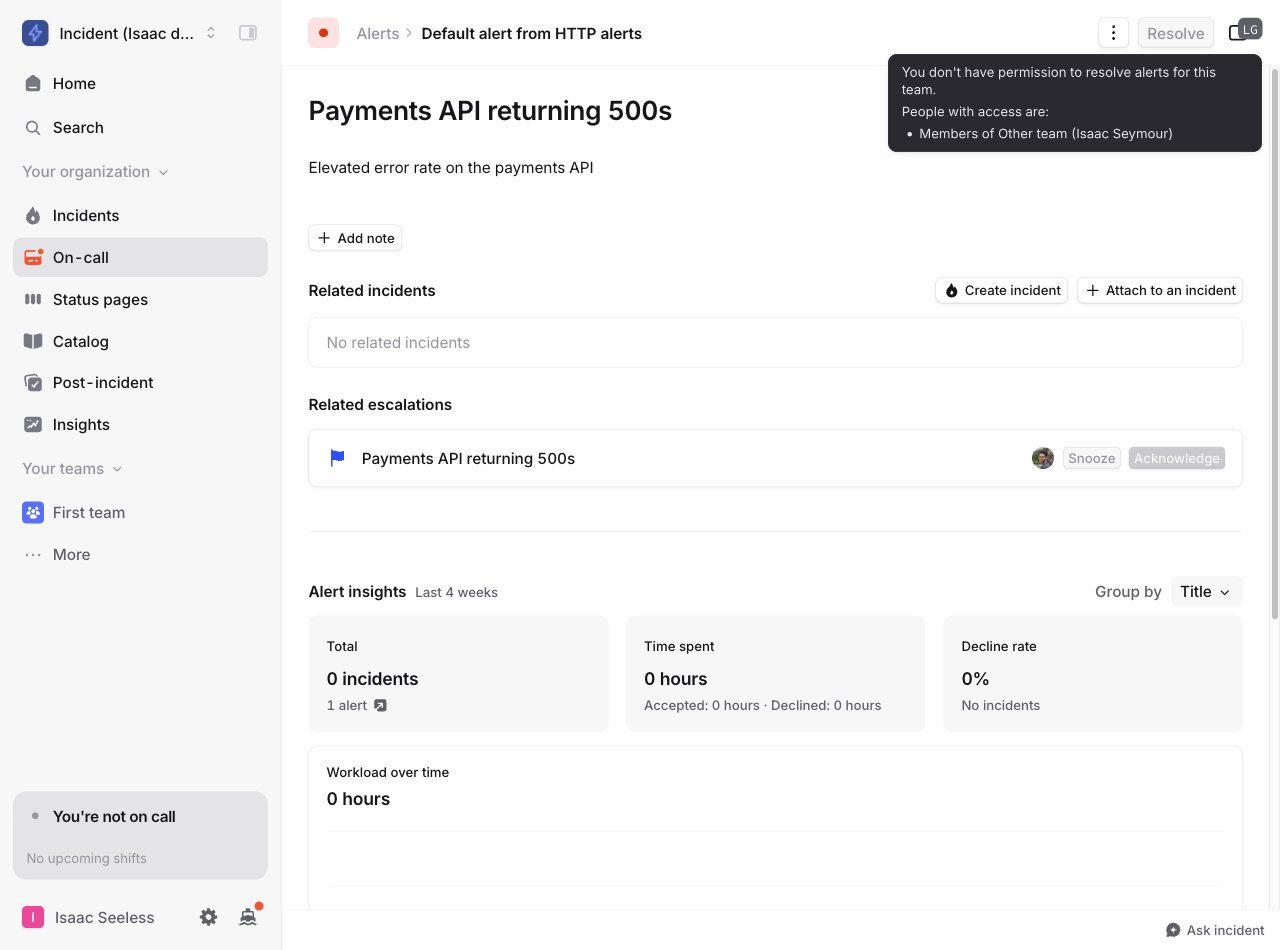 Members of the owning team and anyone paged by an escalation will be able to act as normal.
## FAQs
They have no owning team, so once the permissions are restricted, only people who hold the permission globally (such
as admins) can act on them. If you want a team to manage these alerts, make sure the alert source extracts a Team
attribute. See [Alerts and teams](/alerts/team-routing).
Yes. Anyone notified by an escalation can always acknowledge or snooze it, regardless of team membership. This makes
sure a misrouted page can never reach someone who then can't silence it.
Ownership falls back to the escalation path the escalation was sent to. It can be responded to by:
* Anyone who was paged
* Anyone who holds the permission globally
* Members of the team that owns the escalation path, with the permission granted to their team
No. Alerts are still auto-resolved as normal, regardless of who triggers it. These permissions only govern people
resolving alerts directly.
Yes. Anyone who holds the permission globally can act on any alert or escalation. This is useful for keeping a small
set of administrators who can step in across teams.
Members of the owning team and anyone paged by an escalation will be able to act as normal.
## FAQs
They have no owning team, so once the permissions are restricted, only people who hold the permission globally (such
as admins) can act on them. If you want a team to manage these alerts, make sure the alert source extracts a Team
attribute. See [Alerts and teams](/alerts/team-routing).
Yes. Anyone notified by an escalation can always acknowledge or snooze it, regardless of team membership. This makes
sure a misrouted page can never reach someone who then can't silence it.
Ownership falls back to the escalation path the escalation was sent to. It can be responded to by:
* Anyone who was paged
* Anyone who holds the permission globally
* Members of the team that owns the escalation path, with the permission granted to their team
No. Alerts are still auto-resolved as normal, regardless of who triggers it. These permissions only govern people
resolving alerts directly.
Yes. Anyone who holds the permission globally can act on any alert or escalation. This is useful for keeping a small
set of administrators who can step in across teams.