> ## Documentation Index
> Fetch the complete documentation index at: https://docs.incident.io/llms.txt
> Use this file to discover all available pages before exploring further.
# IP allowlists
> Restrict access to your incident.io workspace by IP address
Once enabled, all authenticated requests to your [incident.io](http://incident.io/) workspace must originate from an allowed IP.
This includes:
* Dashboard usage
* Public API access
* Mobile app traffic
This *excludes*:
* Public alert ingestion endpoints
* Public webhook endpoints used by third parties
Requests from IPs outside the configured allowlist will receive a 403 response.
```json theme={null}
{
"type": "resource_forbidden",
"status": 403,
"request_id": "g329NK8-",
"errors": [
{
"code": "forbidden",
"message": "Unauthorized"
}
]
}
```
## Permissions
In order for a user to manage the IP allowlist, they must have the "Manage security settings" scope. This is configured in [Settings > Users > Roles](https://app.incident.io/~/settings/users/roles).
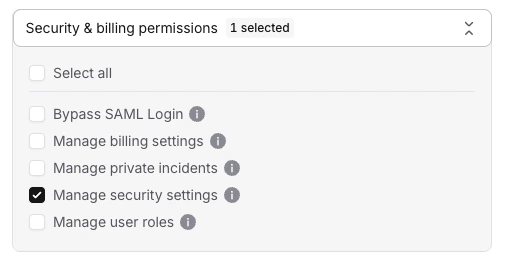 Similarly, in order for an API key to manage the IP allowlist, it must have the "Manage security settings" permission.
## Configuring your allowlist
Navigate to [Settings > Security](https://app.incident.io/~/settings/security) and scroll down to "IP allowlists".
Click "Manage" to open the drawer, and enter your selection of IPv4 addresses and/or CIDR IP prefixes.
Similarly, in order for an API key to manage the IP allowlist, it must have the "Manage security settings" permission.
## Configuring your allowlist
Navigate to [Settings > Security](https://app.incident.io/~/settings/security) and scroll down to "IP allowlists".
Click "Manage" to open the drawer, and enter your selection of IPv4 addresses and/or CIDR IP prefixes.
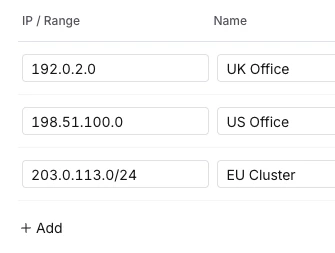 Your current IP will be pre-filled in the list. Any request to modify an enabled allowlist will be rejected if it does not contain the requestor's IP, to prevent lockout.
Once enabled, the allowlist will immediately become active. Ensure that your allowlist is complete before enabling it.
To enable the allowlist, enable the toggle and click "Save"
Your current IP will be pre-filled in the list. Any request to modify an enabled allowlist will be rejected if it does not contain the requestor's IP, to prevent lockout.
Once enabled, the allowlist will immediately become active. Ensure that your allowlist is complete before enabling it.
To enable the allowlist, enable the toggle and click "Save"
 ## Disabling the allowlist
Use the same toggle as before to disable your allowlist, and click "Save".
This will allow requests from all IPs to access your [incident.io](http://incident.io/) workspace.
Your list of IPs and CIDRs will remain available for future use.
## Disabling the allowlist
Use the same toggle as before to disable your allowlist, and click "Save".
This will allow requests from all IPs to access your [incident.io](http://incident.io/) workspace.
Your list of IPs and CIDRs will remain available for future use.