> ## Documentation Index
> Fetch the complete documentation index at: https://docs.incident.io/llms.txt
> Use this file to discover all available pages before exploring further.
# Incident timestamps
> Validate timestamp ordering to prevent incorrect durations and confusing timelines
Timestamps are a great way to keep track of key moments within your incidents. Within incident.io we provide several default timestamps for you and allow you to create additional timestamps - both automatic and manually filled.
In the heat of the moment, it can be hard to keep track of exactly when everything happened though, perhaps you made a mistake reading a log or pasted the wrong thing when manually entering them. Suddenly your statistics make no sense, you have a negative duration for your resolution time, or your post-mortem timeline just makes no sense.
Validation can help save you from confusing timelines and incorrect metrics.
## Enable validation on a duration metric
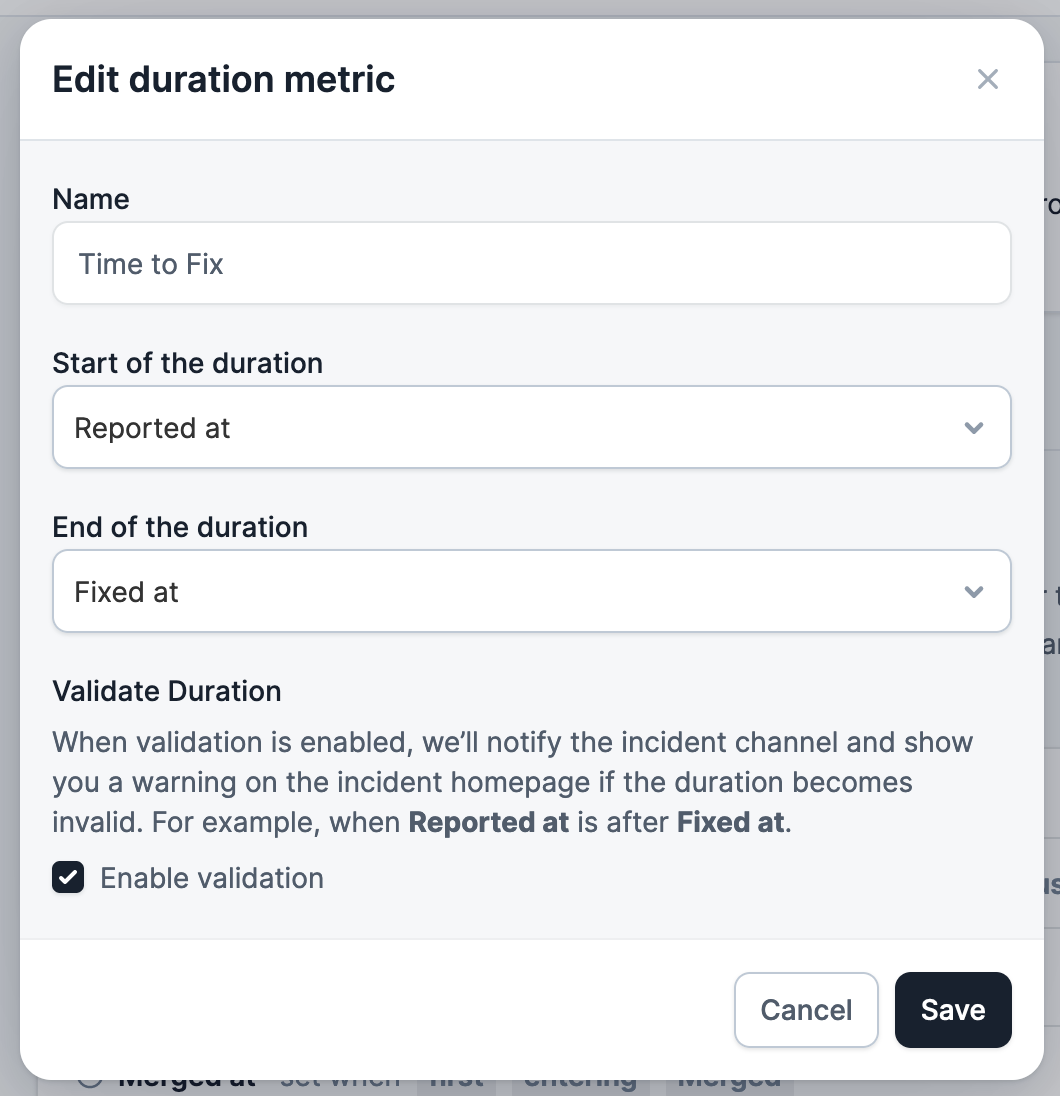
Duration metrics define a relationship between 2 timestamps by having a start and an end. You can use a duration metric to enforce that relationship in your timestamps by turning on validation.
[Navigate to your settings page and the timestamps tab](https://app.incident.io/~/settings/lifecycle?tab=timestamps), create a new metric or select an existing one to edit. Select the timestamps you wish to validate and that they are in the order you want to enforce.
Make sure to tick **Enable validation** and then click save.
 ## Validation when editing timestamps
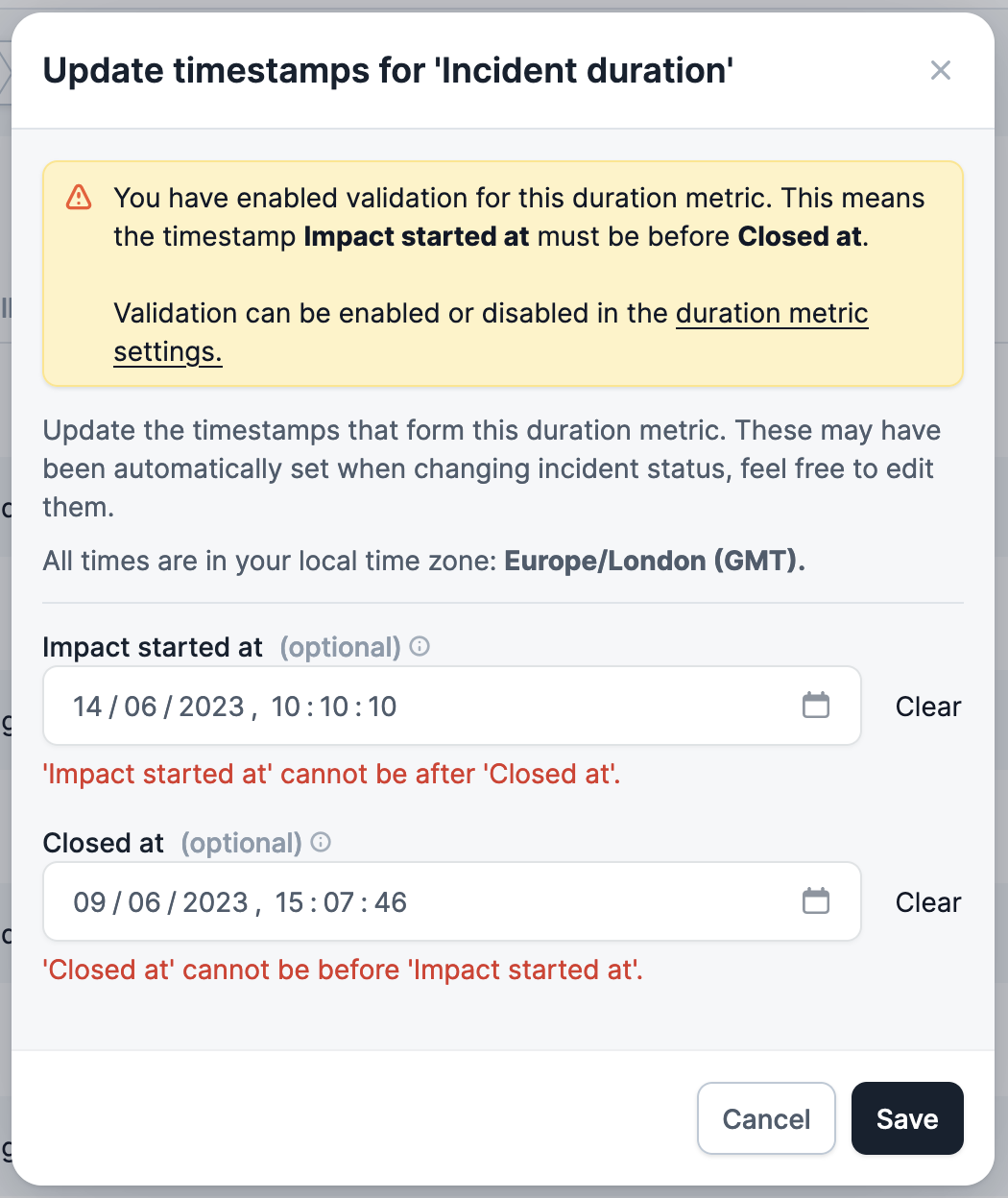
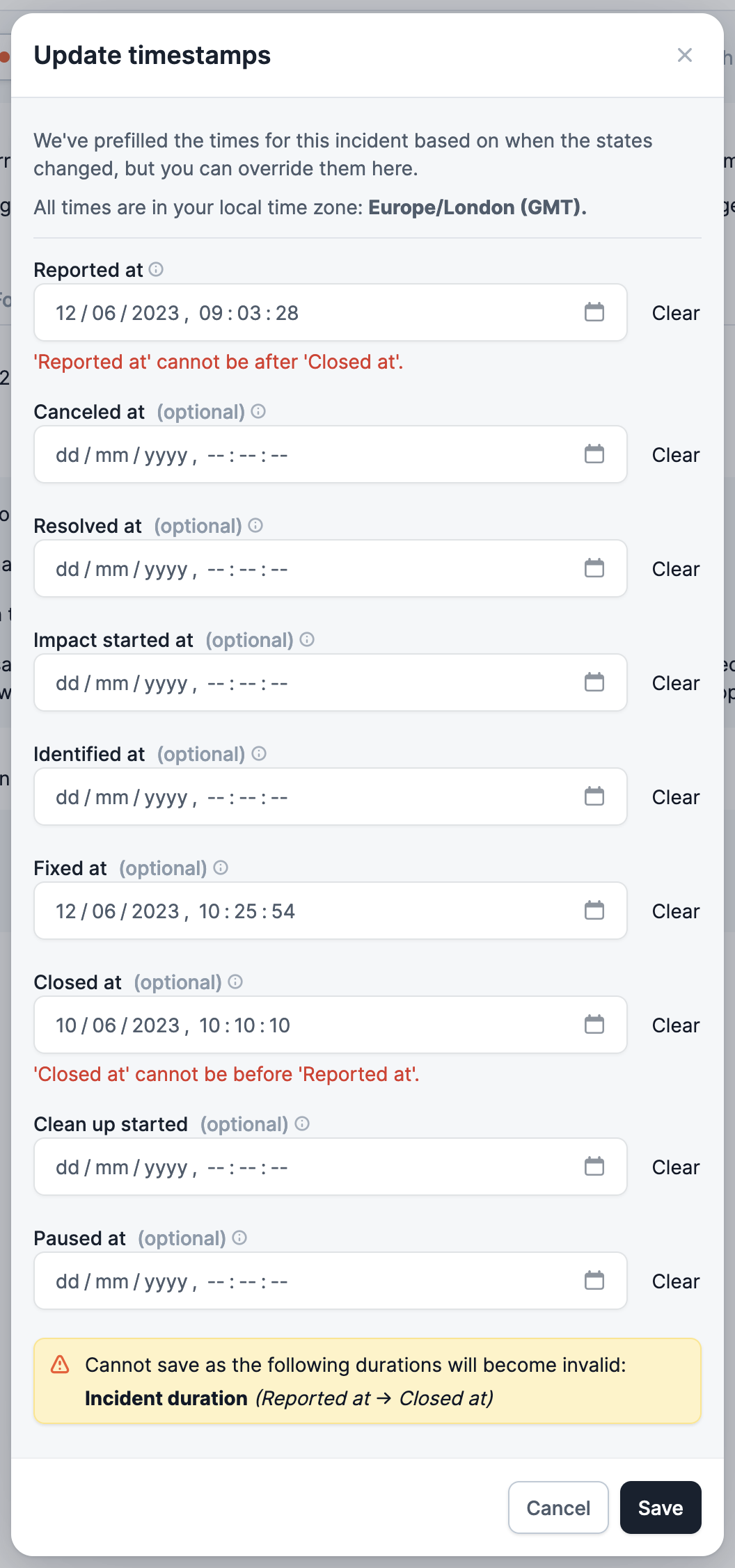
Now that validation is enabled for that duration metric when you go to edit a timestamp in the dashboard and select the wrong date - you will be given a clear warning preventing you from submitting it.
## Validation when editing timestamps
Now that validation is enabled for that duration metric when you go to edit a timestamp in the dashboard and select the wrong date - you will be given a clear warning preventing you from submitting it.
 ## Warning when resolving incidents
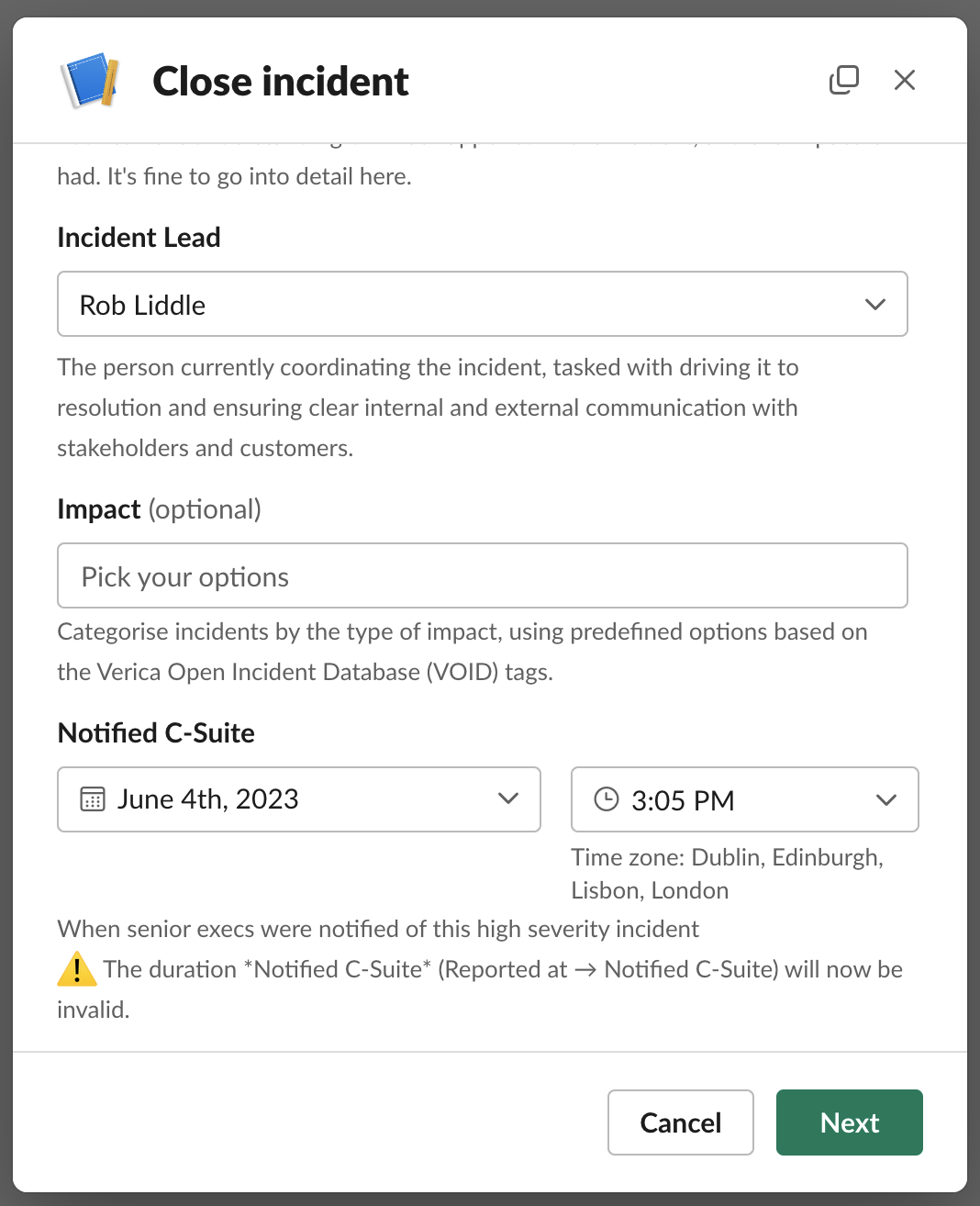
You may have also configured your timestamps to be required when marking an incident as resolved. The values you enter here may also result in invalid durations however as we do not want to increase unnecessary friction we warn users - and notify them within the incident channel (see below) to prompt someone to fix it.
## Warning when resolving incidents
You may have also configured your timestamps to be required when marking an incident as resolved. The values you enter here may also result in invalid durations however as we do not want to increase unnecessary friction we warn users - and notify them within the incident channel (see below) to prompt someone to fix it.
 ## Invalid durations notifications
Some timestamps are automatically updated when an incident changes statuses, i.e. we will set the timestamp "Closed at" when an incident is closed. Depending on how you have configured your timestamps this automatic update may happen more than once (for example reopening and closing again an incident).
This means that over time some of the timestamps you might have manually set might now be invalid and no longer make sense.
We will highlight invalid timestamps in the details of the incident:
## Invalid durations notifications
Some timestamps are automatically updated when an incident changes statuses, i.e. we will set the timestamp "Closed at" when an incident is closed. Depending on how you have configured your timestamps this automatic update may happen more than once (for example reopening and closing again an incident).
This means that over time some of the timestamps you might have manually set might now be invalid and no longer make sense.
We will highlight invalid timestamps in the details of the incident:
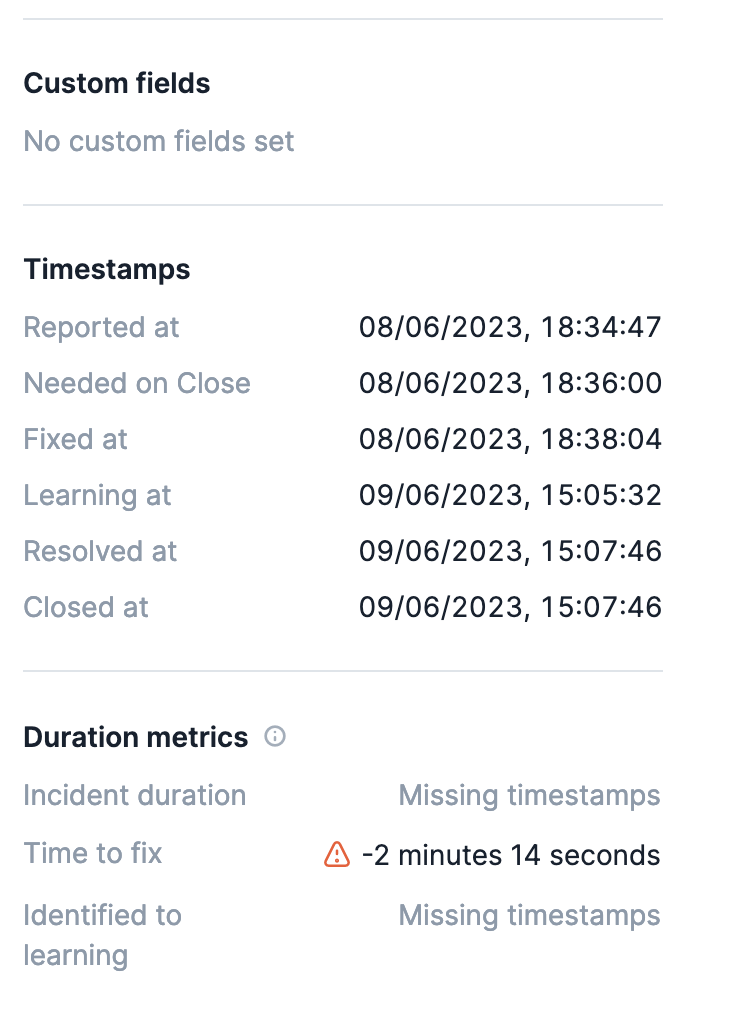 In addition to this and to help alert you when automatic changes have made a timestamp invalid we will post a message within the incident channel providing a helpful link to edit the duration directly.
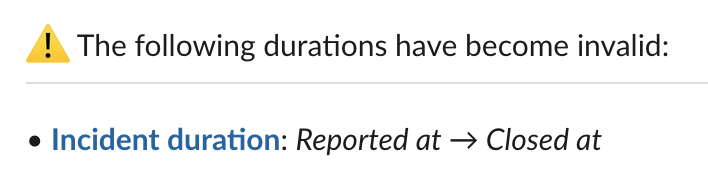 Clicking this link takes you directly to an edit duration timestamps modal. From here you can quickly alter the dates and save.