> ## Documentation Index
> Fetch the complete documentation index at: https://docs.incident.io/llms.txt
> Use this file to discover all available pages before exploring further.
# Announcements
> Control what your incident announcement posts look like with templates, and where they get posted with rules
Announcements keep everyone informed by sharing incidents in a Slack or Microsoft Teams channel.
You don't need to set anything up to get started. Every account comes with a default template and a default rule, so incidents are announced automatically from day one. This page is about customizing that behaviour, which comes in two parts:
* **Templates** control what your announcement posts look like: the fields, actions, and emojis that appear in the post.
* **Rules** control which incidents get announced, and where.
To customize either, go to [Settings → Announcements](https://app.incident.io/~/settings/announcements).
 ## Templates
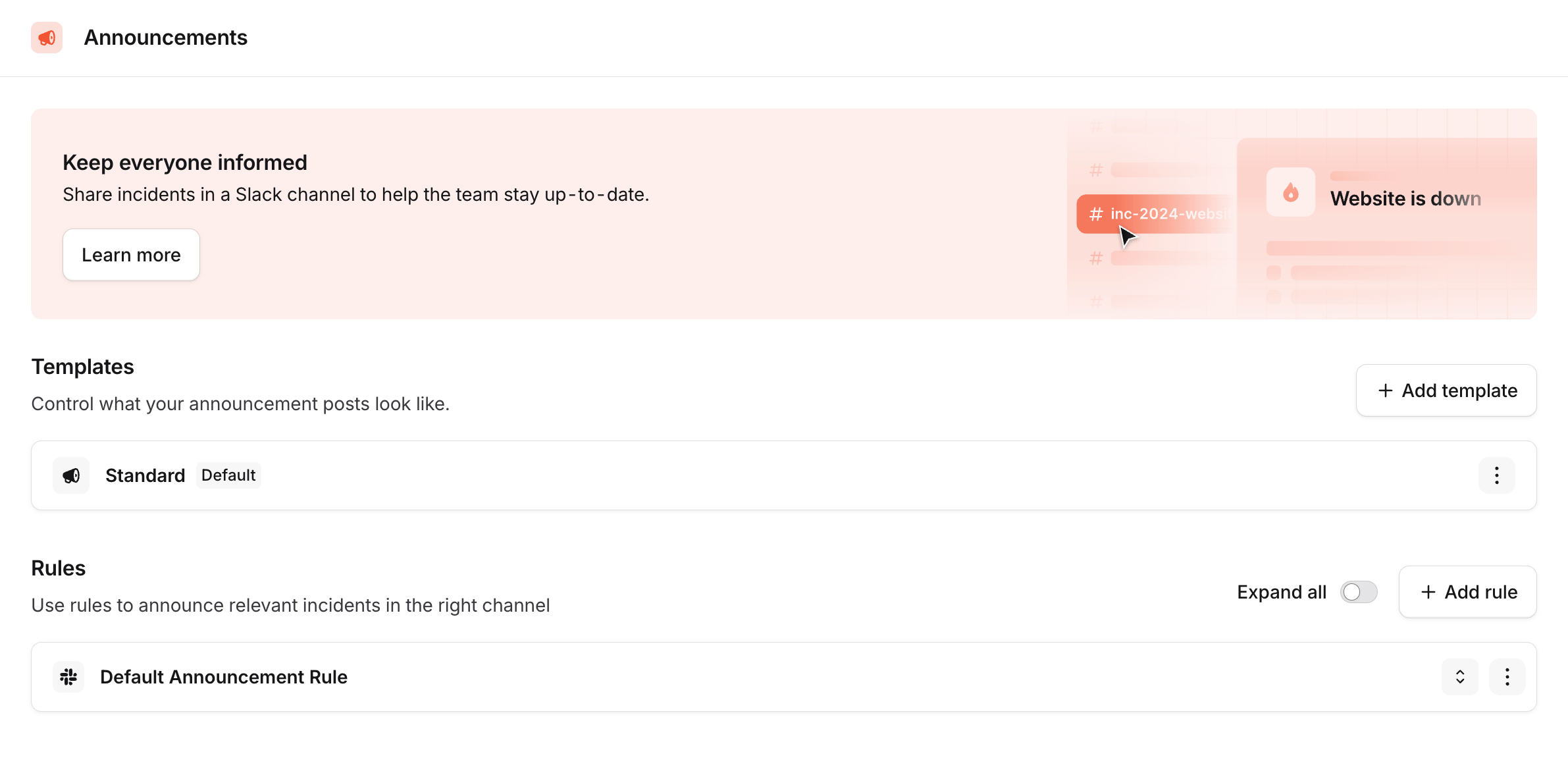
A template controls what an announcement post looks like. Every account starts with a single template, which is marked as your **Default**. This is the template used whenever a rule (or workflow) doesn't specify one.
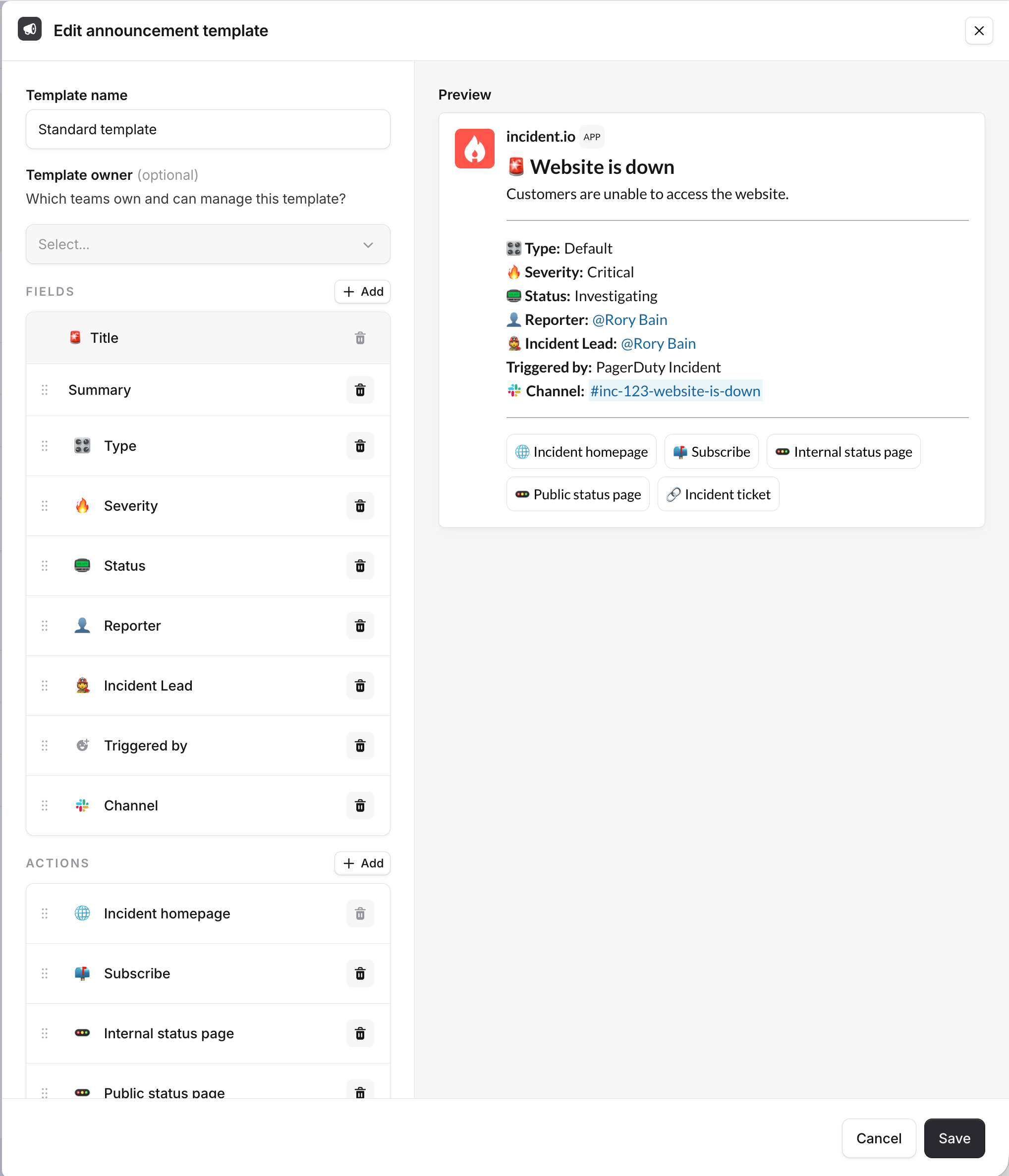
Click a template to edit it. You can add or remove fields and actions, reorder them, and configure which emojis appear next to each field, with a live preview of the post as you go.
## Templates
A template controls what an announcement post looks like. Every account starts with a single template, which is marked as your **Default**. This is the template used whenever a rule (or workflow) doesn't specify one.
Click a template to edit it. You can add or remove fields and actions, reorder them, and configure which emojis appear next to each field, with a live preview of the post as you go.
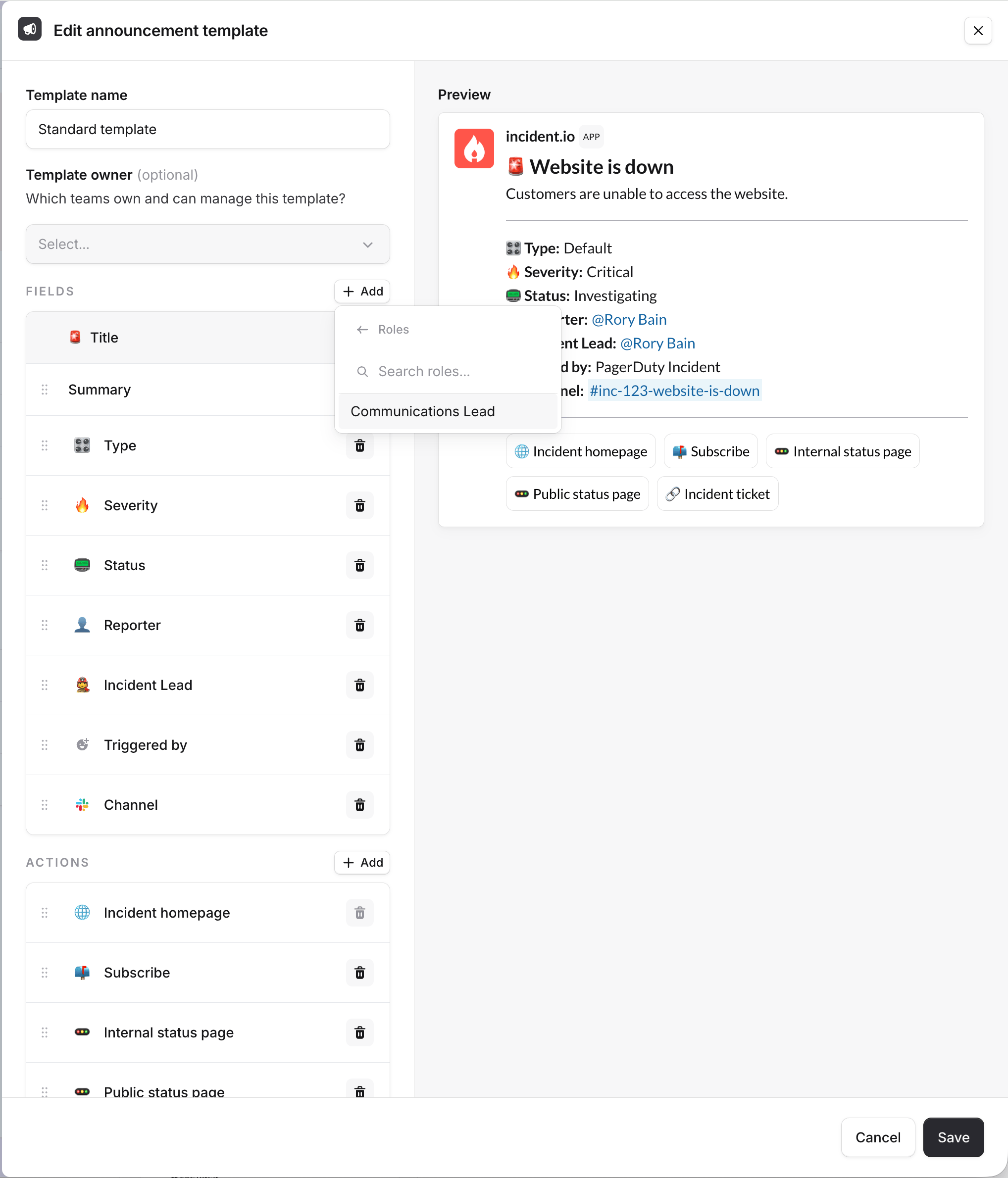
 To add a field or action, click **Add** and pick from the list.
 ### Using more than one template
You're not limited to a single template. Click **Add template** to create additional templates. This is useful when you want variations for specific purposes, such as a stripped-back post for a particular audience, or a template paired with a specific [announcement rule](#rules) so different incidents are announced differently.
You can also choose a template in the **Post an incident announcement** step of a [workflow](/workflows). Leaving it
blank falls back to your default template.
## Rules
Rules control which incidents get announced, and where. By default, we announce every new incident and its updates in a single channel. In Slack, that's your `#incidents` channel.
Click a rule to edit it. You can change which channel it posts to, add conditions so it only fires for specific incidents (for example, announcing critical incidents in `#customer-support` too), and pick which template it uses.
### Using more than one template
You're not limited to a single template. Click **Add template** to create additional templates. This is useful when you want variations for specific purposes, such as a stripped-back post for a particular audience, or a template paired with a specific [announcement rule](#rules) so different incidents are announced differently.
You can also choose a template in the **Post an incident announcement** step of a [workflow](/workflows). Leaving it
blank falls back to your default template.
## Rules
Rules control which incidents get announced, and where. By default, we announce every new incident and its updates in a single channel. In Slack, that's your `#incidents` channel.
Click a rule to edit it. You can change which channel it posts to, add conditions so it only fires for specific incidents (for example, announcing critical incidents in `#customer-support` too), and pick which template it uses.
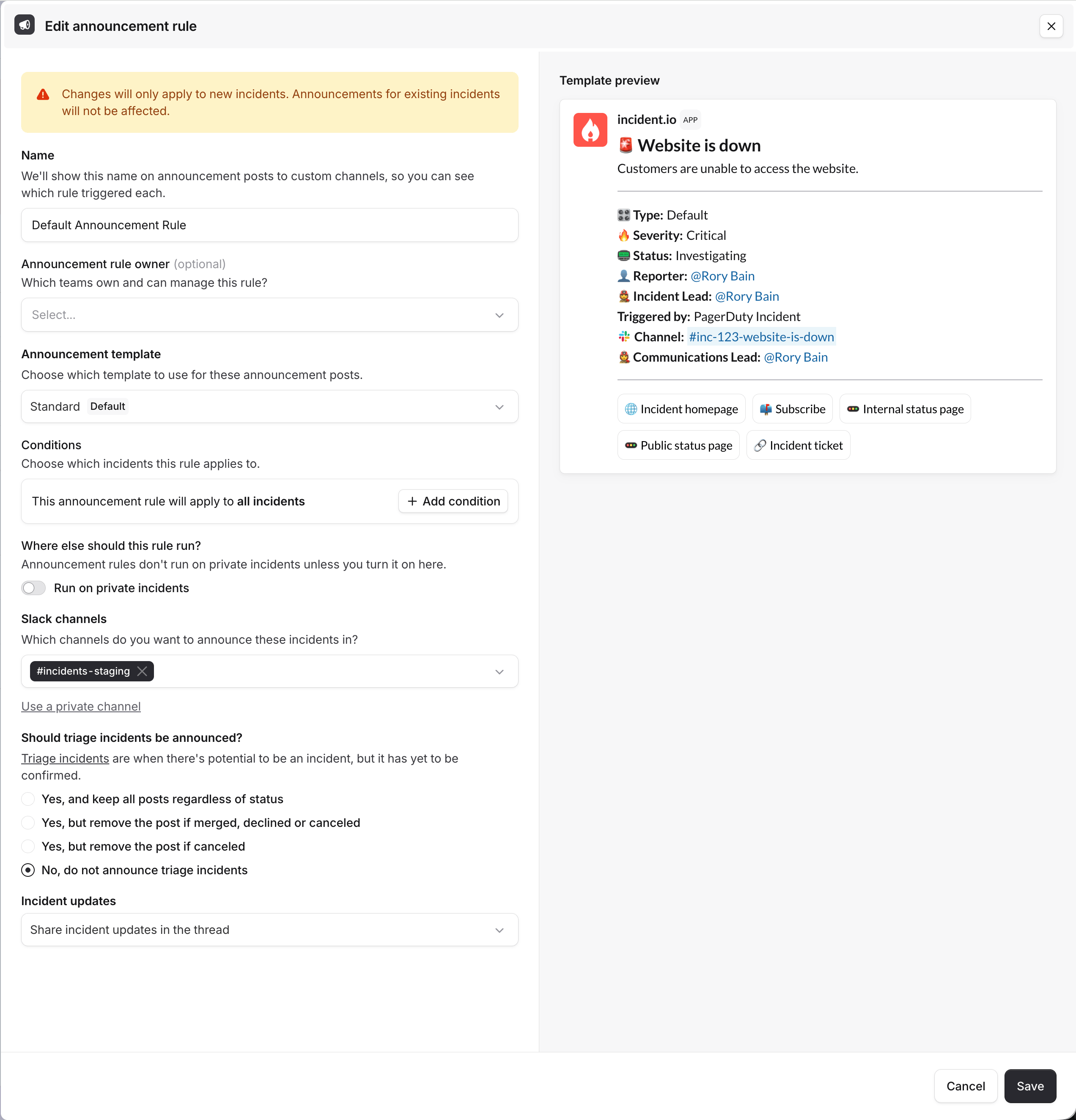 Click **Add rule** to create a new rule, for instance to call out specific incident types or severities in a separate channel.
Don't delete whichever channel you're using for default announcements. On Slack, if you already had an `#incidents`
channel when you installed our app, we'll have created a channel called `#incident-io-incidents` instead, which you
can rename to whatever you'd like.
For more on redirecting announcements to a different channel, see [Announcement channels](/incidents/change-announcements).
## Team ownership
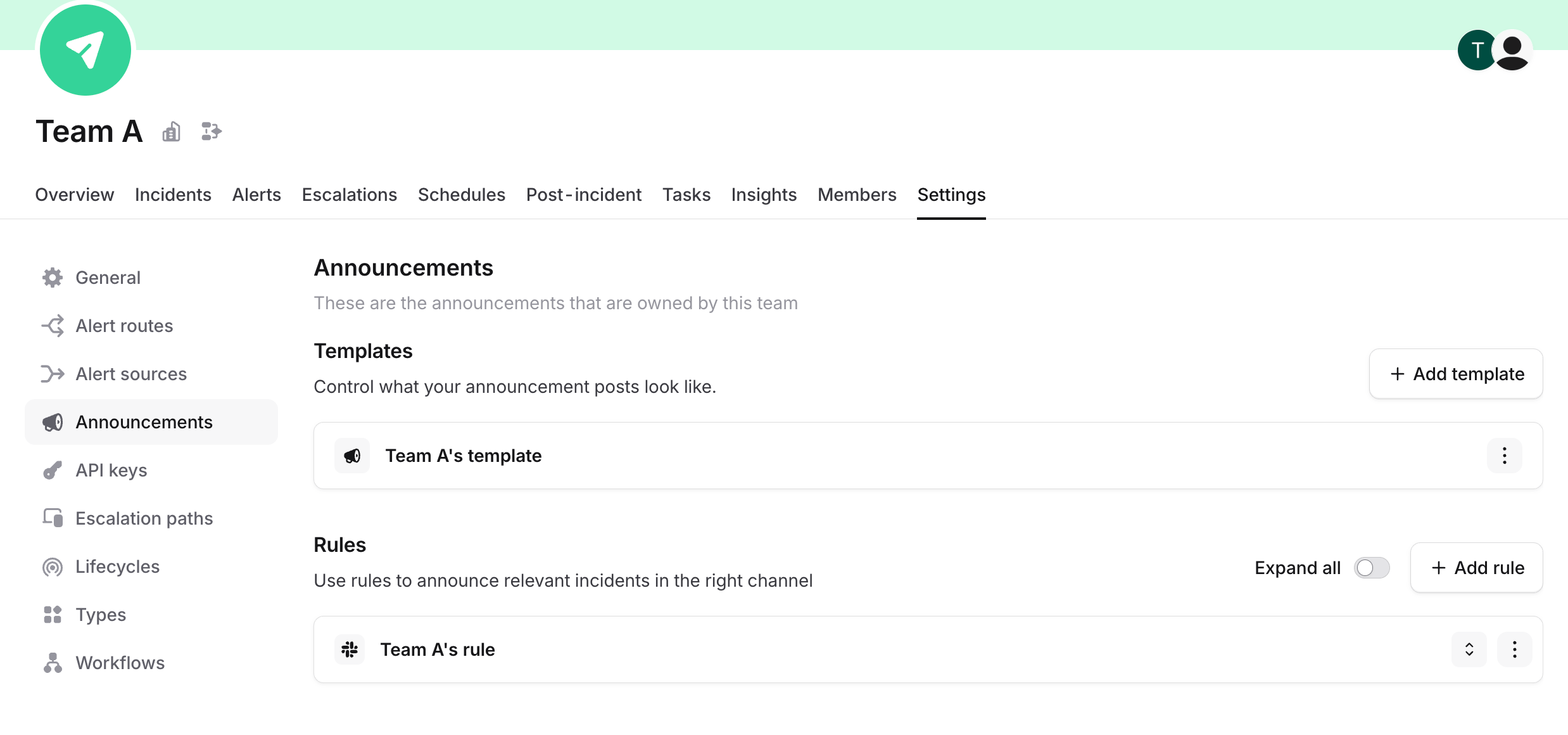
You can give one or more teams ownership of a template or a rule:
* **Templates**: set the **Template owner** field when you create or edit a template. Your default template can't be team-owned, and choosing which template is the organization default stays an account-level action.
* **Rules**: set the **Announcement rule owner** field in the rule's create or edit drawer.
Ownership assigns the template or rule to a team. If your organization uses [team roles](/admin/team-roles), that ownership also controls who can manage it: only members of an owning team with the **Manage announcements** permission, or anyone who holds it account-wide, can make changes, and reassigning ownership always needs that permission granted account-wide. See [Team resources](/catalog/team-resources) for what ownership means more generally.
Each team can see the templates and rules they own on their own **Settings → Announcements** page.
Click **Add rule** to create a new rule, for instance to call out specific incident types or severities in a separate channel.
Don't delete whichever channel you're using for default announcements. On Slack, if you already had an `#incidents`
channel when you installed our app, we'll have created a channel called `#incident-io-incidents` instead, which you
can rename to whatever you'd like.
For more on redirecting announcements to a different channel, see [Announcement channels](/incidents/change-announcements).
## Team ownership
You can give one or more teams ownership of a template or a rule:
* **Templates**: set the **Template owner** field when you create or edit a template. Your default template can't be team-owned, and choosing which template is the organization default stays an account-level action.
* **Rules**: set the **Announcement rule owner** field in the rule's create or edit drawer.
Ownership assigns the template or rule to a team. If your organization uses [team roles](/admin/team-roles), that ownership also controls who can manage it: only members of an owning team with the **Manage announcements** permission, or anyone who holds it account-wide, can make changes, and reassigning ownership always needs that permission granted account-wide. See [Team resources](/catalog/team-resources) for what ownership means more generally.
Each team can see the templates and rules they own on their own **Settings → Announcements** page.
 ## FAQs
Not much. Templates and rules are configured in the same place and work the same way on both platforms.
The main difference is the default announcement channel: on Slack it's your `#incidents` channel, whereas on Microsoft Teams it's the General channel of your Incidents team. See [Announcement channels](/incidents/change-announcements) for more.
The announcement builder does not currently support free-form text or @mentioning Slack user groups directly in the announcement post.
If you need to notify a specific team when an incident is announced, consider these alternatives:
* **Announce to the team's Slack channel**: Use a [rule](#rules) to post directly to the relevant team's channel.
* **Invite the user group via a workflow**: Set up a [workflow](/workflows) to automatically invite the Slack user group to the incident channel.
* **Auto-subscribe to certain incidents**: Encourage folks to [auto-subscribe](/incidents/subscribing) to incidents belonging to their team.
## FAQs
Not much. Templates and rules are configured in the same place and work the same way on both platforms.
The main difference is the default announcement channel: on Slack it's your `#incidents` channel, whereas on Microsoft Teams it's the General channel of your Incidents team. See [Announcement channels](/incidents/change-announcements) for more.
The announcement builder does not currently support free-form text or @mentioning Slack user groups directly in the announcement post.
If you need to notify a specific team when an incident is announced, consider these alternatives:
* **Announce to the team's Slack channel**: Use a [rule](#rules) to post directly to the relevant team's channel.
* **Invite the user group via a workflow**: Set up a [workflow](/workflows) to automatically invite the Slack user group to the incident channel.
* **Auto-subscribe to certain incidents**: Encourage folks to [auto-subscribe](/incidents/subscribing) to incidents belonging to their team.